Set up Elements
Copy your key, allow your website, add the script. Your first blocks are on your website within minutes.
For Elements you need two things from the dashboard: your publishable key and the approval of your website. Owners and admins can set this up.
Step by step
Open Integrations and scroll to the Elements card.
- Under Allowed websites, add your website, for example
https://www.example.com, and click Add. - Under Example, choose what you'd like to start with.
- Under Code for your website, click Copy and paste the code into your website.
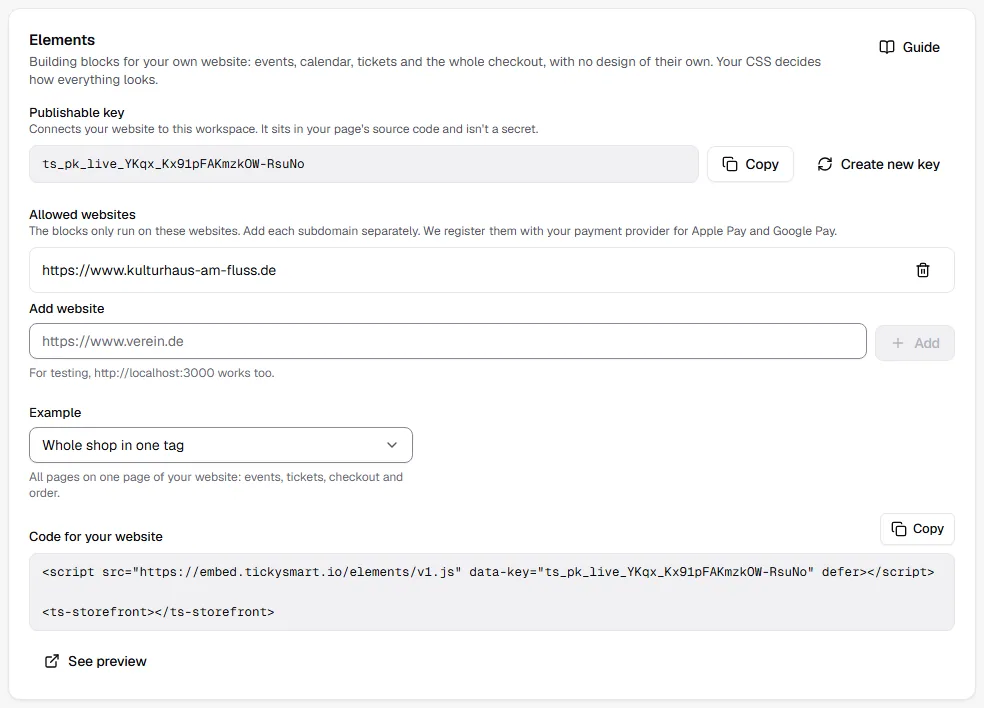
That's all it takes. Reload your page and the blocks show your events.
Adding the script
The script goes once on every page with blocks, ideally in the <head>:
<script src="https://embed.tickysmart.io/elements/v1.js" data-key="ts_pk_live_…" defer></script>
You then place the tags wherever you like. It doesn't matter whether the script comes before or after the tags.
The publishable key
Connects your website to this workspace. It sits in your page's source code and isn't a secret. Your secret API key, on the other hand, never belongs in a website.
Create new key gives you a new key. The old one stops working right away, and pages using it stay empty until you've replaced it there. You only need this if someone uses your key on a page where it doesn't belong and you can't remove it there.
Allowed websites
This list is the actual protection: TickySmart only accepts browser requests from these websites. That way nobody can build a fake shop with your data.
- Add each address separately.
example.comandwww.example.comare two entries, and wildcards like*.example.comdon't exist. - An address must start with
https. Only for testing on your computer doeshttp://localhost:3000work too. - For Apple Pay and Google Pay, we automatically register each address with your payment provider.
- You can add up to 20 addresses. Changes apply within 30 seconds at most.
Nothing shows up?
Open your browser's developer tools (F12) and check the console:
| Message in the console | What to do |
|---|---|
| "Steht diese Webseite … unter Erlaubte Webseiten?" | Add the exact address from the address bar under Allowed websites, with or without www as shown there. |
| "Der Schlüssel … ist ungültig" | The key was renewed or copied incorrectly. Copy it again. |
| "Am Script fehlt data-key" | Add the key to the script. |
| Blocked by Content Security Policy | Your website limits third-party scripts. See Tracking, legal and security. |
No message but an empty block? Many blocks only show something when there's content. <ts-event-video>, for example, stays empty if your event has no video.
Common questions
Can I test it first?
Yes. Add http://localhost:3000 (or your port) and build the page on your computer. See preview also shows you the blocks without any page of your own.
Do I need to change the code after an update?
No. The script stays at the same address and gets new features by itself. Bigger changes that could affect existing pages would come at a new address (v2).