Add-on and group tickets
Sell tickets such as parking or cloakroom only together with a main ticket, and set up group tickets for several people.
Some tickets only make sense together with another one, such as a parking ticket for a concert. Others cover several people at once, such as a family ticket. You set up both in the Buyers section of a ticket type.
Add an add-on ticket
First create the main ticket, for example "Standing". Then:
- Add a new ticket type, such as "Parking", with a price and quota.
- Expand Buyers and choose the main ticket under Add-on to.
- Under How many, choose how many add-ons there are per main ticket.
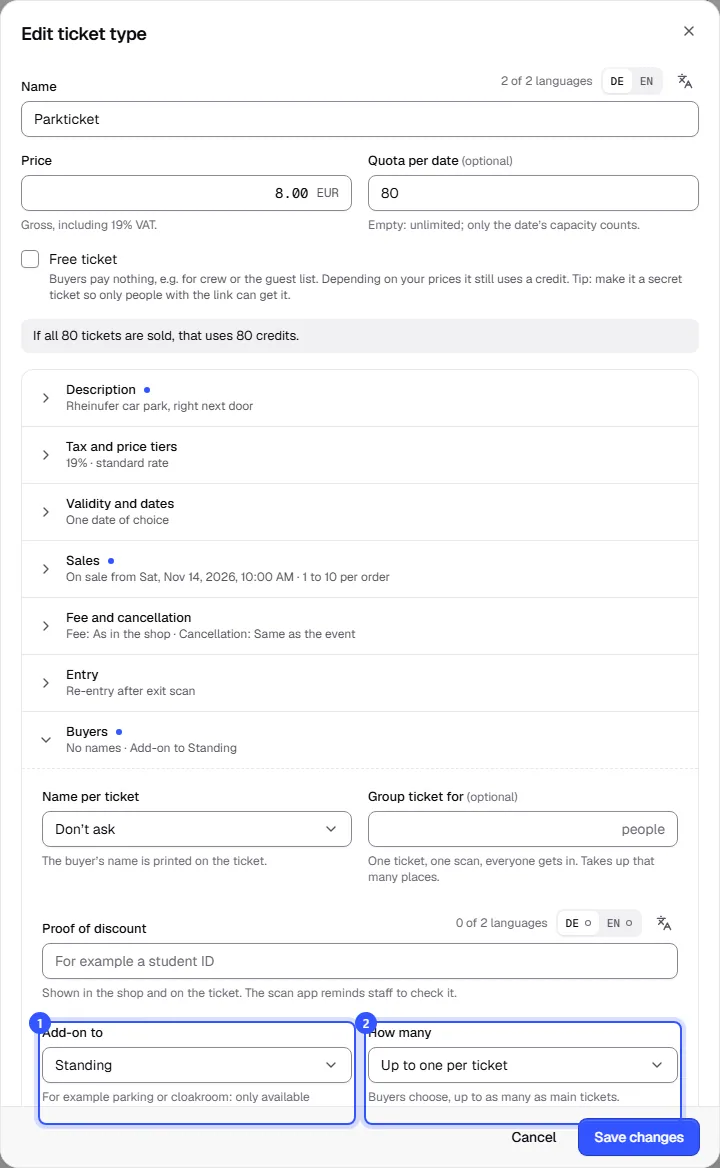
| How many | Meaning |
|---|---|
| Up to one per ticket | Buyers choose, up to as many as main tickets. |
| Exactly one per ticket | Added automatically and cancelled together with its main ticket. |
In the ticket type list, the add-on shows the label "Add-on to" with the name of the main ticket.
What it looks like in the shop
The add-on appears in the ticket selection with a note that it's only available together with the main ticket. If the buyer hasn't chosen a main ticket yet, it tells them to choose that first. With Exactly one per ticket the buyer doesn't choose anything; the number follows the number of main tickets.
Good to know
- An add-on needs a main ticket from the same event. The main ticket can't be an add-on itself, and a ticket type that has add-ons of its own can't become an add-on.
- Add-ons don't take up any of the date's capacity. Limit how many there are with their quota, such as the number of parking spaces.
- Add-ons can't have a seat on the seat map, aren't available for season tickets and have no waitlist.
- Like every ticket, an add-on gets its own QR code. At the entrance it doesn't count as entry; the scan app shows Add-on, not entry there. It's redeemed at a counter, such as the car park entrance or the cloakroom, once and only on the day of its date. If it belongs to a pass, it works once on each date of the pass, such as parking on every festival day: Areas.
Add a group ticket
A group ticket is one ticket with one QR code for several people. One scan and everyone's in.
- Add a ticket type, such as "Family ticket", and enter the price for the whole group.
- Expand Buyers and enter under Group ticket for how many people the ticket is for, between 2 and 100.
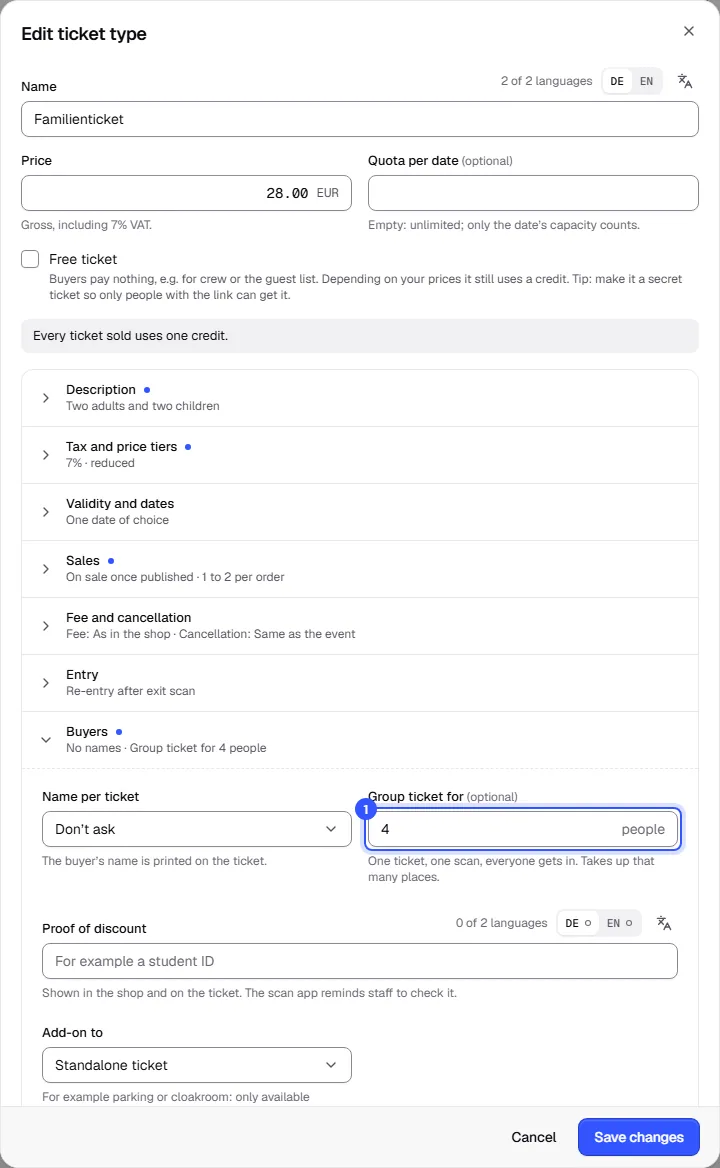
In the shop, the group ticket says how many people it covers, and the scan app shows the number of people when it's scanned. A group ticket takes up as many places in the capacity as there are people on it. In the quota it counts as one ticket.
Once tickets have been sold, reserved or put on the guest list, the group size is fixed. If you need a different one, create a new ticket type.
Group tickets can't have a seat on the seat map and can't be add-ons.
Common questions
Can I sell an add-on on its own?
No. If it should also be available without a main ticket, create it as a regular ticket type or as an extra without Only with a ticket.
What happens to the add-on if the main ticket is cancelled?
With Exactly one per ticket it's cancelled automatically. With Up to one per ticket it stays; you can cancel it separately in the order, see Cancel and refund.
How much does a group ticket cost per person?
You set one price for the whole group. To charge per person instead, use a regular ticket type and set Minimum per order to the group size.