Roles and permissions
What each role can see and change in the dashboard, area by area, and how to change someone's role and events.
Everyone on your team has exactly one role per workspace. It decides what they can see and what they can change. The roles are fixed; you can't create your own. On top of that, you decide whether someone works on all events or only some. A short overview and how to invite people is in Invite your team. This page lists the permissions in detail.
Edit a person
Open Settings → Team, click the menu next to the person and choose Edit.
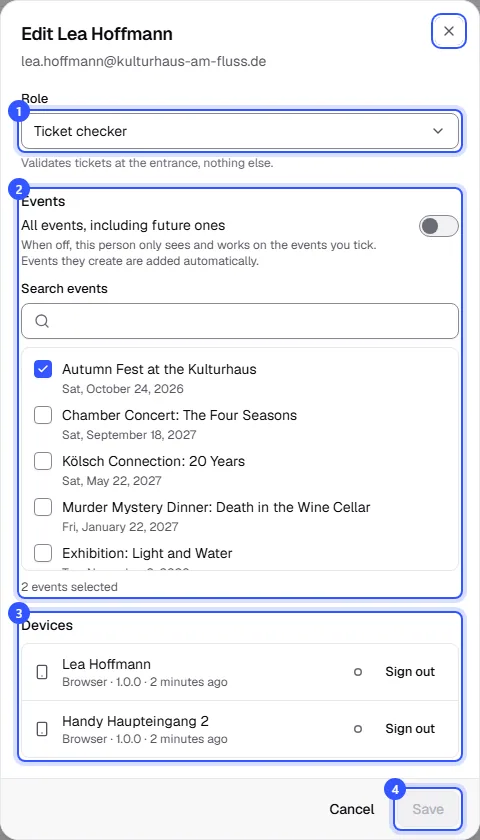
- Under Role, choose the role. Below the selection you see what it can do.
- Under Events, decide which events the person works on. How that works is explained in Which events someone works on.
- Under Devices, you see the devices the person scans with, with their system, app version and when they were last active. A dot shows that a device is connected right now. Sign out signs out a single device right away, after you confirm.
- Click Save. The role and events apply immediately, even if the person is signed in right now.
A few rules apply:
- Owners and admins assign and change roles and events.
- Only owners can make someone an owner and change or remove other owners.
- Your own role and events are always changed by someone else.
- A workspace needs at least one owner. If you want to hand over ownership, make someone else an owner first.
What each role can do
Areas a role has no access to don't appear in the sidebar. If someone opens a link to one anyway, they land on the overview or see No permission.
If someone only works on certain events, the permissions in these tables only apply to those events, their orders and their customers.
Events and entry
| What | Who |
|---|---|
| View events, dates, ticket types and venues | Every role except Ticket checker |
| Create and edit events, including dates, ticket types, venues, seat maps, lineup and guest list | Owner, Admin, Editor |
| Publish or cancel events, reschedule or cancel dates | Owner, Admin, Editor |
| Cancel when tickets already sold get refunded | Owner, Admin |
| View, rename and sign out devices at the door | Owner, Admin, Editor |
| Scan tickets with your own account | Owner, Admin, Ticket checker |
Orders and customers
| What | Who |
|---|---|
| View and export orders, download tickets as PDF | Every role except Box office and Ticket checker |
| Change, cancel or rebook orders, confirm bank transfers | Owner, Admin, Customer service |
| Refund | Owner, Admin, Customer service |
| Resend tickets | Owner, Admin, Editor, Customer service |
| View and download invoices to business customers | Owner, Admin, Accounting, Customer service |
| Issue, send and cancel invoices | Owner, Admin, Accounting, Customer service |
| Turn on invoices and set the numbering | Owner, Admin, Accounting |
| View customers | Every role except Box office and Ticket checker |
| Buyers' full names and email addresses | Owner, Admin, Editor, Accounting, Customer service |
| Export customer data, also in order exports | Owner, Admin, Accounting |
| Delete customer data | Owner, Admin, Customer service |
Sales and marketing
| What | Who |
|---|---|
| Discount codes, vouchers, partner links and tracking | Owner, Admin, Marketing |
| Manage partner payout details and mark commissions as paid | Owner, Admin |
| View shop settings | Owner, Admin, Editor, Accounting, Marketing |
| Change the shop's look, custom domain and booking fee | Owner, Admin |
Statistics and finance
| What | Who |
|---|---|
| Statistics and the live entry view | Owner, Admin, Editor, Accounting, Marketing, Read only |
| Share an event's figures via link | Owner, Admin, Editor |
| View the monthly report and Finance & credits | Owner, Admin, Accounting |
| Buy credits, change payment method and billing model, cancel the flat rate | Owner, Admin, Accounting |
| Take out the flat rate (contract for the minimum term) | Owner |
| Request a payout | Owner |
Settings and team
| What | Who |
|---|---|
| View settings: general, legal, privacy, payments, notifications | Owner, Admin, Editor, Accounting, Marketing |
| Change name, region, logo, images and legal details | Owner, Admin |
| Change privacy and notifications | Owner, Admin |
| Connect payment accounts, set up bank transfer and payment methods | Owner |
| Integrations, API keys and webhooks | Owner, Admin |
| View the team, invite people, change roles and events, remove people | Owner, Admin |
| Delete the workspace | Owner |
The Read only role sees events, orders, customers and statistics but changes nothing. Like Marketing, it only sees shortened buyer details.
Common questions
Which role is right for a helper at the entrance?
Ticket checker. They scan tickets with their own account and see nothing else. Everyone who scans at the door needs an account of their own. If they're only helping at one event, select just that event under Events and remove them from the team afterwards. More in Entry at a glance.
Can someone be responsible for just a few events?
Yes. For Editor, Customer service, Ticket checker, Box office and Read only, you pick the events yourself. Owner, Admin, Accounting and Marketing always cover all events. More in Which events someone works on.
Can I add single permissions to a role?
No, permissions belong to the role. Pick the role that fits best, and when in doubt, give fewer permissions.
Do roles apply to API keys and AI assistants?
API keys don't have a role. They have their own permissions per area and always cover the whole workspace: API keys. An AI assistant, on the other hand, works as the person who connected it. It has their role and sees the same events: Connect AI assistants.