Events overview
Find, filter and open all your events in one list, and what an event's sections and actions mean.
Events lists every event in your workspace, whether it's a draft, published or cancelled. From here you create new events, look up a specific one and open it to make changes.
The list
- Create event creates a new event: Create your first event. Next to it you create a season ticket that covers several events: Season tickets.
- Above the list you search and filter, see below.
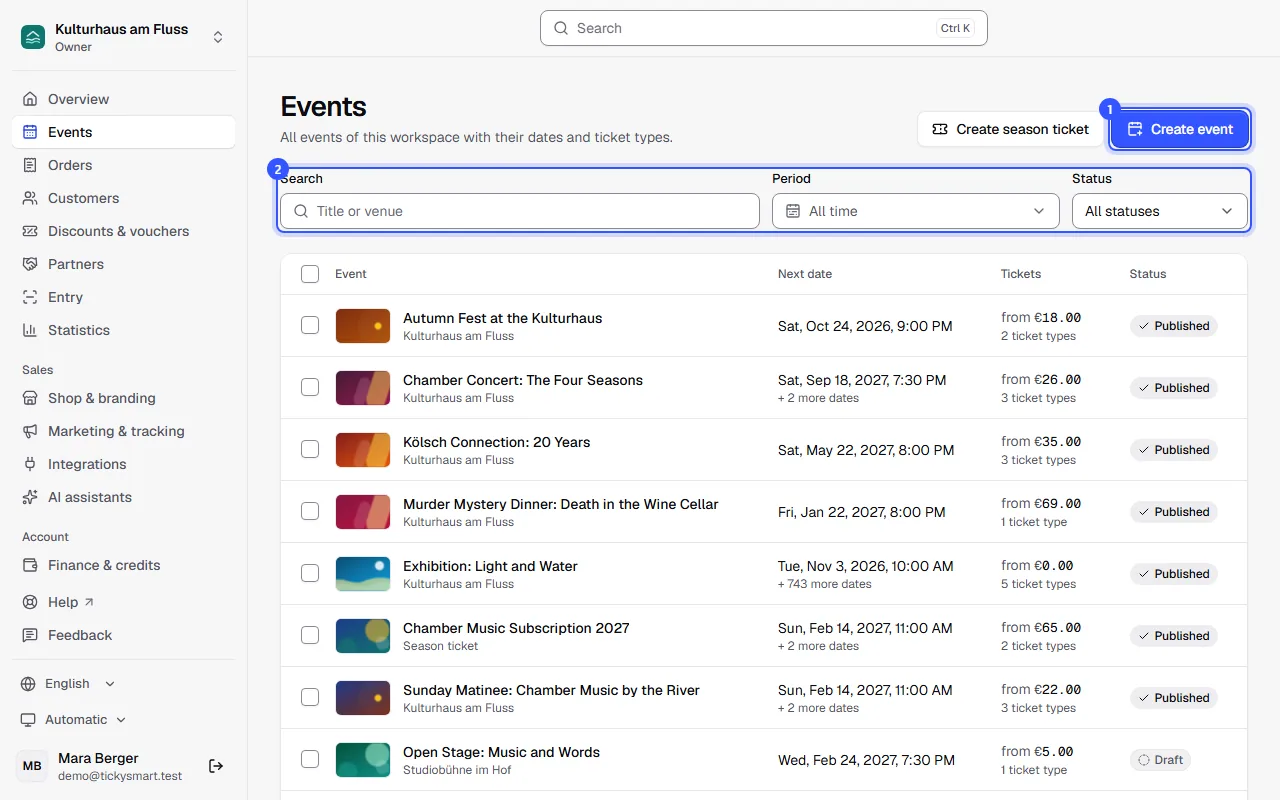
The newest events are at the top. The columns show:
| Column | What you see |
|---|---|
| Event | Cover image, title and venue. If there's no venue yet, it says Venue not set. |
| Next date | The next date, and below it how many more there are |
| Tickets | The lowest price and how many ticket types the event has |
| Status | Draft, Published or Cancelled |
Click a title to open the event.
Search and filter
| Filter | How it works |
|---|---|
| Search | Finds events by title (in any language), short name or venue. Accents don't matter: "cafe" also finds "Café". |
| Period | Shows only events with a date in this period. Under Based on you can switch to Created, and then it's about when the event was created. |
| Status | Only drafts, only published or only cancelled events |
- For the period, pick a ready-made range such as "Next month", or a start and end in the calendar. At the top you switch between Event date and Created.
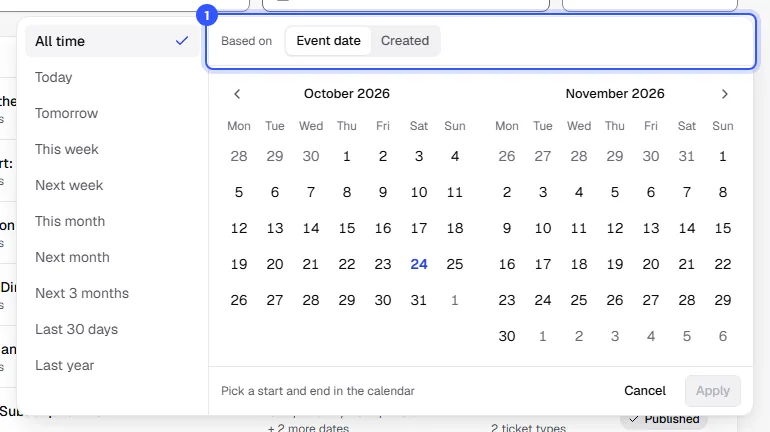
The filters are part of the page address, so you can bookmark a filtered list or send it to your team. If no event matches the filters, Reset filters takes you back to the full list.
An event's sections
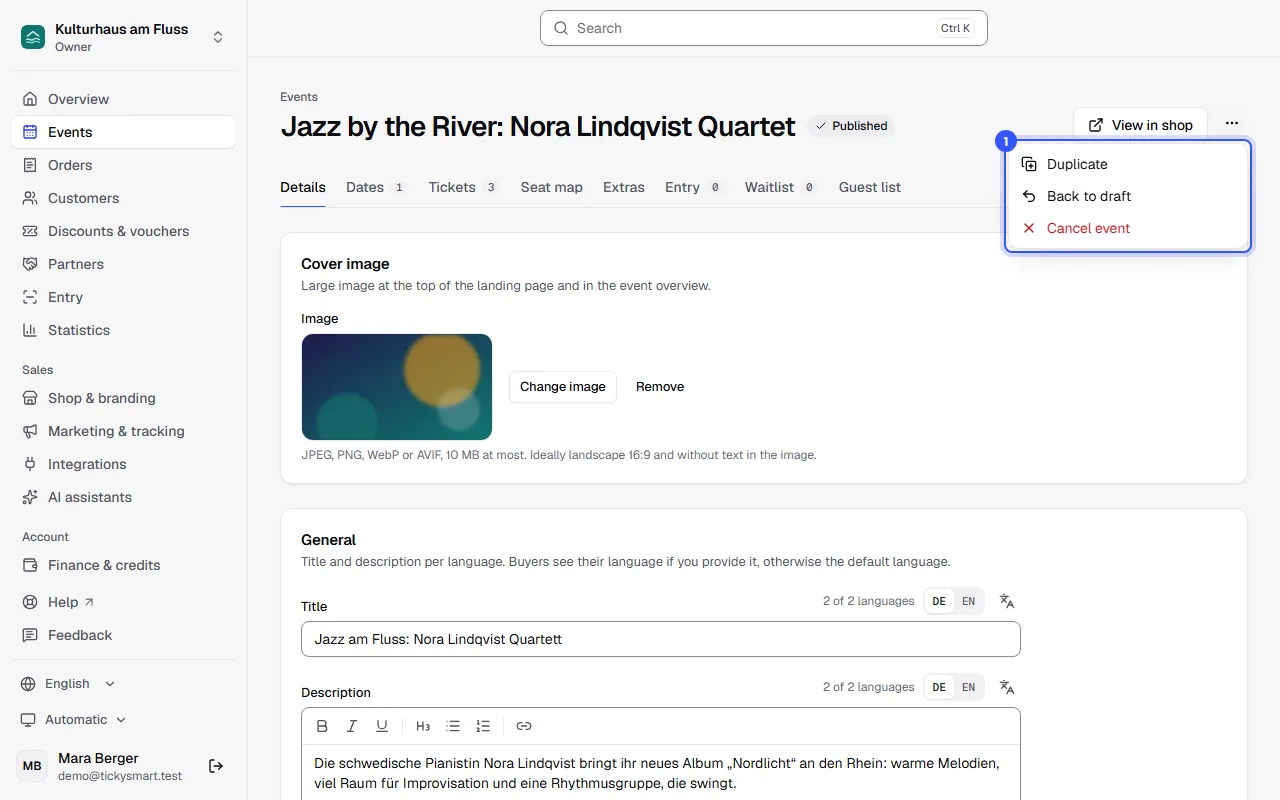
When you open an event, you see its title, status and actions at the top, with tabs for the event's sections below.
- More actions holds everything that affects the whole event, see Status and actions.
| Tab | What you do there |
|---|---|
| Details | Cover image, texts, venue, prices, line-up: Description and images |
| Dates | Add, reschedule and cancel dates: Dates |
| Tickets | Ticket types and prices: Ticket types |
| Seat map | Sell seats from a seat map: Sell seats |
| Extras | Drinks, merch and other add-on products: Extras |
| Entry | Areas for entry: Areas |
| Waitlist | Waitlist for sold-out dates: Waitlist |
| Guest list | Add guests without a purchase: Guest list |
Only people who can see orders see Waitlist and Guest list, because they contain names and email addresses.
Status and actions
| Status | Meaning | What you can do |
|---|---|---|
| Draft | Only your team can see it. | Publish, Duplicate, Delete draft |
| Published | Visible and on sale in your shop | Duplicate, Back to draft, Cancel event |
| Cancelled | Cancelled; nothing can be changed anymore | Duplicate |
- Back to draft only works as long as no ticket has been sold or reserved. After that, you can only cancel the event: Cancel an event.
- Delete draft deletes a draft with all its dates and ticket types. This can't be undone.
- Duplicate creates a copy as a draft, or a whole series if you like: Duplicate or repeat an event.
To publish, cancel or delete several events at once: Bulk actions.
Common questions
Who can create and change events?
The roles Owner, Admin and Editor. Other roles with access to events can only view them. More under Roles and permissions.
I can't find an event anymore
Check whether a search, period or status is set above the list, and clear it. Deleted drafts are gone for good; cancelled events stay in the list.
Why does the event show a note about credits?
If it says Your credits won’t cover all seats, you pay with credits, and they won't cover all open seats at your upcoming events. Buy more credits or turn on automatic top-up, otherwise sales stop as soon as no credits are available: Credits.
Why is an event listed several times?
If you repeated an event, each copy is an event of its own with its own date. They share the title but have different dates. An event with several dates, on the other hand, appears only once.