Get paid with Mollie
Connect your Mollie account to TickySmart, enable payment methods and use Mollie alongside Stripe.
Mollie is popular across Europe and offers PayPal, iDEAL, Bancontact, cards and Apple Pay, among others. You connect your own Mollie account to TickySmart. Ticket money lands in that account, and Mollie pays it out to your bank account.
Connect Mollie
- Open Settings → Payments and click Connect Mollie. Only the owner can do this.
- You're taken to Mollie. Create an account there, your details from TickySmart are already filled in. If you already have a Mollie account, sign in instead. Then allow TickySmart access. TickySmart can then create and refund payments and read your account's status.
- Mollie then brings you back to the dashboard.
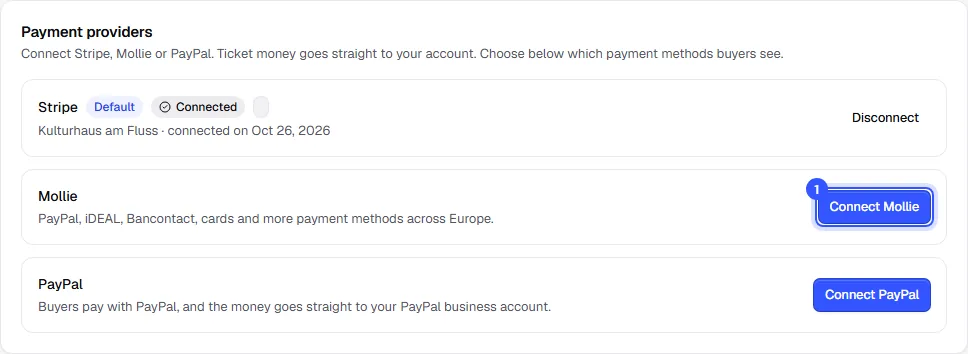
If your Mollie account isn't fully set up yet, the account shows Sign-up in progress or Details missing. The button next to it takes you to Mollie, where you add what's missing. Once Mollie accepts payments, it says Connected.
Mollie is available for workspaces in the European Economic Area, Switzerland and the United Kingdom.
Enable payment methods with Mollie
You turn on the payment methods your account offers in your Mollie dashboard. If one is still off, your list shows the Turn on at Mollie link. After that, offer it under Payment methods in your shop: Payment methods in your shop.
Some payment methods are only available with one of the two providers:
| Only through Mollie | Only through Stripe |
|---|---|
| Apple Pay as a separate method, Satispay, KBC/CBC, Belfius | Revolut Pay, MobilePay, Swish, Amazon Pay |
How buyers pay
When a buyer picks a payment method at checkout that runs through Mollie, they go to Mollie's payment page. After paying, they come back to your shop and get their tickets by email. Mollie charges you its fees per payment directly, under your agreement with Mollie.
Mollie alongside Stripe or PayPal
You can connect Mollie alongside Stripe or PayPal. The account you connect first is your default; change that with Make default. If a payment method is available with more than one, you choose in the list of payment methods which one it runs through: Several providers together.
Disconnect Mollie
Click Disconnect next to the account and confirm. No more payments come in through Mollie, and we hand back our access to your Mollie account. Your Mollie account itself stays, and orders that are already paid stay as they are.
Common questions
Connecting Mollie didn't work
If sign-up is cancelled or fails, you'll see a message and can try again. Check in Mollie that your account has a website profile. Without one, Mollie can't accept payments for your shop.
Do I need Mollie if I already have Stripe?
No, one provider is enough. Mollie is worth it if your buyers expect payment methods you can't get through Stripe.
Can I offer PayPal through Mollie?
Yes. Turn on PayPal in your Mollie dashboard, and it appears in your list so you can offer it in your shop. Alternatively, connect your PayPal business account directly: Get paid with PayPal.
Where do I see my payments and payouts?
In your Mollie dashboard. You'll find the orders themselves in TickySmart under Orders.