Bank transfer (pay in advance)
Buyers transfer the money to your bank account and you confirm it. How to set up bank transfer and handle these orders.
With bank transfer, your buyers send the amount to your bank account themselves. This works even without Stripe, Mollie or PayPal. The tickets stay reserved until the payment deadline. Once the money arrives, you confirm it in the dashboard, and only then does the buyer get their tickets.
Set up bank transfer
Open Settings → Payments. Under Payment methods in your shop, click Set up next to Bank transfer (pay in advance). Only the owner can do this. In the dialog, enter:
- Account holder: exactly as it appears at your bank. Buyers see this name as the recipient.
- IBAN and, if you like, the BIC. A wrong IBAN is flagged right away. Below that, choose the Account currency: bank transfer is only offered for orders in this currency.
- Days to pay: The tickets stay reserved this long, at most until one day before the date. The default is 7 days.
- Offer until … days before the date: After that, bank transfer is no longer offered for that date, only payment methods that confirm instantly. The default is 10 days.
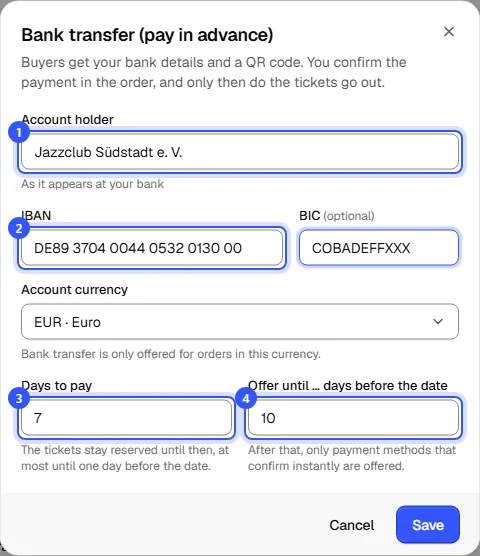
Click Save. Then turn bank transfer on in your shop with the switch next to it.

How it works for buyers
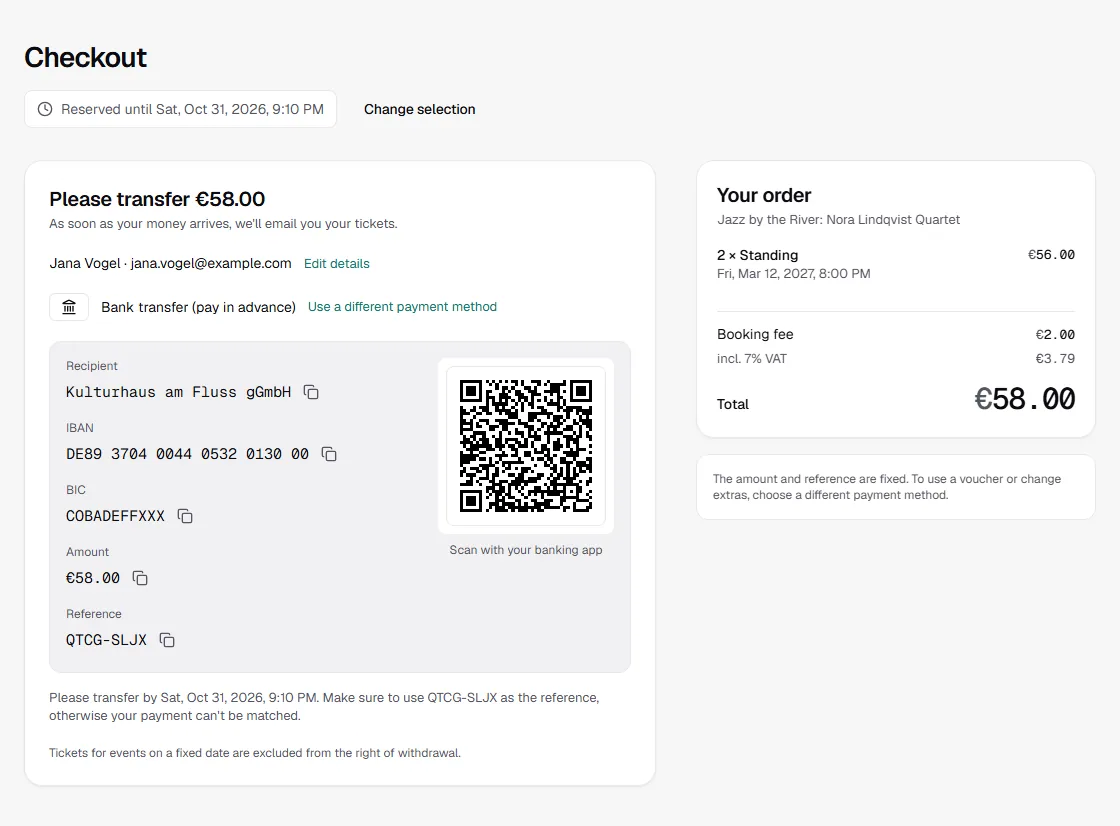
- In the checkout, the buyer chooses Bank transfer (pay in advance) and places a binding order.
- They then see the amount, your bank details and the order number as the payment reference, each with a copy button.
- For transfers in euros there's also a QR code. Scanned with a banking app, it fills in the transfer automatically.
- They also get the same details by email.
- After that, the amount and reference are fixed: to use a voucher or change extras, they have to choose a different payment method.
Two days before the deadline, we remind the buyer once by email, or halfway through for short deadlines. If no payment arrives by the deadline, the order is cancelled, the tickets go back on sale and the buyer gets an email.
Confirm the payment
Under Orders, filter by Awaiting transfer. Compare your incoming payments with the amount and reference, then:
- Open the order and click Payment received. The buyer gets their tickets by email right away.
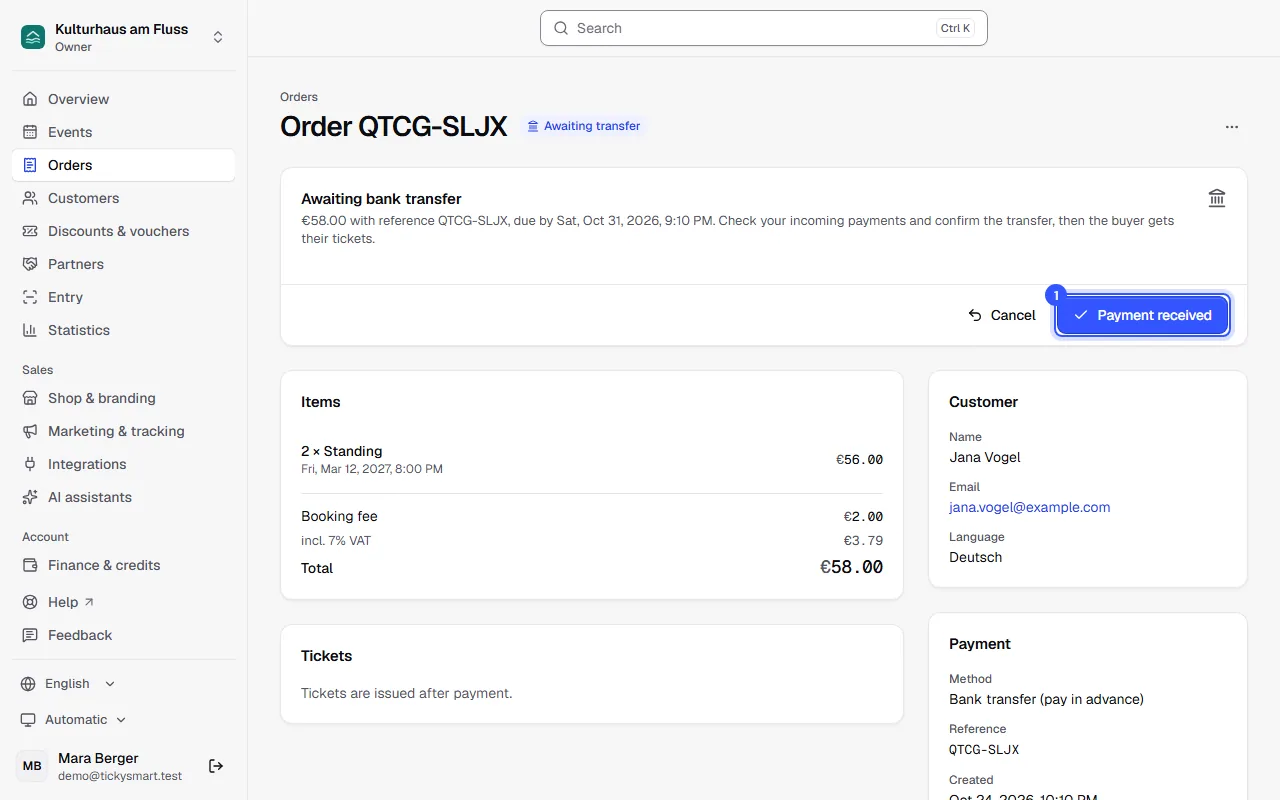
If an order won't be paid anymore, end it with Cancel. The tickets go back on sale, and the buyer gets an email telling them not to transfer anything.
Common questions
The money arrived after the deadline
As long as the tickets are still available, mark the order as paid anyway with Mark as paid anyway. If the buyer used a voucher or discount code, it has to still cover the order too. If the tickets have been sold in the meantime or the code is used up, transfer the money back to the buyer.
How do I refund a bank transfer order?
You transfer the money back yourself. The buyer's account details are on your bank statement next to their payment. Then tick off the refund in the order with Refunded.
Why don't buyers see bank transfer shortly before the date?
A transfer takes a few days. That's why bank transfer is only offered until the cut-off you set under Offer until … days before the date. After that, buyers can only pay with methods that confirm instantly, such as card.
What happens if I cancel an event or a date?
Orders still waiting for a bank transfer are cancelled too. If you inform buyers, they get an email telling them not to transfer anything. If money arrives anyway, transfer it back. Payment received no longer works for cancelled events and dates: Cancel an event.
Can I turn bank transfer off again?
Yes, with the switch. At least one payment method has to stay on, though. Under Edit, Remove bank details also deletes your bank details. Orders already waiting for a transfer stay as they are.