Areas
Split entry into areas such as the main entrance, VIP or backstage, open areas only to certain ticket types and redeem extras at counters such as a bar.
Without areas, there's one shared entrance for all tickets. You need areas when not every ticket may go everywhere, when you want to see occupancy separately, or when extras are redeemed at a bar or merch stand. Areas belong to an event, so you set them up for each event.
Add an area
- Open the event and the Entry tab. Click Add area.
- The Who may enter column later shows which tickets may enter the area.
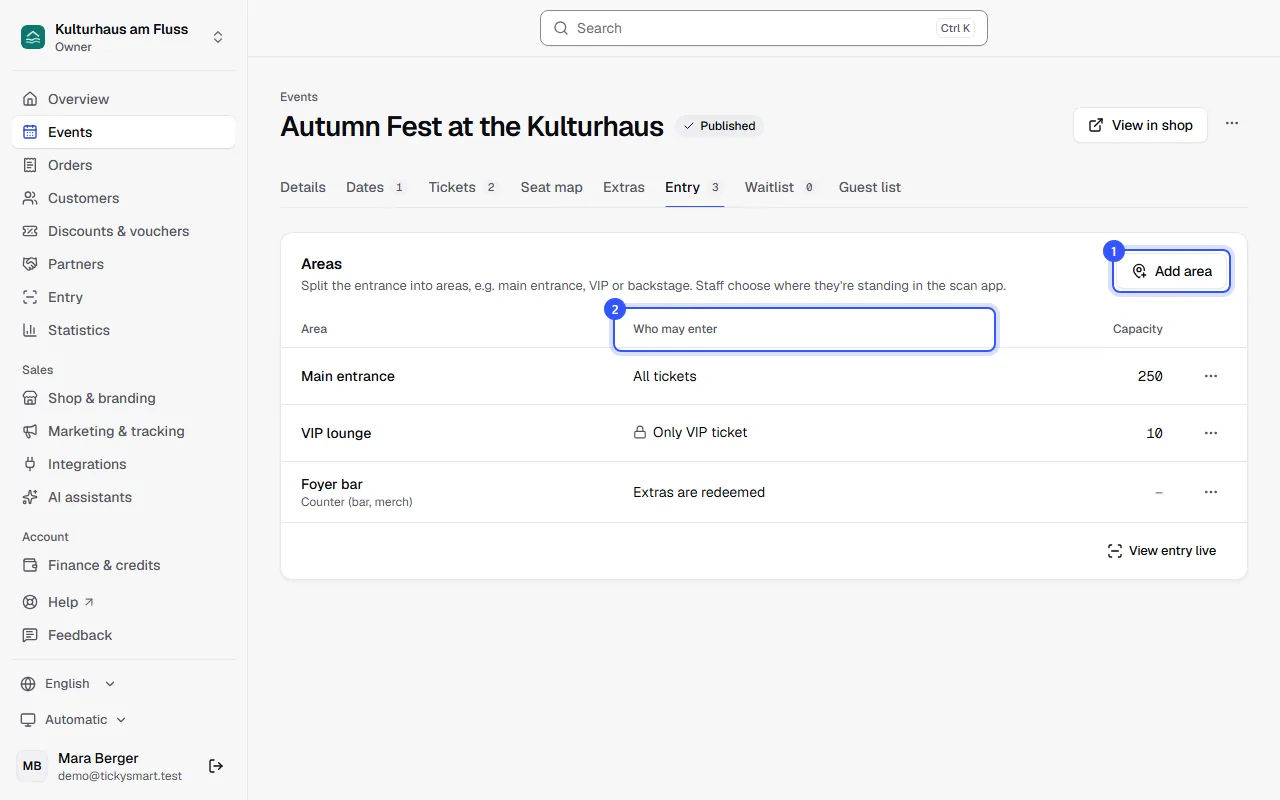
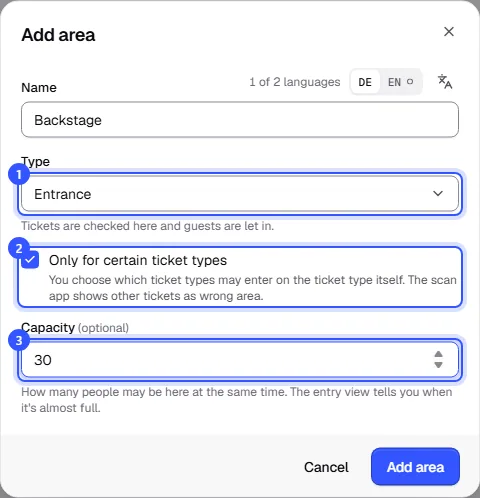
In the dialog, enter a Name, required in your shop's default language. Then:
- Type: Entrance or Counter (bar, merch).
- Only for certain ticket types: You choose which ticket types may enter on the ticket type itself. The scan app shows other tickets as wrong area.
- Capacity: How many people may be here at the same time. The entry view tells you when it's almost full.
| Type | What happens there |
|---|---|
| Entrance | Tickets are checked here and guests are let in. |
| Counter (bar, merch) | Extras like drink tokens and add-on tickets like parking are redeemed here. Entry tickets don’t count as entry here. |
Anyone who can edit the event can add and change areas.
Open an area to ticket types
If you added an area with Only for certain ticket types, open the ticket type that may enter in the Tickets tab and expand Entry:
- Under Also allowed into these areas, tick the area.
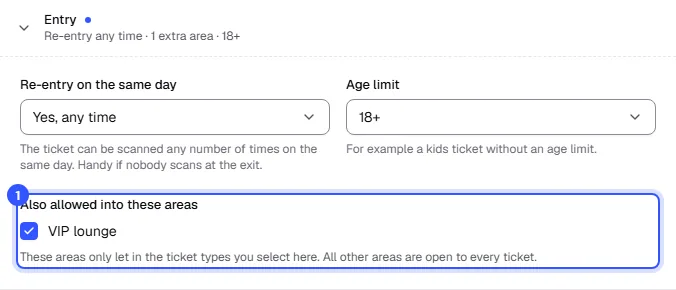
All other areas are open to every ticket. If a restricted area doesn't have a ticket type yet, the list shows No ticket type allowed yet. Nobody gets in there then without staff stepping in.
In the scan app
Staff choose where they're standing in the scan app settings under Area. The event and area are then shown at the top of the screen. Every device can choose any of the event's areas. If someone moves to another entrance, they simply switch the area there.
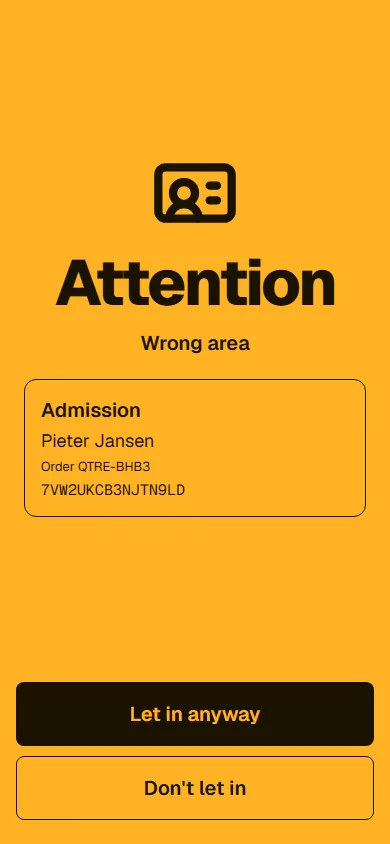
If someone arrives with a ticket that isn't allowed here, the app shows yellow with Wrong area. If the ticket is allowed into other areas, the app names them so staff can send the guest to the right entrance. Staff then decide with Let in anyway or Don't let in.
Counters for extras and add-ons
At a counter such as the bar or merch stand, staff redeem extras, for example drink vouchers. Every scan redeems one unit, and the app shows how many are left. Add-on tickets such as parking or the cloakroom are redeemed at a counter too, for example one called "Car park", each once and only on the day of their date. Instead of In and Out, the bottom of the screen says Counter.
- A ticket at a counter: This is a ticket, not an extra. Tickets are checked at the entrance.
- An extra at the entrance: This is an extra, not a ticket. Redeem it at a counter.
- An add-on at the entrance: This is an add-on ticket, for example for parking. It doesn't grant entry and is redeemed at a counter.
Counters have no capacity and don't count towards occupancy.
Keep an eye on occupancy
The live view shows how many guests are inside each entry area right now, and Almost full from 90% of capacity. View entry live below the list of areas takes you straight there.
Common questions
Guests go from the hall to the VIP lounge and show up as "Already inside"
Areas are separate entrances, not checkpoints along the way. Anyone let in at one area is inside the event. With the re-entry rule Yes, if scanned on the way out, the second area therefore shows yellow with Already inside. For tickets that pass several checks, choose Yes, any time, or scan them out at the first area with Out. See Re-entry.
What happens to scans when I delete an area?
Earlier scans are kept but are no longer linked to an area.Can I reuse areas for the next event?
Yes. If you duplicate an event with More actions → Duplicate, the copy gets the same areas, including which ticket types may enter. This also applies when you repeat an event regularly.