Translate and write texts
Fill in missing languages with one click, translate a whole event and have descriptions written or improved.
Every text field with several languages has an AI button. Use it to translate into your shop’s other languages. For longer texts such as descriptions, the AI also writes texts for you or improves them. On the event page you translate the whole event at once.
Translate a text field
Write the text in your main language first, then:
- Click AI on the field.
- Choose Translate into 1 missing language to fill only empty languages, or Translate all languages again to redo all of them.
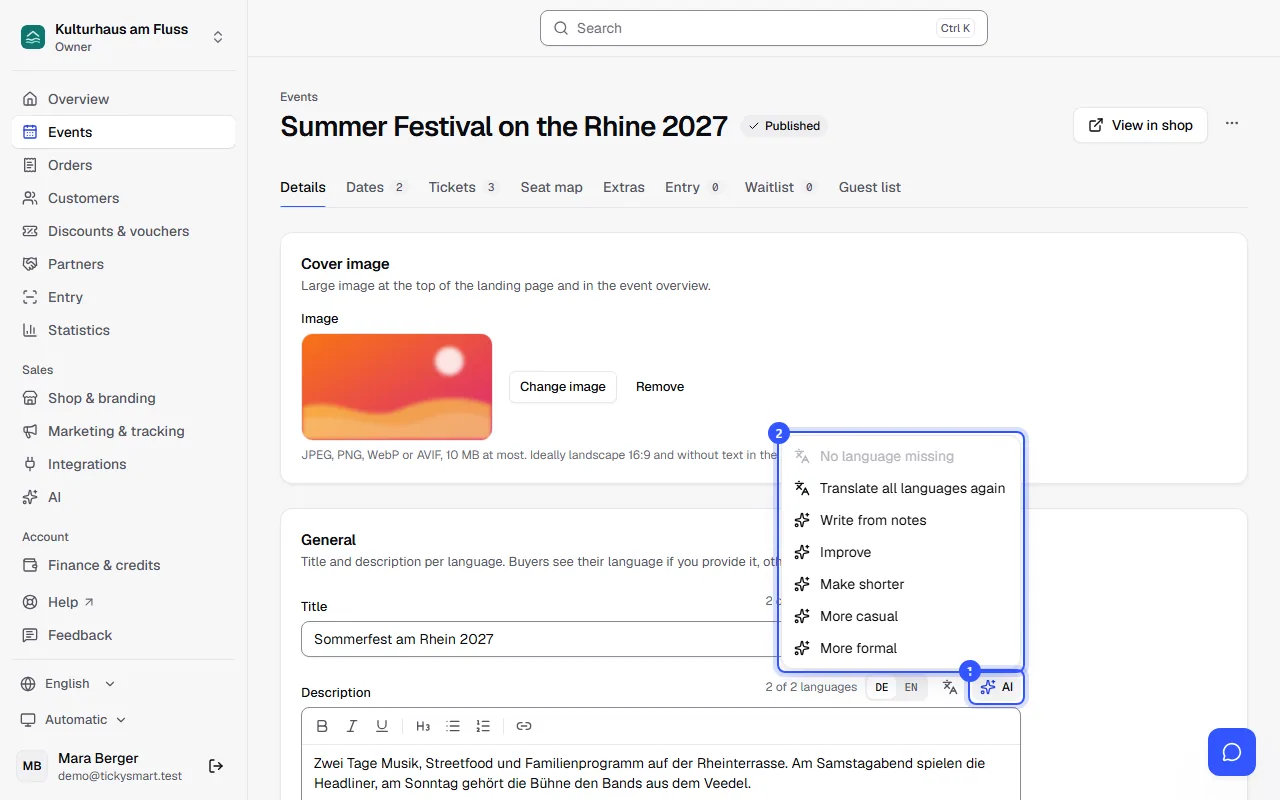
The translation is now in the field. Below the field it says how many languages were translated. Give it a quick read, then save as usual.
Formatting such as bold, lists and links stays. Names of artists, bands, venues and brands stay as they are.
When you change the main language
If you later change the text in your main language, the field notices that the other languages are still the old version. Below the field it then says, for example, “German changed, the other languages are still the old version.” Click Translate again to update them.
Translate a whole event
This translates all texts of an event at once: title, description, links, questions, ticket types with price tiers and proof notes, extras and line-up.
- Open the event and click More actions › Translate event at the top.
- Choose the languages. All your shop’s languages except the main one are selected.
- If you like, tick Also replace existing translations. Without it, the AI only fills in what’s missing and leaves your own translations alone.
- Click Translate.
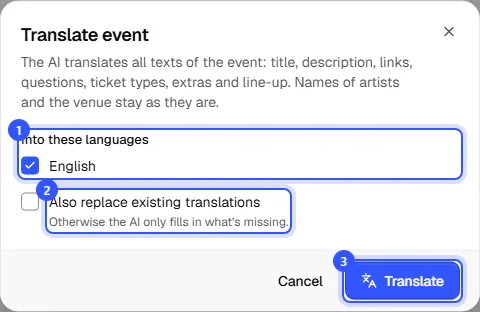
The translations are saved right away. If the event is already published, buyers see them immediately.
Write and improve texts
For descriptions and other longer texts, the AI menu has more:
- Write from notes: write a few notes into the field, such as “3 bands, picnic, doors 6 pm”. The AI turns them into a text. For events it also uses the date, venue, line-up and tickets, so there it works with an empty field too.
- Improve: clearer, more appealing, without mistakes, same length.
- Make shorter: about half as long.
- More casual and More formal: a different tone, the same facts.
The AI doesn’t make anything up, so no prices, times or names that aren’t in the event. If you don’t like the result, click Undo below the field.
How the AI sounds and whether it addresses buyers formally or informally is set under How your texts sound.
Common questions
Why does the button have a lock?
Your workspace doesn’t have a paid plan yet. A click explains how to unlock it.
Why is there no button on a field?
If your shop has only one language, there’s nothing to translate. Short fields like names then have no writing either, so the button disappears. You add languages under Settings › General in Languages for your texts.
Can I translate legal texts too?
Yes, terms and the cancellation policy have the button too. Please have such translations checked before you use them, as they need to be legally correct.
Are translations that are too long cut off?
The AI keeps short fields such as ticket names within the allowed length. If a translation still doesn’t fit, it leaves that language empty rather than cutting the text.