Venues
Save venues with a description and pictures for your shop, and set where an event takes place.
Places where you hold events again and again are saved once, with address, time zone, description and pictures. After that you just pick them for each event. For a one-off location, such as a guest performance, you enter the address directly on the event.
Save a venue
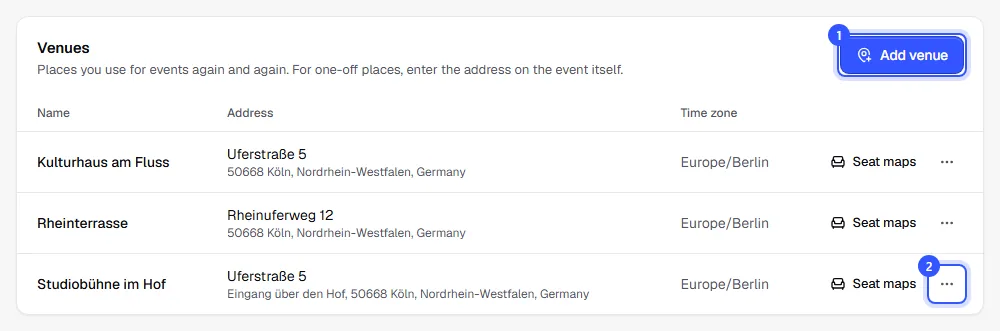
Open Settings → Venues.
- Click Add venue.
- Use the menu next to a venue to Edit or Delete it.
In the dialog, enter:
- Name and address. Postal code and region are optional because not every country uses them. The shop later shows the address the way it's usually written in that country.
- Time zone: It follows the country until you pick one yourself. You enter all dates at this venue in this time zone.
- Description: Shown in the shop next to the directions, e.g. entrances, parking, accessibility. Like every text, it can be kept in several languages. Below it you can add the venue's Website.
- Pictures: up to 8 photos, 10 MB each at most. You add pictures once the venue is saved, so when you edit it.
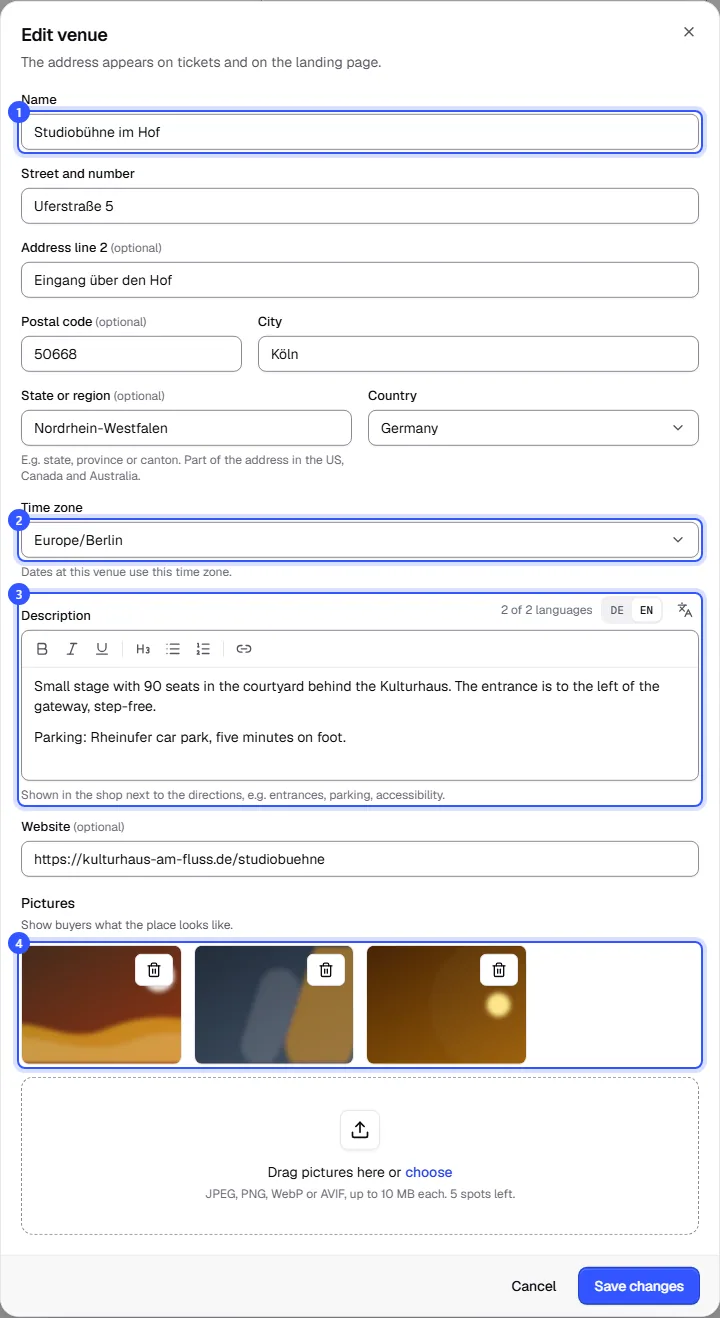
Click Add venue or Save changes.
What buyers see
The address is printed on the tickets and shown on the event page in your shop. There, the Getting there section also shows the description, the pictures, a Plan route button and, if you added one, Venue website.
Seat maps lets you create seat maps with numbered seats for a venue: Create a seat map.
Set an event's venue
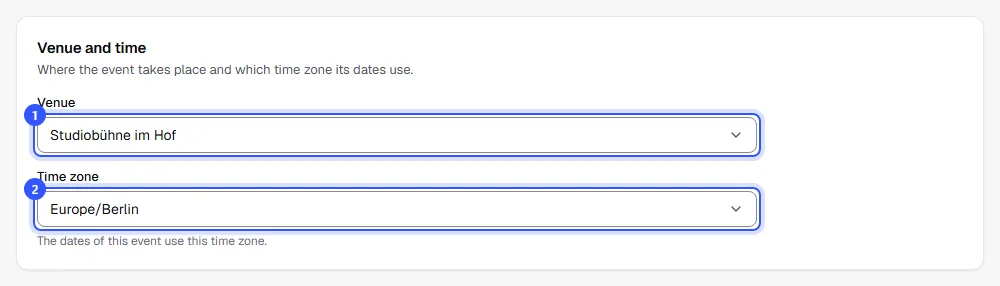
Open the event and go to the Venue and time section under Details.
- Venue: Pick a saved venue, Enter another address or Not set yet.
- Time zone: If you pick a saved venue, the event takes on its time zone. With an address of your own, it follows the country.
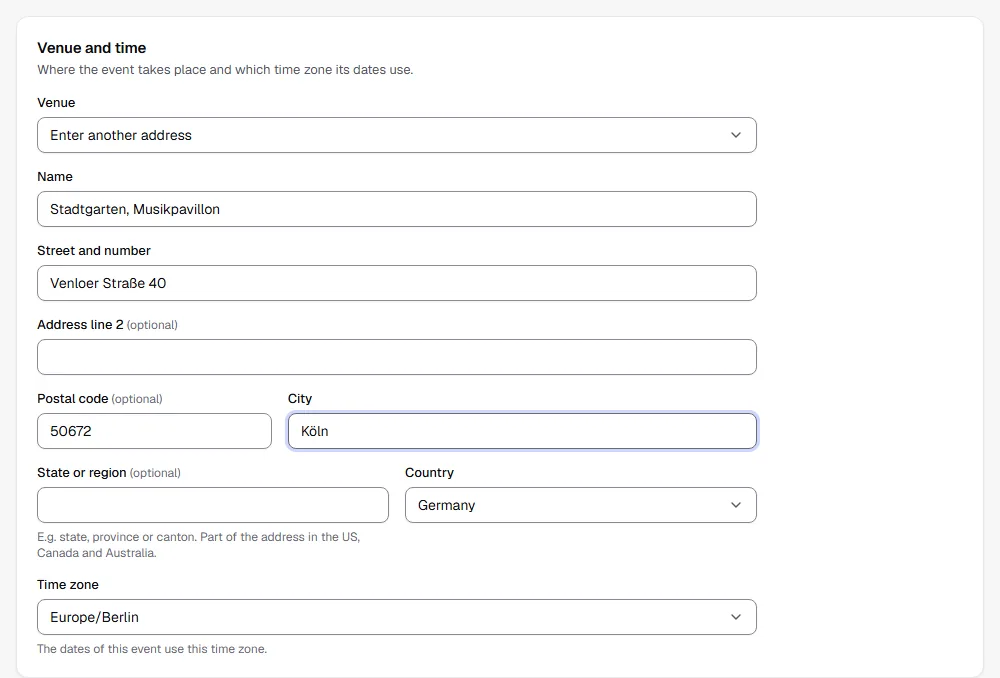
Enter another address shows fields for a name and address. That suits places you only need once. They don't have a description or pictures.
Save with Save changes at the bottom of the page. As long as Not set yet is selected, the event can't be published.
Common questions
I'm changing a saved venue. What happens to my events?
All events at this venue show the new details in the shop straight away. You don't have to update them one by one.
Why can't I delete a venue?
As long as an event uses the venue, it stays, even if the event is over or cancelled. Pick a different venue for those events first.
I have two stages at the same address
Create them as two venues, for example "Main hall" and "Studio stage". That way each stage gets its own pictures, its own directions to the entrance and its own seat maps.
What do I need the time zone for?
You enter all of an event's times in local time, and the shop, tickets and emails always show them in that local time, wherever the buyer happens to be. This matters most for guest performances in another country.