Line-up
Show who's performing, with picture, set time, a short text and links to Spotify, Instagram and more.
The line-up introduces who's performing at your event: artists, bands, speakers or guests. Each entry has a name and, if you like, a picture, a set time, a short text and links. In the shop, the line-up appears on the event page.
Manage the line-up
Open the event. The line-up is in the Details section below Prices.
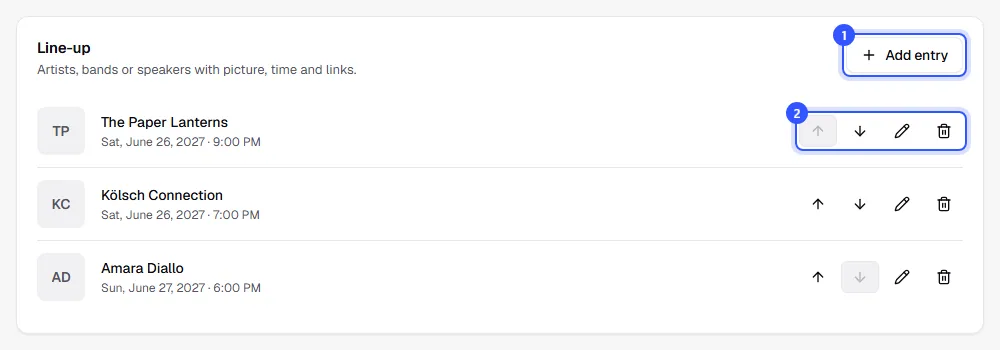
- Click Add entry.
- Use the arrows to change the order, the pencil to edit an entry and the bin to remove it.
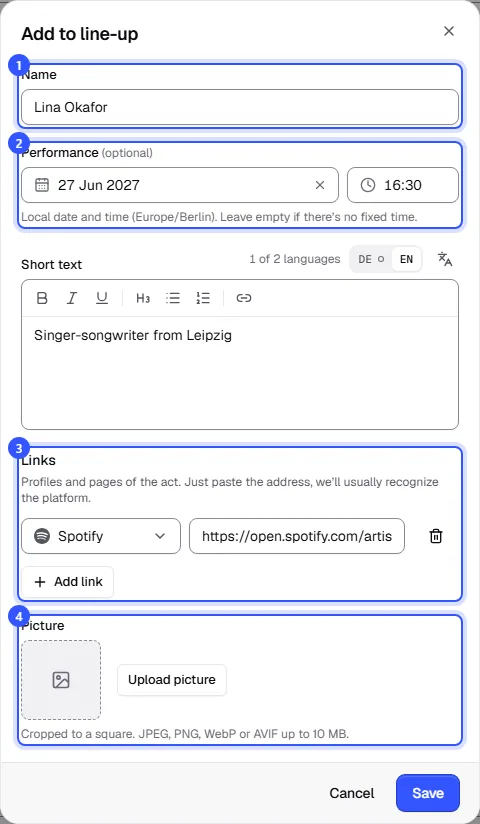
In the dialog, enter:
- Name: Required, up to 120 characters.
- Performance: Date and time in the event's local time. Leave it empty if there's no fixed time. Below it, describe the act under Short text, in several languages if you like.
- Links: Paste the address of a profile and we'll usually recognise the platform, such as Spotify, Instagram, YouTube or Bandcamp. For anything else, choose Custom link and give the link a text, for example "Merch". Up to 10 links per entry.
- Picture: Cropped to a square. JPEG, PNG, WebP or AVIF up to 10 MB. Without a picture, the shop shows the initials.
Click Save. The entry is saved right away, even for published events.
Let the AI find info
The AI gathers profiles, a short bio and a photo for you, so you don’t have to look up every address yourself.
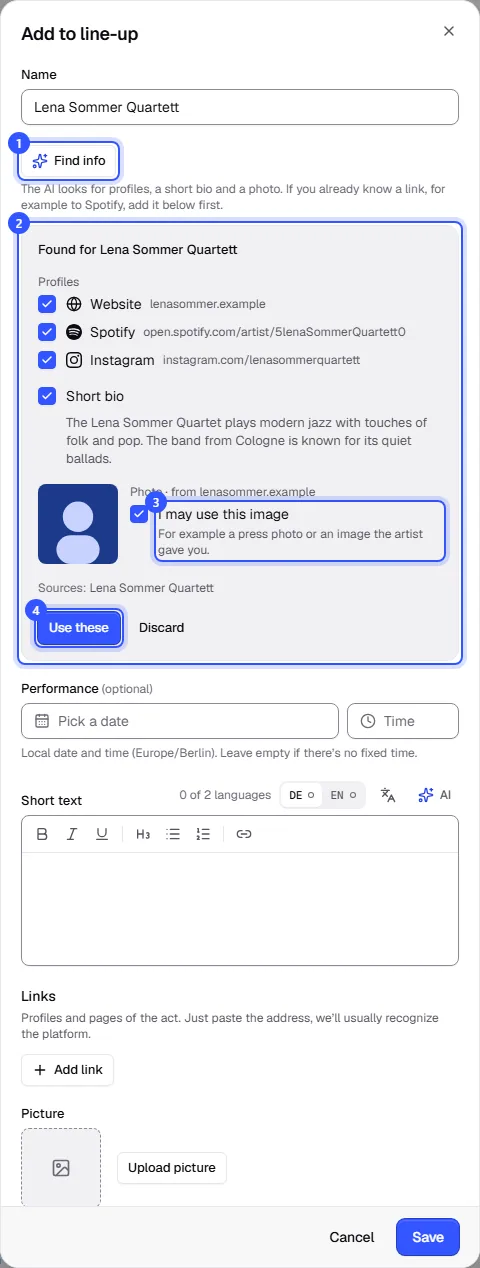
- Enter the name and click Find info below it. If you already know a link, for example to Spotify, add it under the links first. That helps find the right act when several share a name.
- The AI shows what it found: profiles on a website, Spotify, Instagram and more, a short bio in your shop’s languages and a photo. Untick anything you don’t want.
- We only take the photo if you tick I may use this image, for example because it’s a press photo or the act gave it to you.
- Click Use these. The details are now in the dialog. They’re saved with Save.
TickySmart opens every link first and only keeps it if the page matches the name. The bio is written only from sources it found, such as the act’s website or Wikipedia. Without sources there’s no bio. Finding info is part of the paid plans: AI in TickySmart.
How it looks in the shop
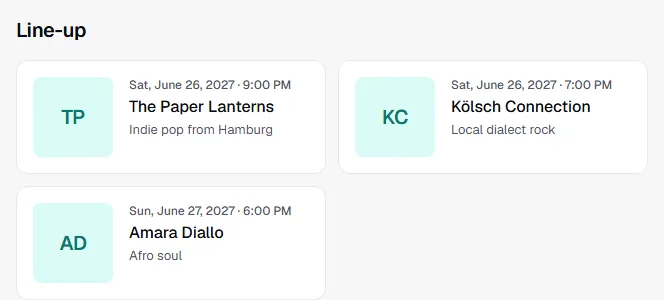
Entries appear in your order, with picture, set time, text and the links as small logos. If the event has several dates, the day is shown with the time.
Common questions
Are entries sorted by time?
No, the shop shows them in the order you set with the arrows. That way you can put the headliner at the top, for example.
Can each date have its own line-up?
The line-up belongs to the whole event. The set time lets you assign an act to a particular day, for example at a festival. If every night needs its own line-up, create the nights as separate events: Duplicate or repeat an event.
Is the line-up copied when I duplicate an event?
Yes, with pictures and links. Set times are only copied if you also copy the dates.
Is there a line-up for season tickets?
No. A season ticket shows the events it includes, and each of them has its own line-up.