Guest list
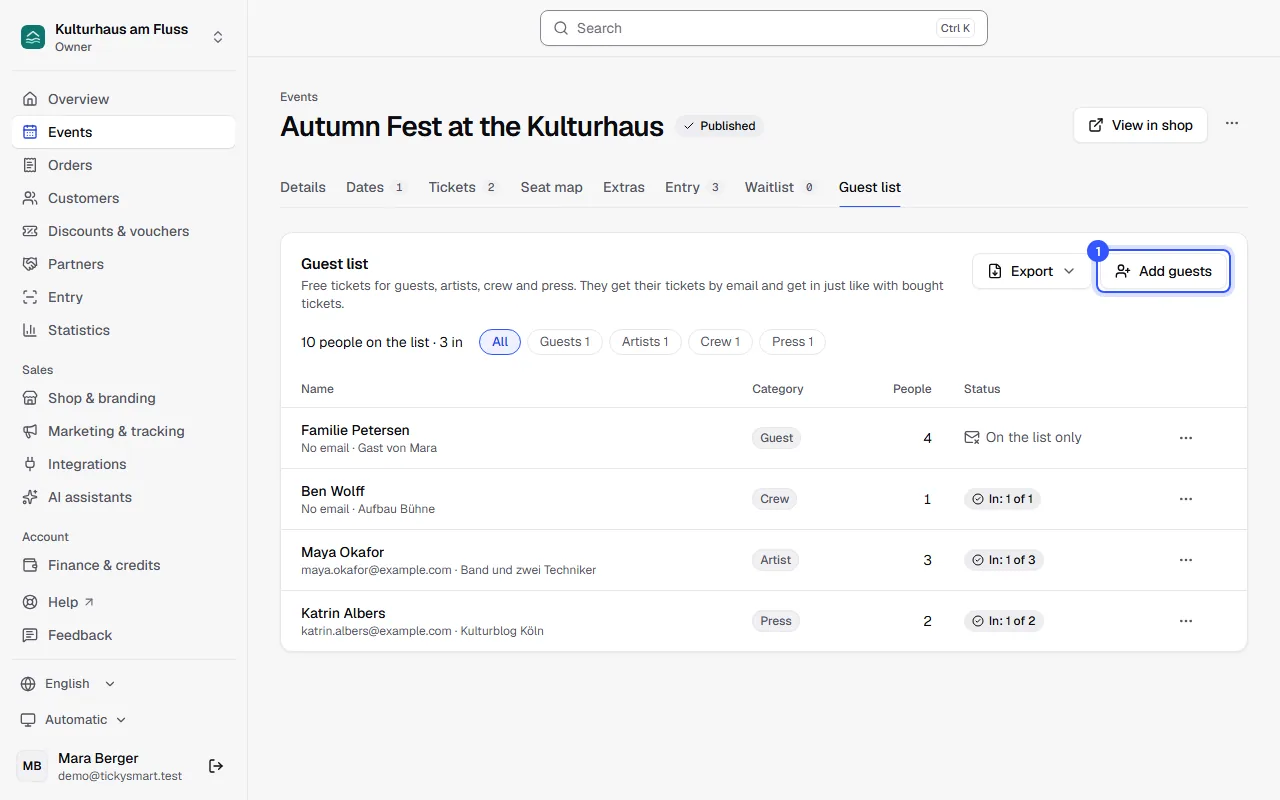
Add free tickets for guests, artists, crew and press, send them by email and see at the door who has arrived.
The guest list is for everyone who gets in without buying: guests, artists, crew and press. They get real tickets without a price, as a PDF by email, and get in just like with bought tickets. Anyone without an email address is on the list only, and staff find them by name at the door.
Add guests
- Open the event, the Guest list tab and click Add guests.
In the dialog:
- Category: Guest, Artist, Crew or Press. The category later appears as the name on the ticket and in the scan app.
- Who is coming?: one row per entry with name, email and how many people are coming, up to 50. Another person lets you add several at once.
- Valid like: Date, entry rules and areas come from this ticket type. Its quota for sale stays untouched. If the ticket type is valid on one date, choose the date next to it, even one that's already running.
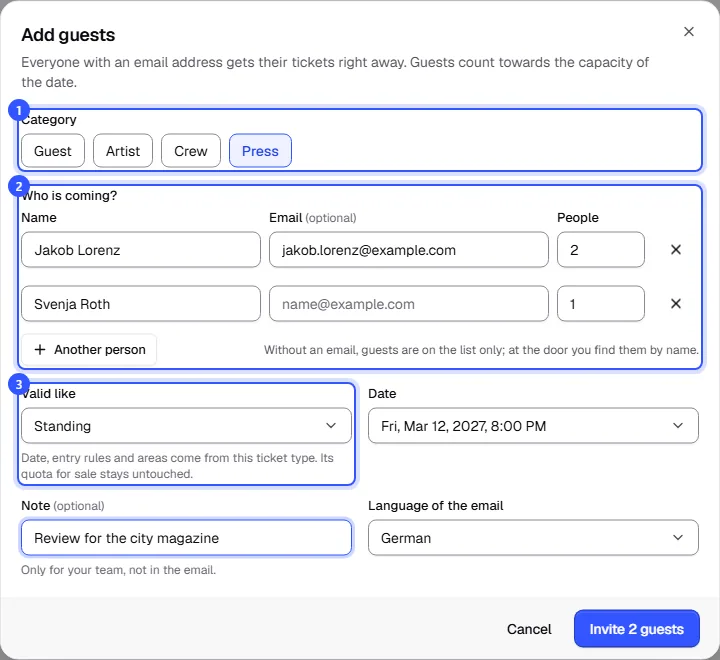
Below that, there's a Note (Only for your team, not in the email.) and the Language of the email. Finally, click the button at the bottom right. Depending on what you entered, it says for example Invite 2 guests, or Add 1 guest if nobody has an email address.
Like a free ticket, each guest uses one credit if your prices say so (on pay as you go the price per ticket, on the flat rate nothing). With no credits available you can't add guests, unless Keep selling with pay as you go is on or the event doesn't use credits: Credits.
Guests count towards the capacity of the date, while the ticket type's quota for sale stays untouched. If there isn't enough room left on the date, the dialog tells you. Ticket types with a seat map and add-on tickets can't be used for the guest list.
The list
At the top you see how many people are on the list and how many are already in. The buttons next to it filter by category. Export downloads the list as an Excel or CSV file, for example as a paper backup.
| Status | What it means |
|---|---|
| In: 1 of 3 | This many people from the entry have already been let in. |
| Sent 22 Oct 2026 | The tickets have gone out by email. |
| On the list only | No email address, the guest is on the list only. |
| Removed | The entry was removed and its tickets no longer work. |
The menu at the end of the row sends the tickets with Send tickets or Send tickets again, to a corrected address if needed. Remove takes someone off the list. The ticket stops working at the entrance.
At the door
Guests with a ticket are scanned like everyone else. The scan app shows the category as the ticket type, for example Press or Guest list. Staff find guests without a ticket with Search in the scan app by their name and let them in from there: Find tickets.
Searching for the name finds all tickets of an entry, even when several people are coming. The name is on the first ticket, the others show the category.
Common questions
Who can edit the guest list?
Anyone who can edit the event, editors for example, can add and remove guests. Anyone who can resend tickets can send them. More in Roles and permissions.
A guest doesn't have an email address
Add them without one. They're then on the list only, and staff find them by name at the door. You can add an address later with Send tickets.
An artist is bringing more people than planned
Add another entry, for example with the note "Plus-ones of Maya Okafor". The number of people in an entry can't be changed afterwards.
Do the same rules apply to guests as to buyers?
Yes. Date, re-entry, areas and age limit come from the ticket type you choose under Valid like. For the VIP lounge, choose a ticket type that's allowed in there.