Get paid with Stripe
What happens when you connect Stripe, how to enable payment methods, and what disconnecting means.
With Stripe you accept cards, Apple Pay, Google Pay, Klarna and many local payment methods. Your workspace gets its own Stripe account for this, and it belongs to you. Ticket money lands there, and Stripe pays it out to your bank account. TickySmart never holds any money back.
Connect Stripe
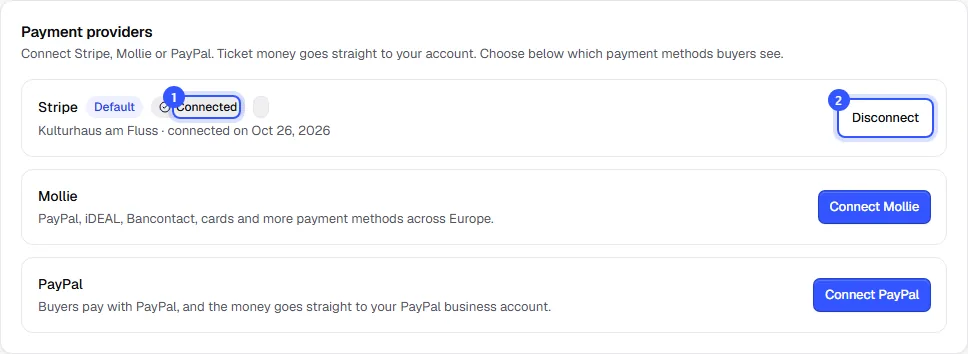
- Open Settings → Payments and click Connect Stripe. Only the owner can do this.
- You're taken to Stripe. There you tell Stripe who's selling, who represents your business or association, and which bank account payouts go to. If you already have a Stripe account, sign in with the same email address and Stripe fills in what it already knows.
- Stripe then brings you back to the dashboard. The account shows how far along you are.
| Status | What to do |
|---|---|
| Sign-up in progress | Sign-up with Stripe isn't finished yet. Pick it up again with Continue setup. |
| Details missing | Stripe needs something else, such as a document. Add missing details takes you there. Until then, payments and payouts don't work. |
| Connected | All done. Buyers can pay. |
We also check the status with Stripe ourselves. If Stripe is still reviewing your details, the status updates on its own once Stripe is done.
Enable payment methods with Stripe
You decide in Stripe which payment methods your account offers. If one is still off there, your list says Still off at Stripe with the Turn on at Stripe link. Turn it on in Stripe, and you can then offer it under Payment methods in your shop: Payment methods in your shop.
With Stripe, Apple Pay and Google Pay are part of card payments. Buyers see them automatically when their device supports them.
How buyers pay
Stripe's payment form sits right in your shop's checkout. Buyers stay on your page, enter their card or confirm with Apple Pay, for example. As soon as the payment goes through, they get their tickets by email.
Stripe charges you its fees per payment directly, based on your Stripe pricing. You also set in Stripe when the money reaches your bank account, for example daily or weekly. If you refund an order, the money goes back to the buyer through your Stripe account.
Disconnect Stripe
- Click Disconnect next to the account and confirm.
No more payments will come in through Stripe. Your Stripe account stays as it is, and orders that are already paid don’t change. If Stripe was your default and another provider is connected, that one becomes the default. If you connect Stripe again later, we use the same account.
Common questions
Which countries does Stripe work in?
In every country you can create a TickySmart workspace for: the European Economic Area, Switzerland, the United Kingdom, the US, Canada, Mexico, Australia and New Zealand. Mollie, on the other hand, is only available in Europe.
Can I connect more than one Stripe account?
One Stripe account per workspace. If you sell for several organizers, create a separate workspace for each, and each gets its own account.
Where do I see my payments and payouts?
In your Stripe dashboard. You'll find the orders themselves in TickySmart under Orders.
Why does Stripe say "Details missing" when everything was working?
Stripe sometimes asks for more later, for example as your sales grow. Click Add missing details and add the details in Stripe.