Two-factor sign-in
Protect your account with a code from an authenticator app, save your backup codes, sign in with a code and turn two-factor sign-in off again.
With two-factor sign-in, you need a code from an app on your phone in addition to your password. Even if someone knows your password, they can't get into your account. It's optional, but we recommend it, especially for owners and admins.
You need an authenticator app, such as 1Password, Google Authenticator or Microsoft Authenticator.
Set it up
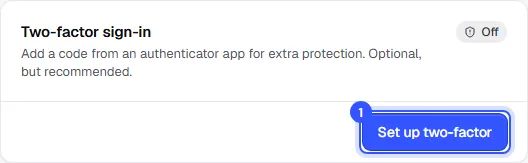
- Click your name at the bottom left. In your account, find the Two-factor sign-in section and click Set up two-factor.
- Confirm your password and click Continue.
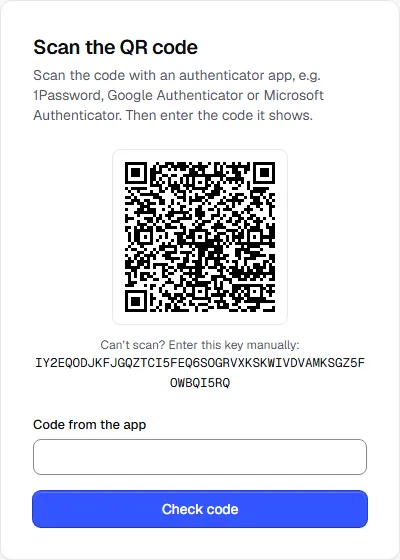
- Scan the QR code with your authenticator app. If that doesn't work, type the key below the code into the app by hand.
- Enter the 6-digit code from the app and click Check code.
- Save your backup codes, for example with Copy codes into your password manager. Then click Codes saved, continue.
Sign in with a code
After your password, we ask for the code from the app. On your own device you can tick Trust this device for 30 days; we then won't ask again on that device for 30 days.
If you don't have your phone with you, choose Use a backup code and enter one of your backup codes.
Turn it off
- In your account, click Turn off two-factor in the Two-factor sign-in section.
- Enter your password and click Turn off.
After that, your password is enough to sign in. The entry in your authenticator app and your backup codes stop working, so you can delete the entry from the app. You can set up two-factor sign-in again at any time.
Common questions
I'm getting a new phone
Many authenticator apps back up their entries and move with you to a new phone. Check this before you reset your old phone. If that doesn't work, turn two-factor sign-in off and set it up again with your new phone. You'll get new backup codes too.
The code isn't accepted
Codes change every 30 seconds. Use the current code and check that your phone sets its time automatically. If the clock is off, the codes won't match.
Can my team see whether I use two-factor sign-in?
Owners and admins see it in the team list under Settings → Team.