Sales period and limits
Set when sales start and end, limit quantities per order, sell secret ticket types through a link and set fee and cancellation per ticket type.
For each ticket type you decide when it's available in the shop, how many tickets someone can buy at once and whether it's publicly listed at all. On top of that, a ticket type can have its own booking fee and cancellation rules if they should differ from the event.
Set up sales
Open the ticket type and expand Sales.
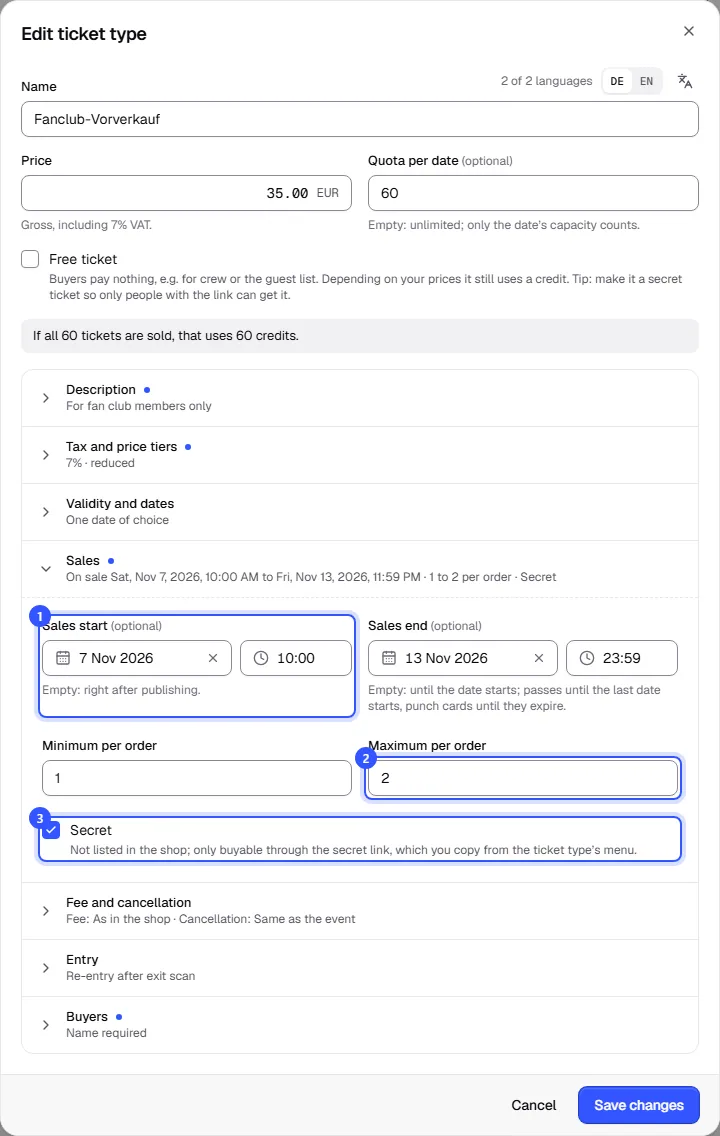
- Sales start: from then on the ticket type can be bought in the shop. Before that, buyers see it with a note saying when it goes on sale. Empty means right after publishing.
- Maximum per order: how many tickets of this type fit in one order. Next to it is Minimum per order, for example 2 for a table that's only sold in pairs.
- Secret: the ticket type isn't listed in the shop. Only people with the secret link can buy it, see below.
| Field | Default | Note |
|---|---|---|
| Sales start | empty | In the event's local time |
| Sales end | empty | Empty: until the date is over, also while it's running (dates without an end until they start). Passes until the last date, punch cards until they expire. |
| Minimum per order | 1 | 1 to 100 |
| Maximum per order | 10 | 1 to 100, at least the minimum |
Without a sales end of your own, tickets for a date keep selling while it's running, until it's over. If online sales should stop earlier, say at 10 pm on the evening, enter the time under Sales end. It can't be later than the end of the last date. After the sales end, the shop shows Sales ended for the ticket type.
Secret ticket type
A secret ticket type works well for a fan club presale, corporate allocations or, together with Free ticket, the guest list.
- In Sales, tick Secret and save.
- Open the ticket type's menu in the list and choose Copy secret link. The link is now on your clipboard, ready to send by email or newsletter.
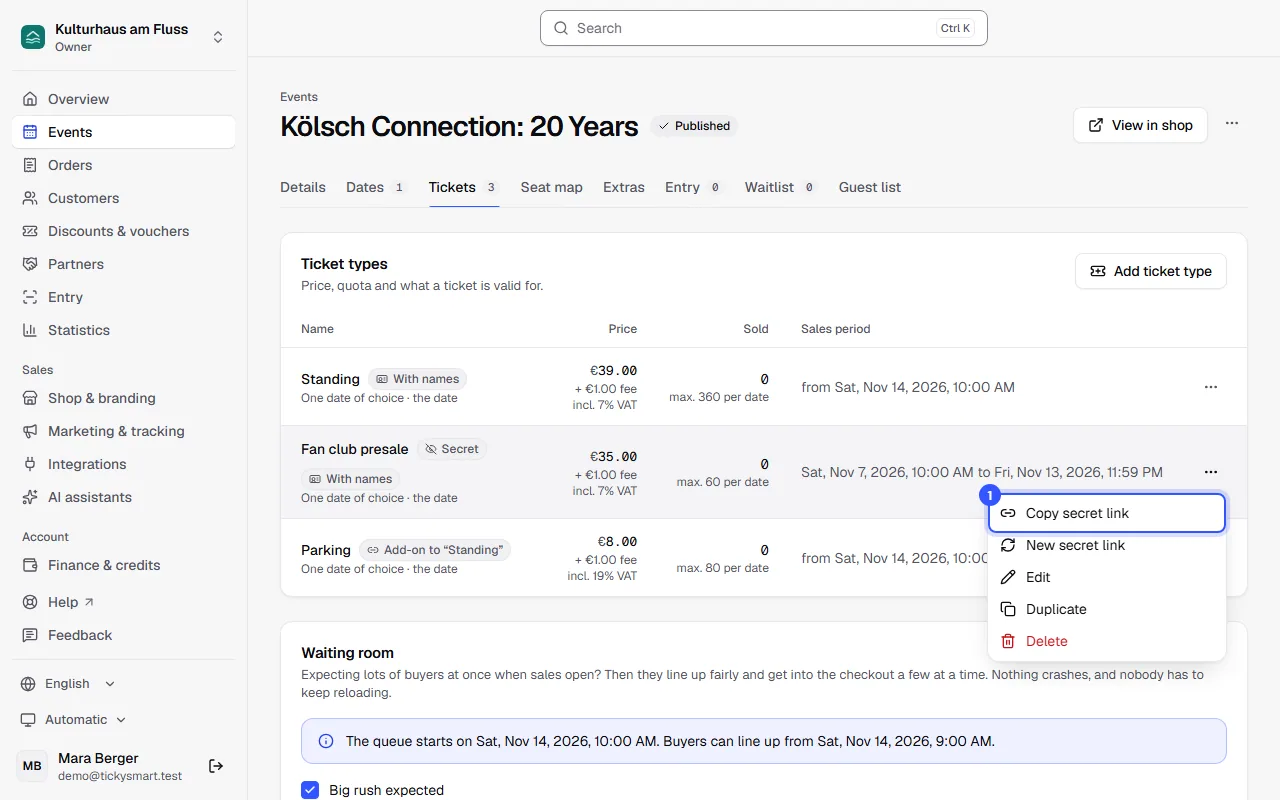
Anyone who opens the link sees the secret ticket type in the shop alongside the public ones. The code at the end of the link also works if buyers type it in under Redeem a code. All other rules still apply, including the sales period, quota and quantities per order.
If the link ends up in the wrong hands, choose New secret link in the menu. The old link stops working right away; tickets already bought stay valid. We copy the new link straight to your clipboard.
Fee and cancellation
In Fee and cancellation you can differ from the event for one ticket type.
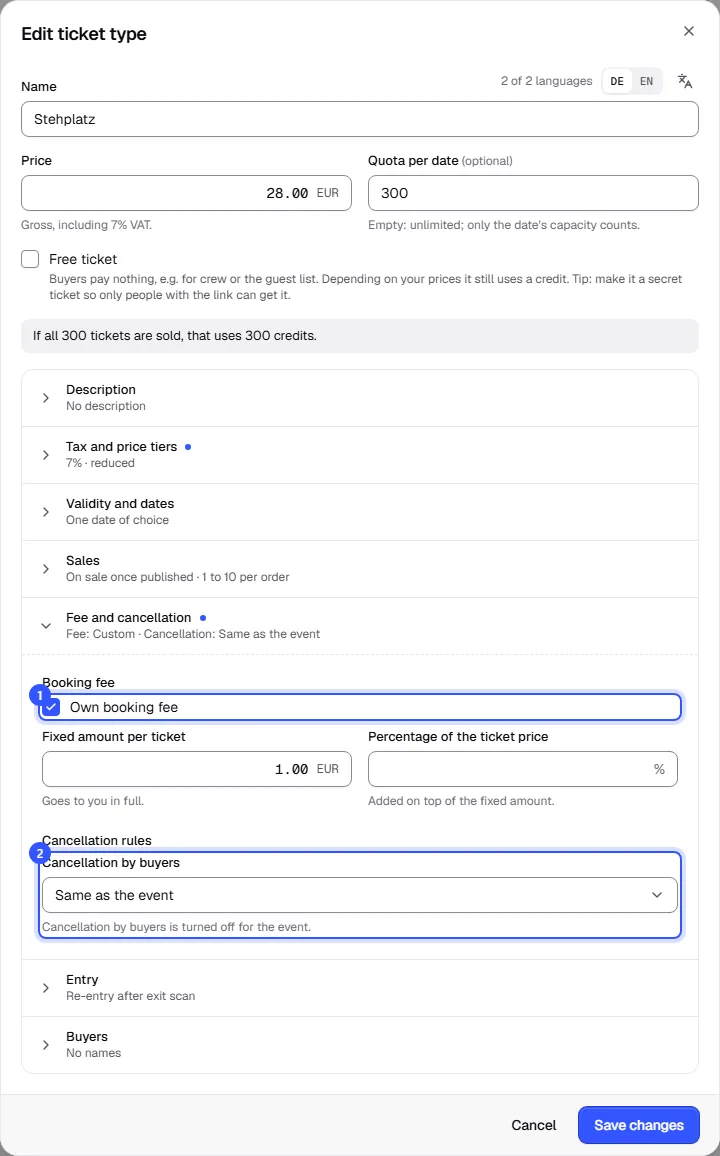
Booking fee: Without the checkbox, the event's fee applies, or the shop's if the event has none of its own. With Own booking fee you set a Fixed amount per ticket and a percentage for this ticket type. The fee goes entirely to you. Free tickets have no booking fee. How fees are shown in the shop is explained in Booking fee.
Cancellation by buyers:
| Option | Meaning |
|---|---|
| Same as the event | The event's cancellation rules apply. They're summed up below the field. |
| Own rules | Deadlines and fees for this ticket type only, such as free cancellation for an expensive VIP ticket |
| Not possible | Buyers can't cancel tickets of this type themselves, even if the event allows it. |
How cancellation deadlines, fees and resale work is covered in What buyers can do and Resale. Season tickets don't have this option; only your team can cancel them.
Common questions
How do I start sales at a set time?
Enter the time under Sales start and publish the event beforehand. Buyers then already see the ticket type and when sales begin. If you expect a rush, also turn on the waiting room.
A buyer wants more tickets than allowed
They can place a second order. To prevent that, keep Maximum per order low and require a name per ticket.
Can buyers see a secret ticket type if they know the event's address?
No. Without the code from the link it isn't listed in the shop and can't be ordered.
Which time zone do sales start and end use?
Both times are in the event's time zone, which you'll find in the event details.