Switching from another platform
Bring your events over from pretix, ditix, OK-Ticket or another ticket shop. Paste the link, check the preview, import them as drafts.
Already selling with pretix, ditix, OK-Ticket or another ticket shop? You don’t have to type your events again. TickySmart reads your current shop, shows you a preview and creates the events as drafts once you confirm. Your old shop keeps running until you switch.
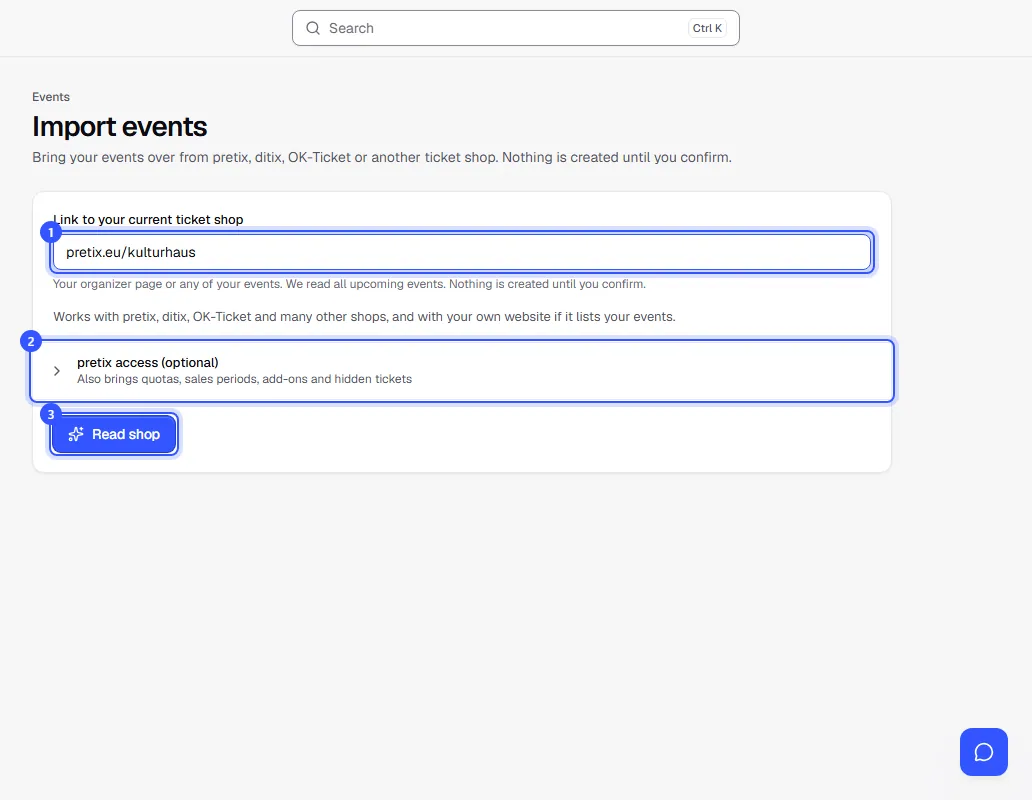
- Open Events and click Import events at the top.
- Paste the link to your current shop into Link to your current ticket shop. Your organizer page, where all your events are listed, works best. A single event works too; we then look for the others.
- Click Read shop. We now read all upcoming events. Depending on the size, this takes half a minute to a few minutes. You can leave the page in the meantime; the preview will be waiting for you.
This also works during setup: enter your shop under Your current ticket shop in the first step. The step “Your events” then shows the same preview later on. If the import from your website finds a ticket shop, we suggest it there.
The preview
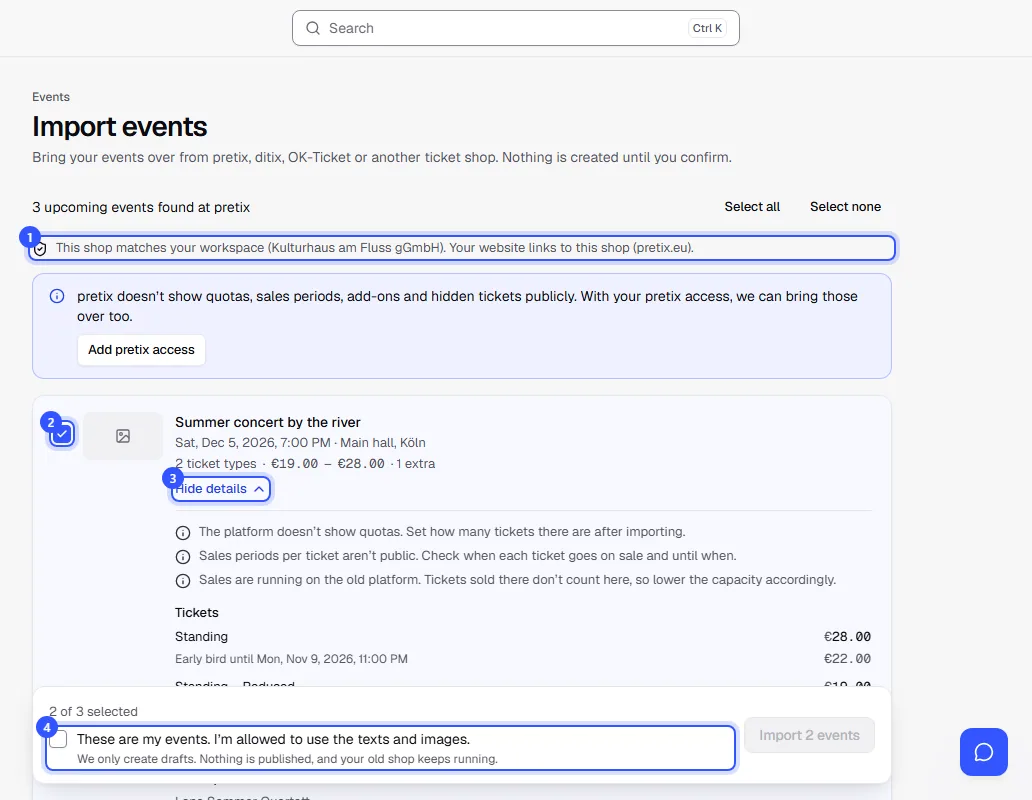
- At the top you see whether the shop matches your workspace. More below under Does the shop belong to you?
- Each event has a check box. Upcoming events are selected if the shop matches you. Cancelled, already imported and other organizers’ events never are.
- Show details shows tickets with prices and price stages, extras, line-up and links, plus notes on what to check after importing.
- At the bottom you confirm These are my events. I’m allowed to use the texts and images. and import your selection.
We only create drafts. Nothing is published and no emails are sent. Afterwards, open each event, add what’s missing and publish it: Publishing an event.
What gets imported
We import everything your shop shows publicly:
- Title and description, with pretix in all the shop’s languages
- Dates with start, end and admission; series and multiple dates as one event with several dates
- Venue with address. If you already have that venue, we use it; otherwise we create it.
- Cover image, video, website and social profiles, sponsors with logo
- Line-up with roles and times. If your shop links to the full programme on your website, we read it there too. For people on the line-up without links, we look up their website and profiles.
- Ticket types with price, reductions, early bird as a price stage, presale start, order limits and names on tickets
- Extras such as merch, parking or a menu
- with ditix and pretix also company details, logo and color for your shop
What a platform doesn’t show publicly, we can’t read. Mainly that’s quotas, tickets behind a secret link or code, and with pretix the sales periods per ticket and add-ons offered during checkout. The preview tells you for each event what’s missing.
We don’t import the old platform’s fees. Your fees come from the shop settings as always. Sold-out ticket types are created as hidden so nothing is sold twice.
What to check after importing
- Capacity and quotas: Enter how many tickets there are. If sales are already running, subtract the tickets sold on the old platform.
- Tax rate: If the platform shows none, we use your usual rate.
- Seating plan: If an event has seats, draw the seating plan in the editor: Seating plans.
- Sales periods: Check when each ticket goes on sale and until when.
Does the shop belong to you?
With every import we check whether the shop belongs to your workspace. We compare company, VAT ID, website, address and profiles with your legal details. If that isn’t enough, we look further: does your website link to the shop, and does the organizer’s legal notice name your company? If it’s still unclear after that, the AI checks with a verbatim quote from these pages.
- Matches: The preview shows the reason, for example “Your website links to this shop”.
- Unclear: Nothing is selected, and a yellow note reminds you to select only your own events. Your company details and website make the check more reliable.
- Doesn’t match: If the shop seems to belong to someone else, nothing is selected. A red note gives the reasons.
If a program page lists an event by another organizer, such as a guest performance, we mark it and don’t select it.
Nothing is blocked. If it is your event after all, tick it on its own. At the bottom you then also tick This really is my event. We keep a record of this confirmation. These events are also only created as drafts.
Set up pretix access
With an access token from pretix we also bring over what pretix doesn’t show publicly: quotas, sales periods, add-ons, hidden tickets and whether names go on the tickets.
- In pretix, open your organizer account and go to Teams.
- Create a new team, for example “TickySmart”, and give it access to all events. The team needs no other permissions.
- At the bottom of this team you’ll find API tokens. Enter a description, for example “TickySmart”, and add the token.
- Copy the token. pretix shows it only once.
- In TickySmart, open pretix access (optional), paste the token into pretix API token and click Read shop.
We use the token only to read and delete it as soon as the preview is ready. You can then remove it in pretix again.
If it doesn’t work
- The platform blocks automatic reading: Some platforms don’t allow automatic access, such as Eventim Light or Ticketmaster. We respect that. Create the events yourself, or ask the old platform for an export and send it to our support.
- No upcoming events found: Use the link to your organizer page, where all your events are listed.
- Too many attempts: You can run five imports a day. We delete previews after one week.
Frequently asked questions
Does switching cost anything?
No. Importing is free; fees only apply when you sell, as always.
Do you also import buyers and orders?
No, only events, tickets and what belongs to them. Tickets already sold stay valid with the old platform. At the door you need their scanner for them until presales there have ended.
What happens if I read the same shop again?
We recognize events you already imported. They are marked in the preview and not selected, so you don’t get duplicates.
Which platforms work?
We read pretix, ditix and OK-Ticket especially thoroughly. Other ticket shops and your own website work too, if they embed event data for search engines. Some ticket details may be missing then; the preview tells you.