Duplicate or repeat an event
Copy an event as a template, say for next season, or repeat it as a series, say every first Thursday of the month.
Duplicate creates copies of an event: once, for example for next season, or as a whole series, for example every Thursday until the summer. Each copy is then an event of its own, with its own page in the shop and its own orders.
Duplicate once
Open the event, click More actions → Duplicate and leave How often? on Once.
- Title of the copy: It suggests the old title with "(copy)" added. This changes the title in your default language; translations stay as they are.
- Copy dates: Only scheduled dates; cancelled ones stay with the original.
- Shift by days: Moves dates, sales periods and validity at the same local time. 7 = one week, 364 = same weekday next year. Below it you see the copy's first date straight away.
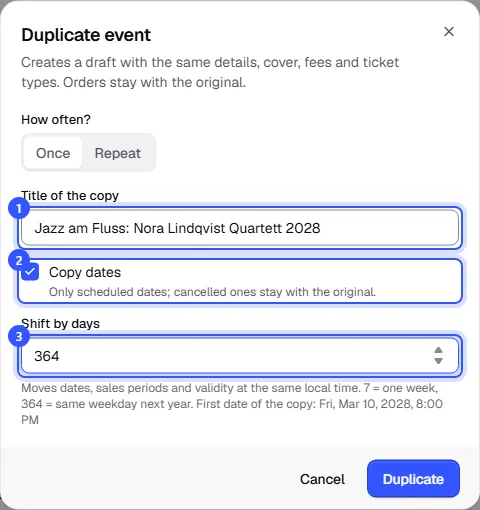
Click Duplicate. The copy opens as a Draft, so you can adjust it in peace and then publish it.
What's copied
| Copied | Stays with the original |
|---|---|
| Texts, cover image, venue, category, video, links, questions and answers | Orders and guests |
| Prices, booking fee, cancellation rules and age limit | Cancelled dates |
| Ticket types with price tiers, add-on tickets and extras | Waitlist entries |
| Line-up and sponsors | |
| Seat map without bookings, entry areas, time slots |
Performance times in the line-up are only copied if you copy the dates. Hidden ticket types get a new secret link; the old one only works for the original.
Repeat as a series
For a series such as a monthly poetry slam or a children's show every Sunday, set How often? to Repeat.
- Choose Repeat. The option is only there for events with fixed dates, not for season tickets or time slots.
- Repeats: every week, every 2 weeks, every month on the same weekday (such as the 1st Thursday or the last Friday) or every month on the same day. To the right you pick the end date under Until. For weekly rhythms you can choose several weekdays under On these days.
- The preview shows each copy with its date and time. Untick days when nothing happens, e.g. public holidays. You can create up to 100 copies at once.
- Publish right away: Otherwise the copies are created as drafts.
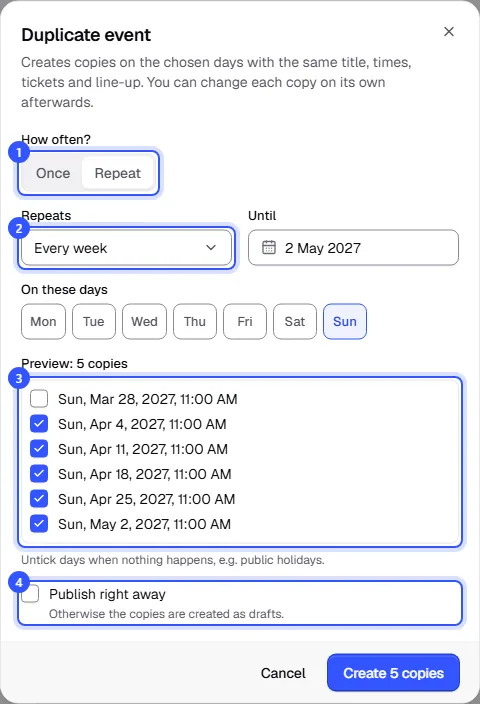
Click Create 5 copies. The event list then shows the original and all copies, filtered by the title.
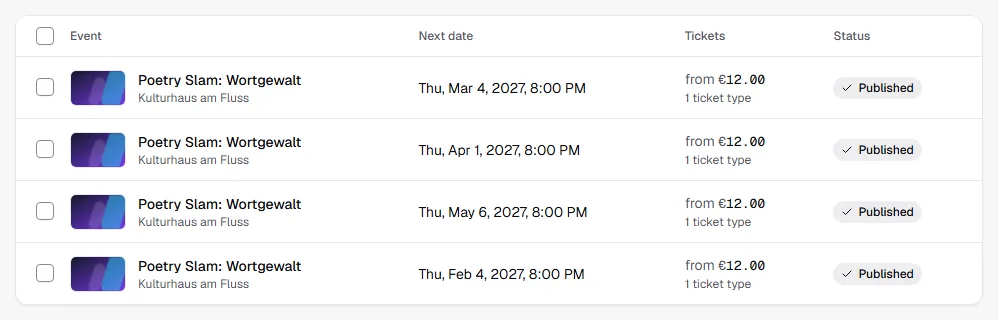
Each copy has the same title, times, ticket types and line-up. Its address in the shop ends with the date, for example …/poetry-slam-wortgewalt-2027-03-04. If the original has several dates, such as two performances a day, every copy gets all of them, shifted by the same number of days.
Common questions
Do the copies change when I change the original?
No. Each copy is an event of its own. If you later change something for all of them, such as the price, you do it in each copy. Publishing, cancelling and deleting works for several at once: Bulk actions.
Why is there no "Repeat" option?
The event has no scheduled date yet, or it's a season ticket or an event with time slots. Those can only be duplicated once.
Why weren't the copies published?
With Publish right away, the original has to be complete, with everything needed for publishing. Otherwise no copies are created and the dialog tells you something is missing. The details are shown at the top of the original's page. Complete it there, or create the copies as drafts.
Can I duplicate a cancelled event?
Yes. That's handy for a replacement: the copy takes over everything except orders and cancelled dates. You add new dates in the copy.
A series or one event with several dates?
A series makes sense when each night needs its own page, for example with its own line-up. If buyers should choose between dates on one page, add several dates instead: Dates.