Vouchers
Sell vouchers in your shop, issue them yourself or bring them over from another system, and see how buyers redeem them.
Vouchers work like money: buyers redeem them at checkout, in full or in part, and pay the rest as usual. You can sell vouchers in your shop, issue them yourself, for example for a prize draw, or bring them over with their remaining balance from your previous system.
You'll find everything under Discounts & vouchers in the Vouchers tab. Owners, admins and the marketing role can use it.
Sell vouchers in your shop
In the Sell in the shop card, you set what buyers can buy:
- Tick Sell vouchers in the shop.
- Amounts: Enter an amount and click Add, up to eight amounts. With Allow a custom amount, buyers type in their own amount between a minimum and a maximum.
- Valid from purchase: How long a purchased voucher stays valid, or No expiry.
- Text on the page: Optional, for example what the voucher is good for.
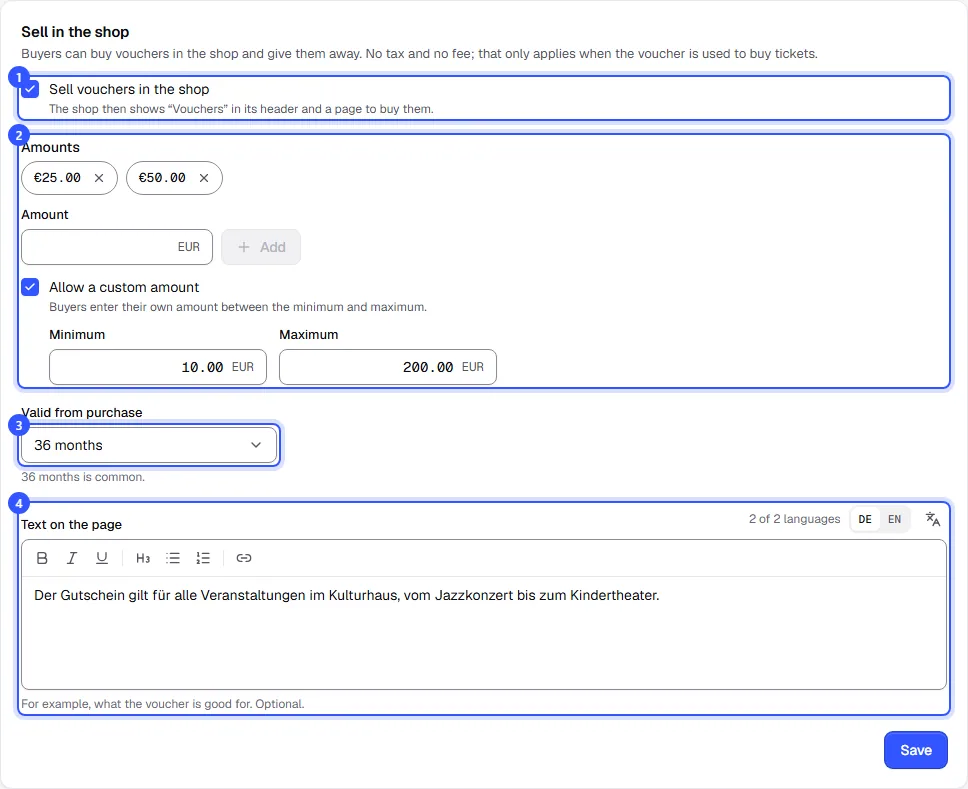
Click Save. Amounts are in your workspace's currency.
How buyers purchase a voucher
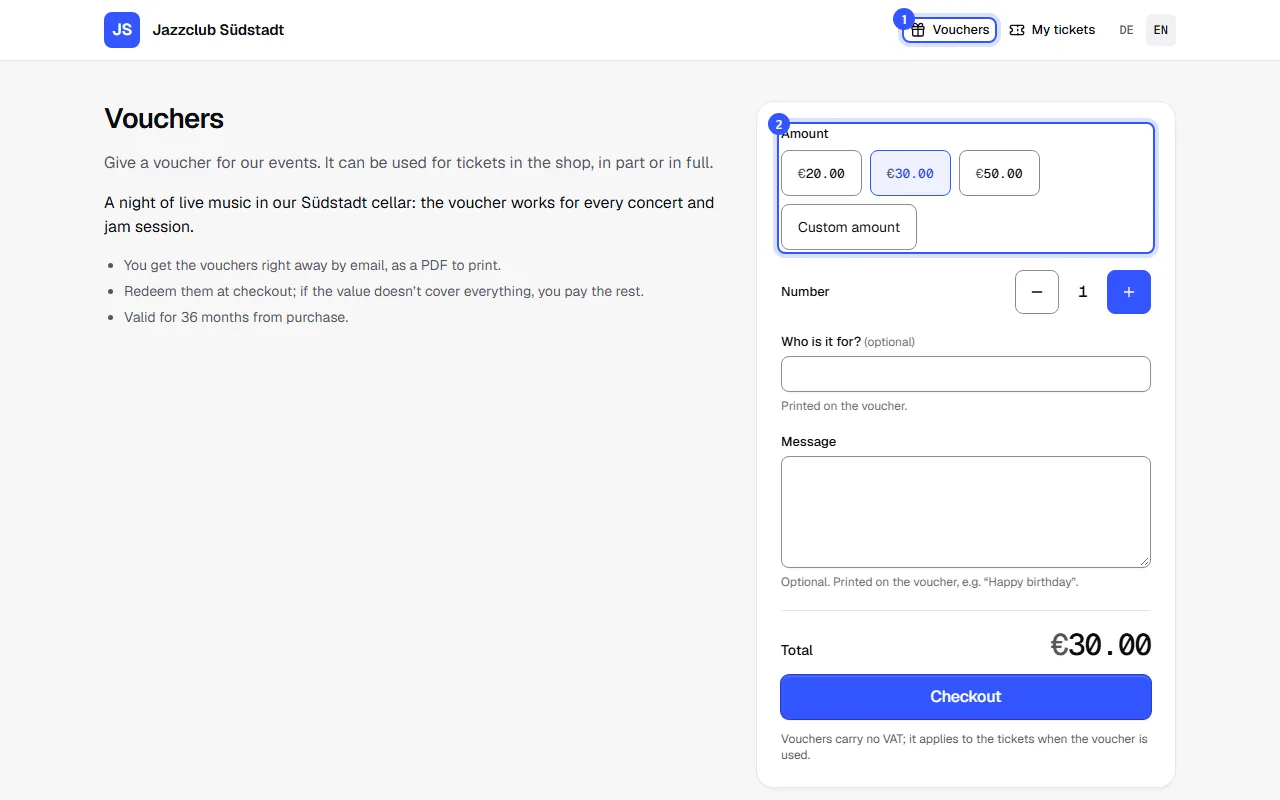
- Your shop header now shows Vouchers. One click opens the page to buy them.
- The buyer picks an amount and quantity, and optionally who the voucher is for and a message. Payment runs through the same checkout as tickets.
Right after paying, the buyer gets the vouchers by email as a PDF to print. Each voucher shows the code, the value, the validity and, if given, the recipient and message. No tax or booking fee is charged when a voucher is sold. Both apply only once tickets are bought with it.
Issue vouchers
For prize draws, as a thank-you or as compensation, you issue vouchers yourself. In the Vouchers card, click Issue vouchers:
- Value and Currency.
- Number: All get the same value, up to 1,000 at once.
- Valid until: 36 months by default. Without a date, the voucher never expires.
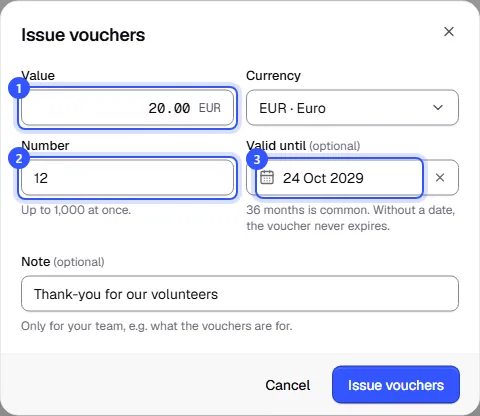
Only your team sees the Note, for example what the vouchers are for. TickySmart generates the codes. In the menu with the three dots (More actions) next to the button, you download all vouchers as Excel or CSV to hand out the codes.
Bring vouchers over from another system
If you already have vouchers in circulation, bring them over with their remaining balance. In the menu with the three dots, choose Import from CSV. Upload a CSV file with one line per voucher: code, remaining balance and optionally the expiry date (2027-12-31 or 31.12.2027). A header line is fine. Each file can hold up to 5,000 vouchers. Before importing, the dialog shows how many vouchers it recognized and which lines don't fit.
How buyers redeem a voucher
At checkout, the buyer chooses Redeem a voucher and enters the code. The voucher covers the amount due in full or in part, and the buyer pays the rest as usual. Redeem another voucher lets them combine several vouchers. Any remaining balance stays on the voucher.
Manage vouchers
The list shows each voucher with its remaining balance, expiry, status and source. The search field finds it by code or note.
- Issue vouchers creates new vouchers.
- Click a code to open the voucher.
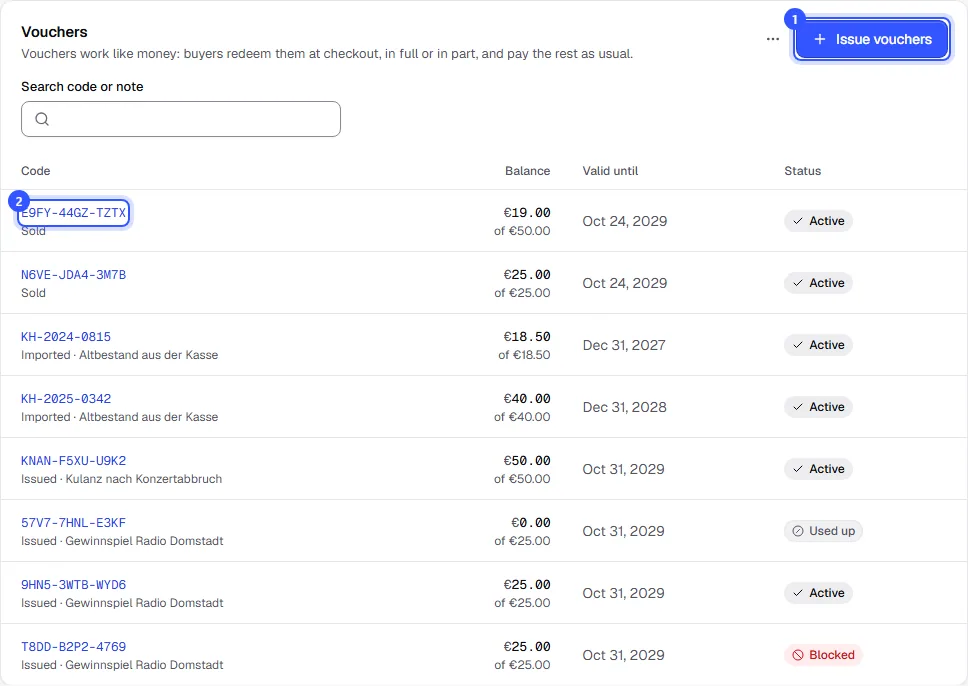
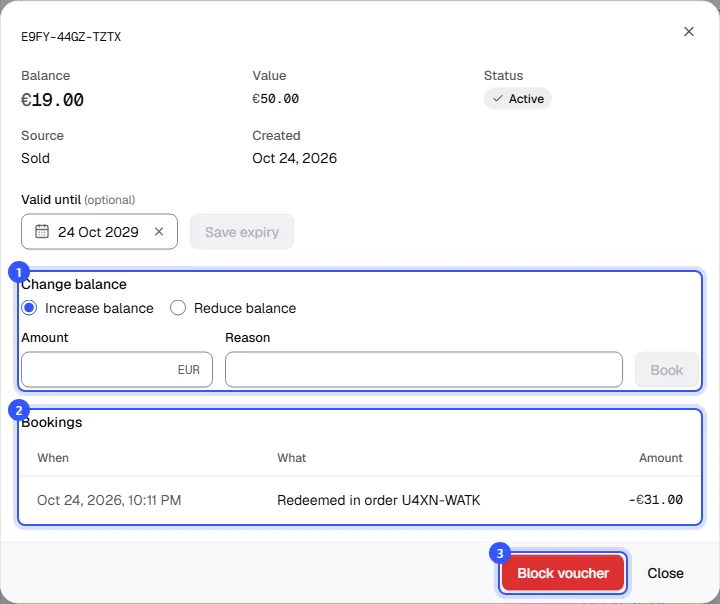
In the open voucher you can change the expiry and save it with Save expiry. You can also:
- Change balance: Increase or decrease the balance, always with a reason.
- Bookings: Every redemption with its order number, every refund and every correction.
- Block voucher: The voucher can no longer be redeemed, for example if it was reported lost. Unblock makes it valid again.
| Status | Meaning |
|---|---|
| Active | The voucher can be redeemed. |
| Used up | There's no balance left. |
| Expired | The expiry date has passed. |
| Blocked | You blocked the voucher. |
Common questions
What happens to the voucher if I refund an order?
The money goes back to the payment method the buyer used for the rest first. Anything beyond that goes back onto the voucher. Its entries then show Refunded from order …. More under Cancel and refund.
Can I cancel a voucher purchase?
Yes, in the order, as long as none of its vouchers has been redeemed. The vouchers then stop working. If one has already been redeemed, reduce the balance of the others instead.
Does a voucher work in any currency?
No. A voucher has one currency and can only be redeemed for orders in that currency.
Can vouchers be paid for with vouchers?
No. Buyers only redeem vouchers for tickets.