Sell seats
Apply a seat map to an event, link categories to ticket types, block seats and see the occupancy for each date.
If your venue has a seat map, you sell numbered seats: buyers pick their seats in the shop, and every ticket shows its seat. To do this, apply the plan to the event and link each category to a ticket type. How to draw a plan is covered in Create a seat map.
Apply a seat map
- Under Details, check that the event takes place at a saved venue that has a seat map.
- Open Seat map, choose the right plan under Seat map and click Use seat map.

The event gets its own copy of the plan. That's why later changes at the venue don't move any sold seats.
Link categories to ticket types
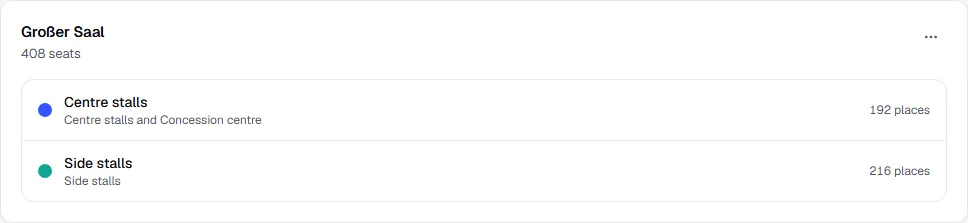
Once applied, you see the plan's categories. As long as a category has no ticket type, it shows Not on sale and its seats can't be bought.
- Open Tickets and edit the ticket type or add a new one.
- Under Seat on the seat map, choose the category.
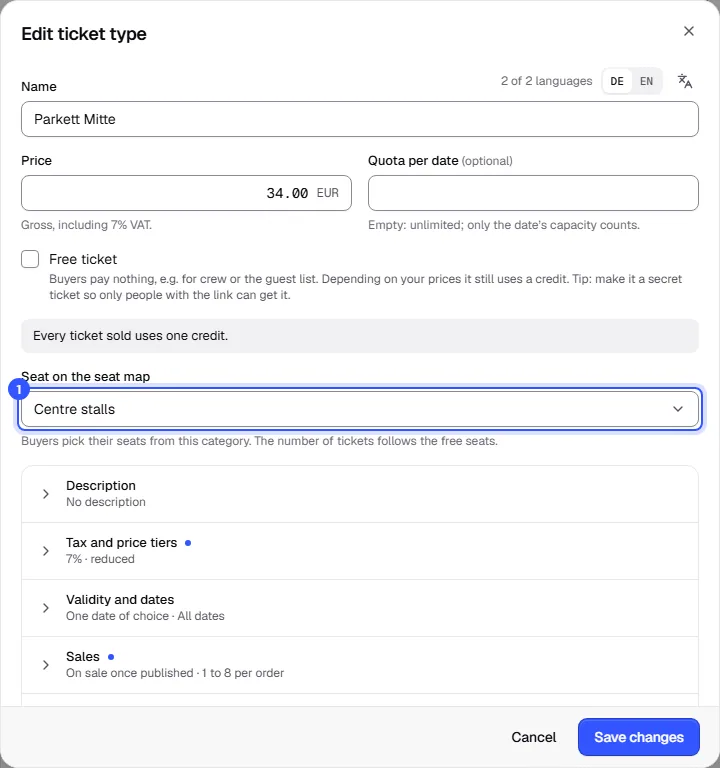
How many tickets there are then depends on the free seats in the category; you don't need a quota. A category can have several ticket types, such as "Regular" and "Concession". Buyers then choose the ticket for each seat.
Ticket types without a category stay on Free seating: buyers choose a number, not a seat. That way you can sell standing tickets alongside numbered seats, for example.
How buyers pick their seats
In the shop, the ticket types are headed by Pick your seats with a Choose seats button. It opens the seat map for the selected date.
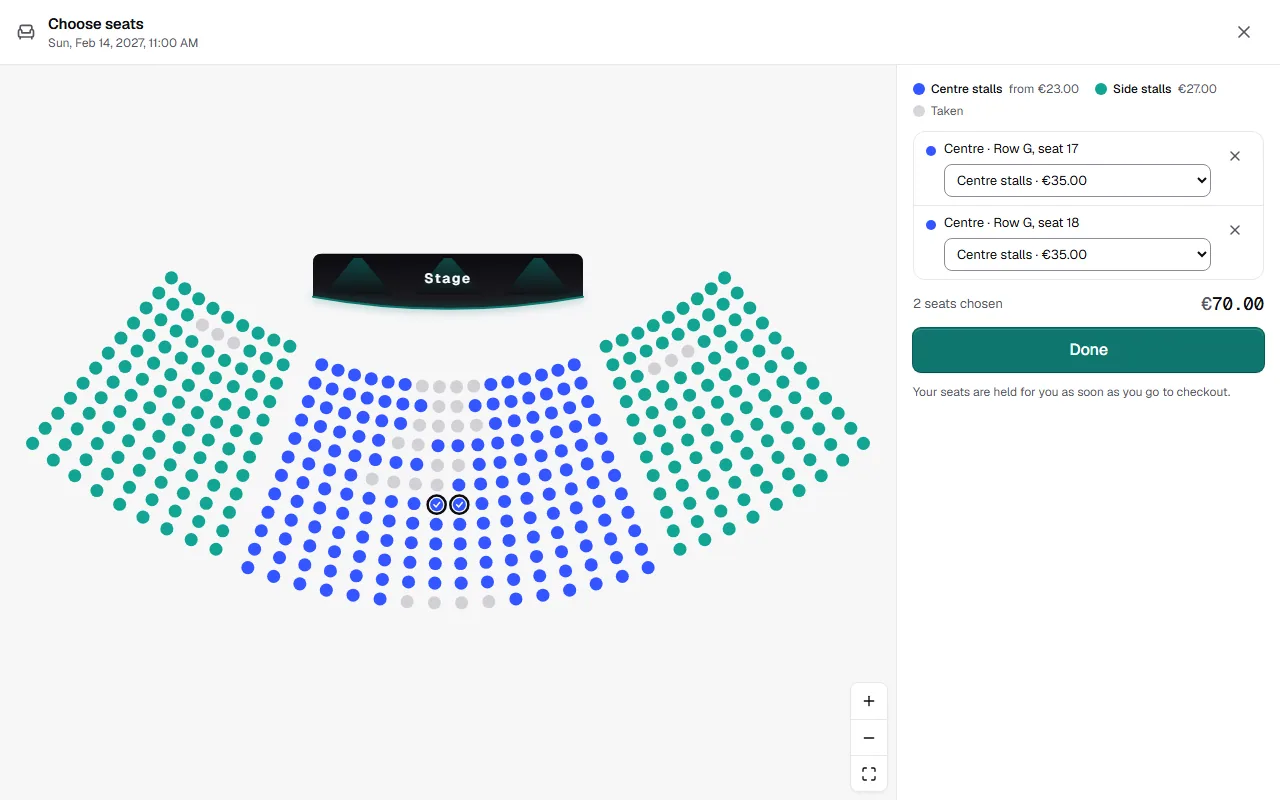
- Tapping a free seat picks it; tapping it again lets it go.
- If a category has several ticket types, the buyer chooses the ticket for each seat.
- Standing areas on the plan show how many places are still free.
- If the plan has levels, such as stalls and balconies, the buyer switches between them above the plan. Each level shows how many seats are still free there.
- As soon as the buyer goes to checkout, we hold the seats for them. If someone else was quicker, we remove those seats from the selection and tell them.
The ticket and the order show the seat, for example "Centre · Row C, Seat 14", and with levels the level too, such as "Circle · Centre · Row 2, Seat 8".
Occupancy and blocked seats
Below the plan you see the Occupancy for each date: sold, reserved, blocked and free seats. If the event has several dates, choose the date at the top right.
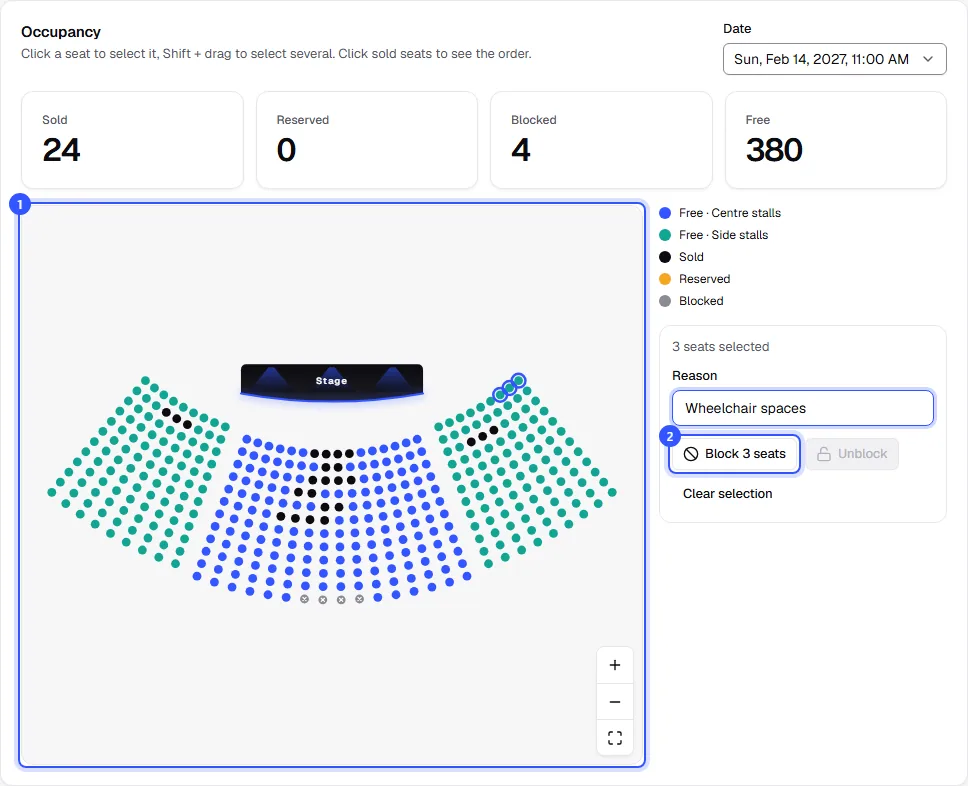
- Click a sold seat: the name and a link to the order appear on the right.
- Clicking free seats selects them; Shift + drag selects several at once.
- Enter a Reason, such as "Technicians", "Wheelchair" or "Press", and click Block. Blocked seats aren't sold.
- Select blocked seats the same way and release them with Unblock.
If the plan has levels, switch between them above the plan. Selected seats stay selected, so you can block seats on several levels at once.
Blocking only applies to the selected date.
Change the plan
If you changed the plan at the venue after applying it, Seat map shows a note and an Apply changes button. Use it to bring the changes into the event. Sold seats stay where they are. If the new plan is missing seats that are already sold or reserved, the changes can't be applied.
From the menu next to the plan, choose Remove seat map. This only works while no seat is sold or reserved. Ticket types then sell without seats and blocked seats are released.
Common questions
Can I move an order with seats to another date?
Yes. Each ticket keeps its seat, which has to be free on the new date. Moving orders is explained in Change an order.
How does the waitlist work with seats?
When seats become free, the offer to the next person on the waitlist picks the seats automatically, next to each other where possible. More in Waitlist.
Can I sell a season ticket with fixed seats?
Yes. The season ticket and all its events need the same seat map. The seat then applies at every date, see Season tickets.
Why can't I choose a seat map?
The event needs a saved venue; a one-off address isn't enough. If the venue has no plan yet, the Go to venues button takes you to the venues.