Scan results
What green, yellow and red mean in the scan app, which messages there are and what staff should do in each case.
After every scan, the scan app shows the result across the whole screen: a colour, a word, a sentence about the reason and the ticket below. There's sound and vibration too, so staff know right away what's going on, even in a crowd.
Green: come on in
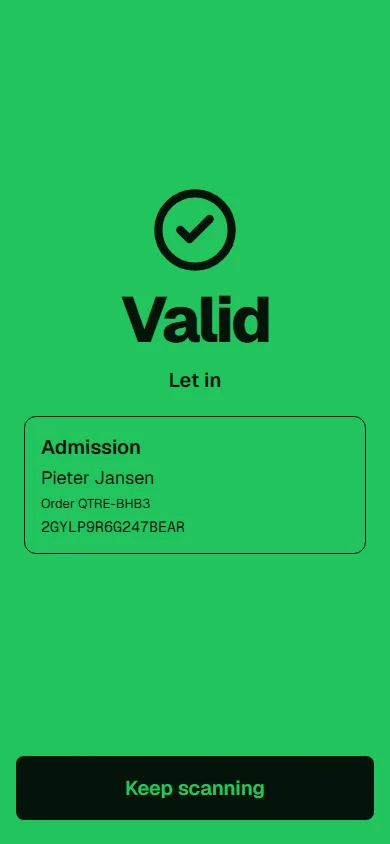
Green moves on by itself after one and a half seconds. If staff still need to check proof or a photo, the result stays up until they tap Keep scanning.
| Message | What it means |
|---|---|
| Let in | First entry with this ticket. |
| Let in again | The guest was already inside and may come back in according to the re-entry rule. |
| Went out | Scanned at the exit. Anyone with a valid ticket may always leave. |
| Redeemed | An extra was redeemed at a counter. |
| Let in anyway | Staff let the guest in anyway on yellow. |
| ID checked, let in | Let in after the age check. |
| Valid, not used up | The ticket is valid but wasn't used up, because the device is in Check only mode. |
Yellow: staff decide
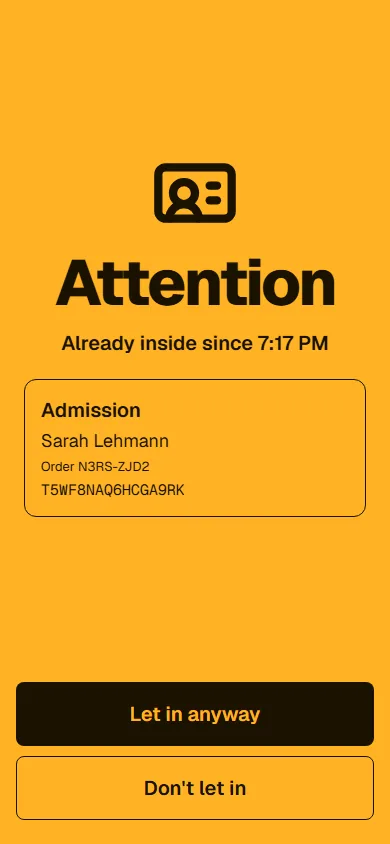
On yellow, the ticket is genuine, but something doesn't fit. Staff tap Let in anyway or Don't let in. In Check only mode, these buttons aren't there.
| Message | What it means | What to do |
|---|---|---|
| Already inside since 9:14 PM | The ticket was already let in and wasn't scanned at the exit. | If the guest only stepped out, let them in anyway. If someone else is standing there, don't. |
| Wrong area. Valid for VIP lounge | The ticket isn't allowed into this area. The app names the areas it may enter. | Send the guest to the right entrance. |
| Just used. Valid again from 9:44 PM | The multi-entry card was used a moment ago and its waiting time is still running. | Usually don't let in, the card may have been passed on. |
| Genuine ticket, but not saved on this device yet | A genuine QR code, but the offline device didn't have a list with this ticket yet, for example because it was just bought. | Ask for the purchase confirmation and decide. |
| First entry: please check their age. | First entry with a ticket that has an age limit. | Check ID: Age check. |
Red: not like this
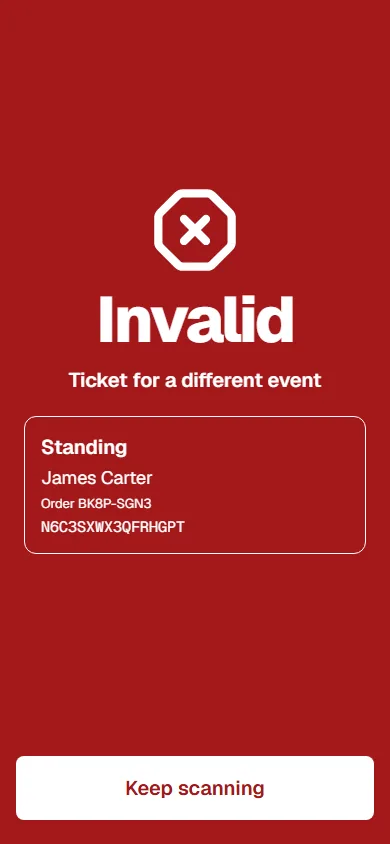
On red, the ticket isn't valid here. There's no button to let the guest in, only Keep scanning.
| Message | What it means |
|---|---|
| Already used: 9:14 PM | Already let in, and the ticket type doesn't allow re-entry. |
| Not valid today | The ticket is for another date. If the app knows the date, it shows it. |
| This date was cancelled | The ticket's date has been cancelled. |
| Expired on 30 Sep 2026 | The multi-entry card has expired. |
| No entries left | All entries of the multi-entry card have been used. |
| Ticket cancelled | The ticket has been cancelled. |
| Blocked: the payment was charged back | The buyer charged back the payment. The ticket stays blocked until that's settled. |
| Up for resale: only valid again once withdrawn | The buyer has put the ticket up for resale. |
| This ticket doesn't exist | The typed or scanned code doesn't exist, for example after a typo. |
| Not a valid ticket code | The QR code isn't genuine or has since been replaced by a new one. The app spots this even without a connection. |
| Ticket for a different event | The ticket belongs to a different event. |
| All used up. Last one: 9:14 PM | At a counter: the extra has been fully redeemed. |
| This is a ticket, not an extra. Tickets are checked at the entrance. | A ticket was scanned at a counter. |
| This is an extra, not a ticket. Redeem it at a counter. | An extra was scanned at the entrance. |
| This is an add-on ticket, for example for parking. It doesn't grant entry and is redeemed at a counter. | An add-on ticket, for example for parking, was scanned at the entrance. It's redeemed at a counter. |
What's shown below the result
Below the message, the app shows the ticket: ticket type, the seat for seated events, the name on the ticket, the order number and the ticket code. Depending on the ticket type, you may also see:
| Detail | When |
|---|---|
| Check proof | The ticket type requires proof, such as a student ID. The text is shown in large type. See Names, proof and photos. |
| Photo of the holder | Multi-entry cards with a photo show the holder's picture to compare. |
| Group · 4 people | A group ticket admits several people with one scan. |
| 7 of 10 entries left | For multi-entry cards, how many entries are left after this scan. |
If the device had no connection, a dark strip appears at the top: Checked offline. Will be sent once there's a connection again. More in Scanning offline.
Common questions
Red, but the guest says they bought a ticket
Use Search in the scan app to look for their name or the order number from the confirmation email: Find tickets. If search finds nothing, the order most likely belongs to a different event.
Can I let someone in anyway on red?
Not in the scan app. Red means the ticket isn't valid here. Sort it out with the guest, for example by looking at the order in the dashboard.
From when until when is a ticket valid at the door?
- Ticket for one date: all day on the date, in the event's local time, until four hours after the end. That way parties running into the morning work too.
- Time slots: from 15 minutes before the slot starts, then until the end of the slot or all day, depending on the event's setting. See Time slots.
- Pass: once on each of its dates, each time like a ticket for that date.
- Multi-entry card: until it expires and as long as entries are left, only on the selected dates if you chose any.
- Season ticket: on every date that's part of the season ticket. See Season tickets.
How to set this up per ticket type is explained in What a ticket is valid for.
Why doesn't green always move on by itself?
Because staff need to check something, such as proof or a photo. The result then stays up until someone taps Keep scanning.
Where can I see later what was scanned?
In the live view under Latest scans, each with result, area and device.