Own sender address
Send emails to your buyers from your own address, such as tickets@your-club.com, with two DNS records.
Confirmations, tickets and reminders to your buyers normally come from TickySmart. With your own sender address, they come from your address instead, for example tickets@kulturhaus-am-fluss.de, and your buyers’ replies land right in that mailbox. All you need is two records at your domain provider.
Set up your address
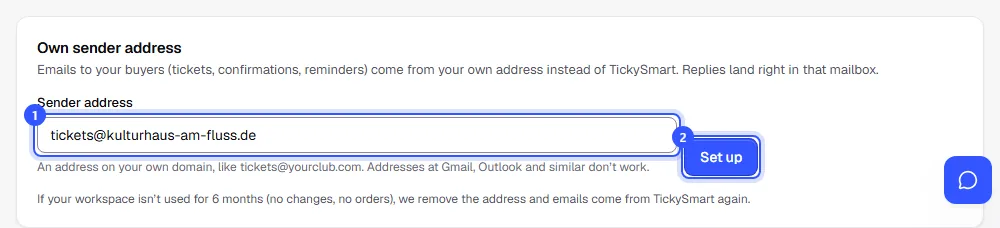
Open Shop & branding and scroll to the Own sender address card. Owners and admins can do this.
- Under Sender address, enter the address your emails should come from. It has to be on your own domain. Addresses at Gmail, Outlook and similar providers don’t work, because only the provider itself can allow emails for them.
- Click Set up.
Create the DNS records
After you set it up, the card shows two records to create at your domain provider, with buttons to copy them.
- SPF: a TXT record that allows us to send emails for your domain. If your domain already has an SPF record (it starts with “v=spf1”, often from your mailbox provider), don’t add a second one. Change the existing one to the value from the card, we’ve already added our part to it.
- DKIM: a TXT record with the name from the card. Email programs use it to tell that the email really comes from you. The value is long, so copy all of it.
- Wait. As long as something is missing, the address shows Waiting for DNS, and each record shows whether we’ve found it yet.
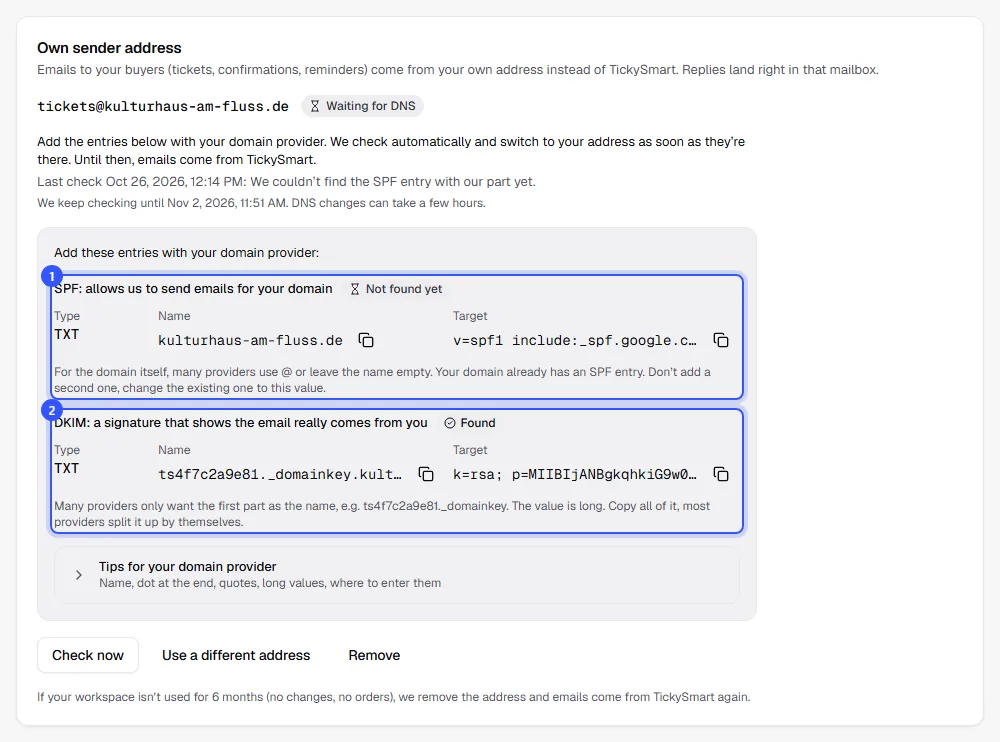
We check automatically, every ten minutes for the first two days and then hourly, for seven days in total. Click Check now to check right away. Until the address is confirmed, emails keep coming from TickySmart.
If a record has something other than what we expect, the card shows below it what’s currently entered, or under which name we found the record instead. Tips for your domain provider lists the most common pitfalls. Creating DNS records explains them in detail.
Once the address is active
When both records are right, the address shows Active, and everyone who gets notifications receives an email.
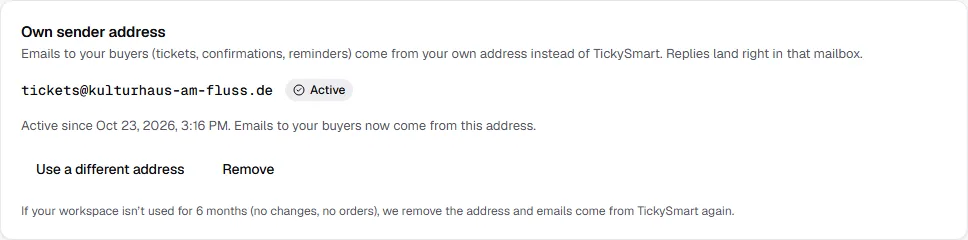
From now on, all emails to your buyers come from this address: order confirmations with tickets, reminders, waitlist, changes and cancellations. Emails to you and your team, such as notifications and invoices from TickySmart, still come from TickySmart. Once a day we check that the records are still there. If one is missing, emails come from TickySmart again until it’s back.
| Status | What happens |
|---|---|
| Waiting for DNS | We’re looking for the DNS records. Emails still come from TickySmart. |
| Active | Emails to your buyers come from your address. |
| Not confirmed | We checked for seven days and couldn’t find the records. Create them and click Check now, otherwise we remove the address after another seven days. |
Frequently asked questions
What does the message from the last check mean?
| Message | What you can do |
|---|---|
| We couldn’t find the SPF entry with our part yet. | Create the SPF record or change the existing one to the value from the card. |
| Your domain has two SPF entries, so neither of them counts. Merge them into one (see below). | Delete one of the two SPF records and put the value from the card into the other one. |
| We couldn’t find the DKIM entry yet. | Create the DKIM record. Copy the name and value completely so no character is missing. |
| The DKIM entry is there, but its value doesn’t match yet. Often a piece goes missing when copying. | Compare the value with the one in the card. Copy it again in full, without spaces, line breaks or extra quotes. |
| An entry ended up under a doubled name. Your provider adds the domain by itself, so enter only the first part as the name. | Delete the record and create it again with the short name from the card. More under The name. |
| Our email service couldn’t be reached. We’ll keep trying. | You don’t need to do anything. We’ll check again shortly. |
Can I set up more than one sender address?
No, each workspace has one. Click Use a different address to use a different one. If the domain stays the same, say from tickets@ to info@, you don’t need new records.
What happens if I remove the address?
Emails to your buyers come from TickySmart again. You can delete the DNS records at your provider afterwards. If you set the address up again later, you get a new DKIM record.
Why was my address removed?
That happens in two cases. If we couldn’t confirm it within seven days, we remove it after another seven days, unless you click Check now before then. And if your workspace isn’t used for six months, meaning nobody changes anything and no orders come in, we remove it too. In both cases you get an email and can set it up again at any time. If you delete your workspace, the address goes with it.
The domain is already set up in another workspace
Each domain can only be a sender in one workspace. If you set it up in a second workspace, remove it there first.
Related articles
- Creating DNS records with the common pitfalls
- Custom domain for your shop
- Notifications