Get paid with PayPal
Connect your PayPal business account straight to TickySmart, without Stripe or Mollie, and what happens with payments, refunds and disputes.
Lots of buyers like paying with PayPal best. You connect your own PayPal business account straight to TickySmart; you don't need Stripe or Mollie for it. Ticket money lands in your PayPal account right away.
To connect, you create an "app" in your PayPal account. That sounds technical, but it's just an entry with two keys that you copy over to us. No programming involved.
What you need
- A PayPal business account. If you only have a personal account, switch it to a business account in your PayPal settings.
- About five minutes.
Create an app at PayPal
- Open developer.paypal.com and log in with your PayPal business account. It's the same login as PayPal.
- Switch to Live at the top. Keys from the Sandbox are only for testing; no real money comes in with them.
- Under Apps & Credentials, click Create App. Name it "TickySmart", leave the type on Merchant and create the app.
- You now see the Client ID and the Secret. Keep the page open, you'll need both in a moment.
It's best to create a separate app just for TickySmart. You can delete it any time without affecting other programs that use PayPal for you.
Connect PayPal in TickySmart
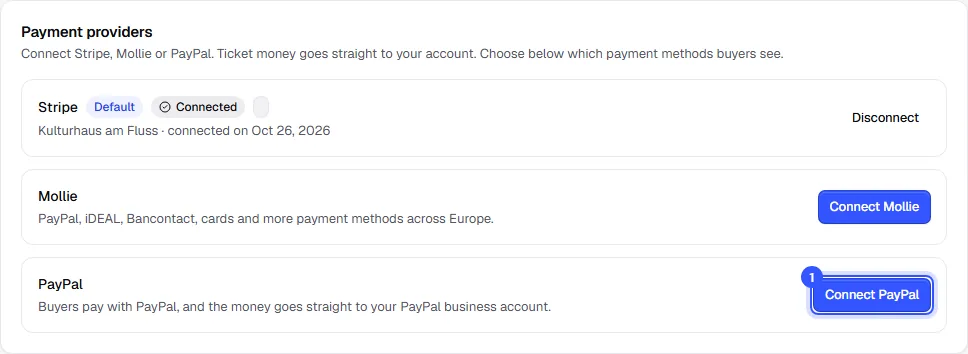
- Open Settings → Payments and click Connect PayPal. Only the owner can do this.
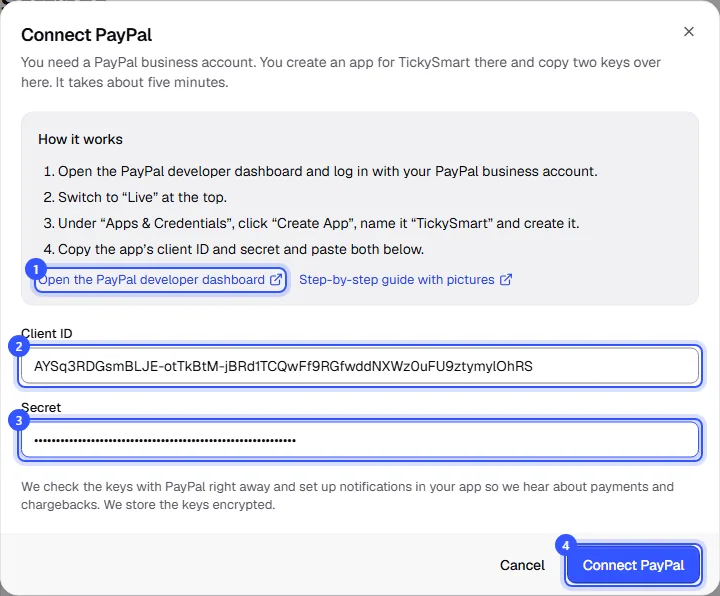
A window opens with short instructions:
- Open the PayPal developer dashboard takes you straight to your apps at PayPal, in case you still need to create the app.
- Paste your app's client ID into Client ID.
- Paste the secret into Secret.
- Click Connect PayPal.
We check the keys with PayPal right away. If everything works, the account shows Connected and the email address of your PayPal account. We also add a webhook to your app. That's how PayPal tells us when a payment comes in or a buyer disputes one. Don't delete it at PayPal.
How buyers pay
When a buyer picks PayPal at checkout, they go to PayPal's page. They log in there and approve the payment. Only then do we collect the amount, and the buyer gets their tickets by email. If they cancel at PayPal, no money moves and they can pick another payment method at checkout.
What else the buyer is offered on PayPal's page, such as paying by card or "Pay Later", is up to PayPal and depends on the country. We only allow payments that are confirmed right away, because the tickets are created with the payment.
PayPal charges you its fees per payment directly, under your agreement with PayPal. TickySmart's fee per ticket stays the same.
PayPal alongside Stripe or Mollie
You can connect PayPal in addition to Stripe or Mollie. The first account you connect is your default; change that with Make default. If Mollie or Stripe offers PayPal as well, you pick in the list of payment methods which one PayPal runs through: Payment methods in your shop.
Refunds and cancellations
When you cancel an order with a refund, we send the money back through PayPal, in full or in part: Cancel and refund. PayPal refunds up to 180 days after the payment. If your PayPal balance isn't enough, PayPal takes the money from your bank account, depending on your settings. If PayPal declines the refund, you see it on the order and refund the buyer directly in PayPal.
Disputes and chargebacks
If a buyer opens a dispute at PayPal or reverses the payment through their bank or card, we block the order's tickets straight away and send you an email. You sort it out in the Resolution Center of your PayPal account. If PayPal decides in your favour or the buyer withdraws the dispute, the tickets become valid again automatically. If PayPal decides for the buyer, they stay blocked. More on this: Order details.
Disconnect PayPal
Click Disconnect on the account and confirm. No more payments will come in through PayPal. We delete your keys on our side, and you can then delete the app in your PayPal account. You refund earlier PayPal orders directly in PayPal.
If you delete the app at PayPal or renew its secret there, we notice within an hour and disconnect PayPal. Just connect it again with the new keys.
Common questions
It says these are sandbox keys
You created the app in the Sandbox section. Switch to Live at the top of the PayPal developer dashboard, create the app there and use its client ID and secret.
PayPal doesn't recognise the keys
Copy the client ID and secret again in full, without spaces at the start or end. If you've renewed the secret at PayPal in the meantime, only the new one works.
It says the app can't accept payments
Check that your PayPal account is a business account and that PayPal has approved it. Sometimes PayPal still needs details about your business before you can accept payments. You'll see that when you log in to PayPal.
Do I need Stripe or Mollie?
No. PayPal on its own is enough. If you also want to offer card, Apple Pay or Klarna, connect Stripe or Mollie as well.
Which currencies work with PayPal?
Among others euro, Swiss franc, pound sterling, złoty, Czech koruna, Danish and Norwegian krone, Swedish krona, forint, US, Canadian and Australian dollars and yen. If you sell in a currency PayPal doesn't support, PayPal doesn't show up at checkout: Currencies.
What can TickySmart do with my keys?
We use them to create payments for your shop, collect and refund them, and read disputes about your ticket sales. We store the keys encrypted and delete them as soon as you disconnect PayPal. If you delete the app at PayPal, the keys stop working immediately.
Where do I see my payments?
In your PayPal account under Activity. In TickySmart, clicking the Reference on an order opens the payment straight in PayPal.