Set up webhooks
Add an address that hears about paid orders, check-ins and other events right away, and test it.
With webhooks, you don't have to keep asking whether anything new has happened. As soon as an order is paid, for example, we send the data by POST to an address of your choice, such as your CRM, your accounting software, or Zapier, Make or n8n. Every delivery is signed so you can check it really comes from us.
Add an endpoint
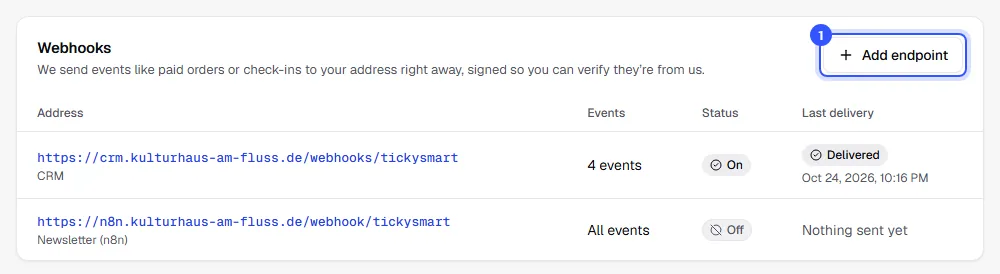
- Open Integrations and, under Webhooks, click Add endpoint.
In the dialog, enter:
- Address: The address we send to. It has to start with
https://and be reachable from the internet. - Description: Optional, so you can recognise the endpoint later.
- Events: Leave All events ticked and the endpoint gets everything, including events we add later. Or untick it and choose only the events you need.
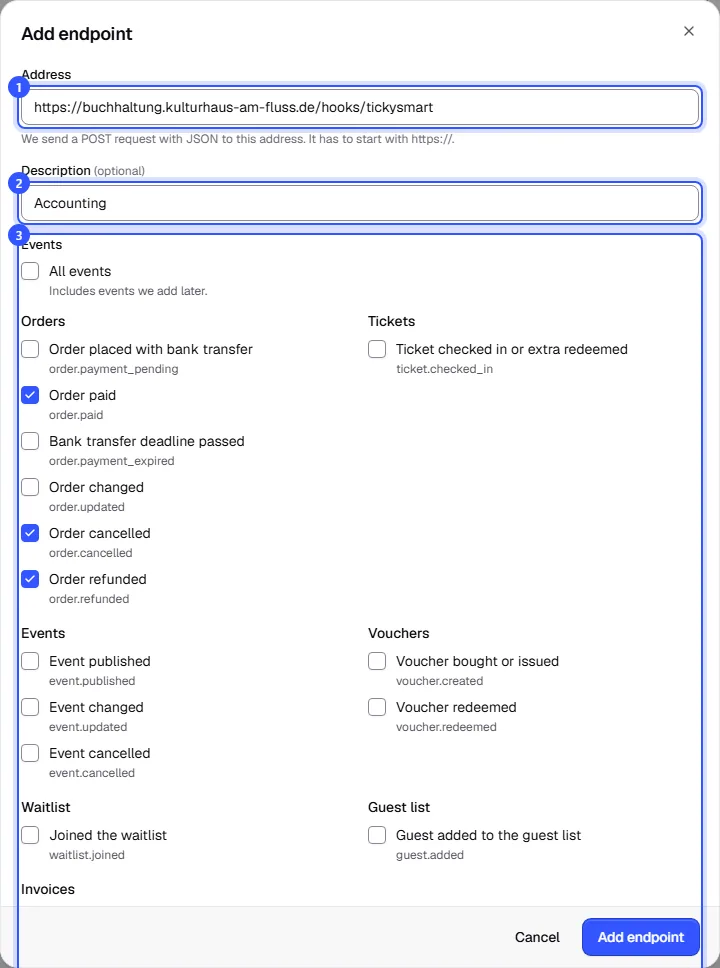
Click Add endpoint. The endpoint's page opens, and from now on it receives every matching event. What each event means is explained in Webhook events.
Try it out
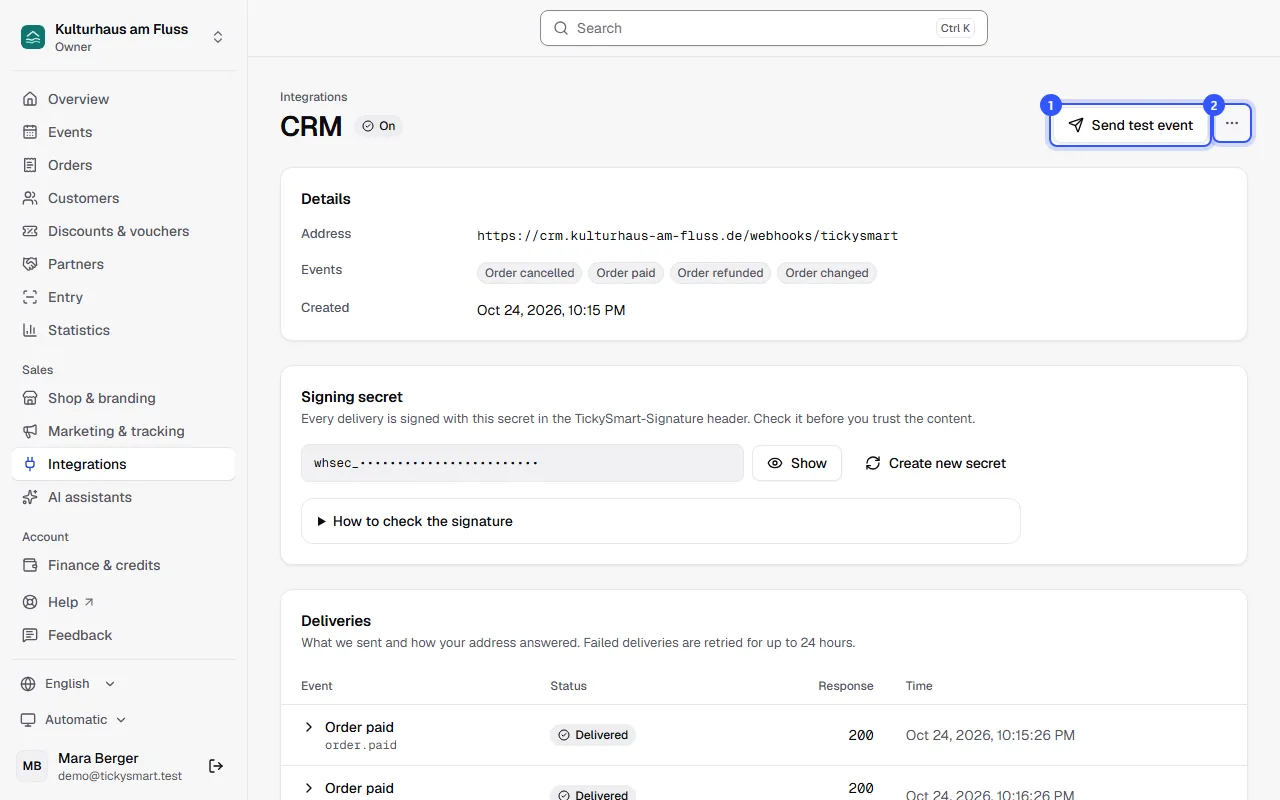
The endpoint's page shows its address, events, signing secret and all deliveries.
- Click Send test event. We immediately send a
webhook.testevent, which you'll see in the log below. That's how you check that your address is reachable and responds correctly. - Use More actions to edit the endpoint, turn it off or delete it.
What your address needs to do
- Respond quickly: Answer within ten seconds with a status between 200 and 299. Anything else counts as failed, including a redirect. We retry failed deliveries for up to 24 hours.
- Check the signature: Only trust the content once the signature checks out: Secure your webhooks.
- Skip duplicates: Occasionally the same event can arrive twice. Remember the
idof each event and only process it once. - Process later: If processing takes a while, accept the event, respond right away and do the rest afterwards.
Edit, turn off or delete an endpoint
Use More actions on the endpoint's page:
| Action | What happens |
|---|---|
| Edit | Change the address, description and events. A new address also applies to deliveries we're still retrying. |
| Turn off | The endpoint stops receiving anything. We won't send events from that time later either. |
| Turn on | Events go out again from now on. |
| Delete | The endpoint and its delivery log are gone. |
The list under Integrations shows each endpoint's status (On, Off or Paused) and how its last delivery went. Paused means deliveries kept failing for a whole day and we paused the endpoint. Find out more in Deliveries and retries.
Common questions
How many endpoints can I add?
Up to 16 per workspace. Several endpoints can receive the same events; each then gets its own delivery.
Can I use an http address or one on my own network?
No. We only send to https:// addresses that are publicly reachable on the internet. For security reasons we reject internal addresses, and we don't follow redirects.
Can I create endpoints through the API?
Yes, with an API key that has access to Webhooks. You'll find the endpoints in the API reference under "Webhook endpoints".
Do I get an event when I change something in the dashboard myself?
Yes. It doesn't matter whether a change comes from the shop, the dashboard or the API.
Who can set up webhooks?
Owners and admins. Deliveries contain your buyers' names and email addresses, which is why webhooks are limited to these roles.