Check an event
Find common mistakes and let the AI check whether your texts match the settings.
Before buyers see your event, a quick look pays off: Does the early bird end? Does every date have a capacity? Does the description name a different time than the date? Check event shows you such things. None of it stops you from publishing.
How to check an event
- Open the event.
- For drafts, click Check event at the top. For published events you find it under More actions.
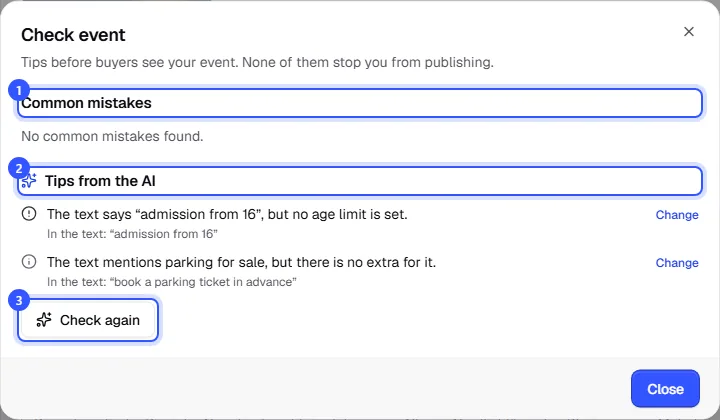
The dialog has two parts:
- Common mistakes are checked by TickySmart right away, without AI. For example an early bird without an end, a date without capacity, a kids ticket with an age limit, a reduced ticket without proof or an unusual tax rate.
- Tips from the AI: click Check with AI. The AI reads your texts in all languages and compares them with the settings. It finds things like “18+” in the text without an age limit on the event, a different time in the description, or parking offered in the text but not as an extra.
- Change takes you to the place where you change it.
Every tip from the AI shows the quote from your text it’s based on, so you can see right away whether it’s right.
Common questions
Do I have to fix every tip?
No. Some things are on purpose, such as an event with only hidden tickets for invited guests. What’s really missing for publishing is shown at the top of the event page.
Does the check change my event?
No, it only shows tips. You make the changes yourself.
Do AI assistants like Claude check my event too?
Yes. After every change through a connected assistant, TickySmart checks the common mistakes and the assistant goes through them with you: Connect AI assistants.