Entry at a glance
How entry works with TickySmart, from scanning with your own account and your team's devices to the live view.
At the door, your staff check tickets with the scan app. It runs in the browser on a phone, tablet or scanner device, so there's nothing to install. Everyone who scans signs in with their own account. In the dashboard under Entry, you see your team's devices and live who's already inside.
The Entry page in the dashboard
- At the top, switch between Live and Devices.
- Scan with my account opens the scan app with your own account, for example on your phone.
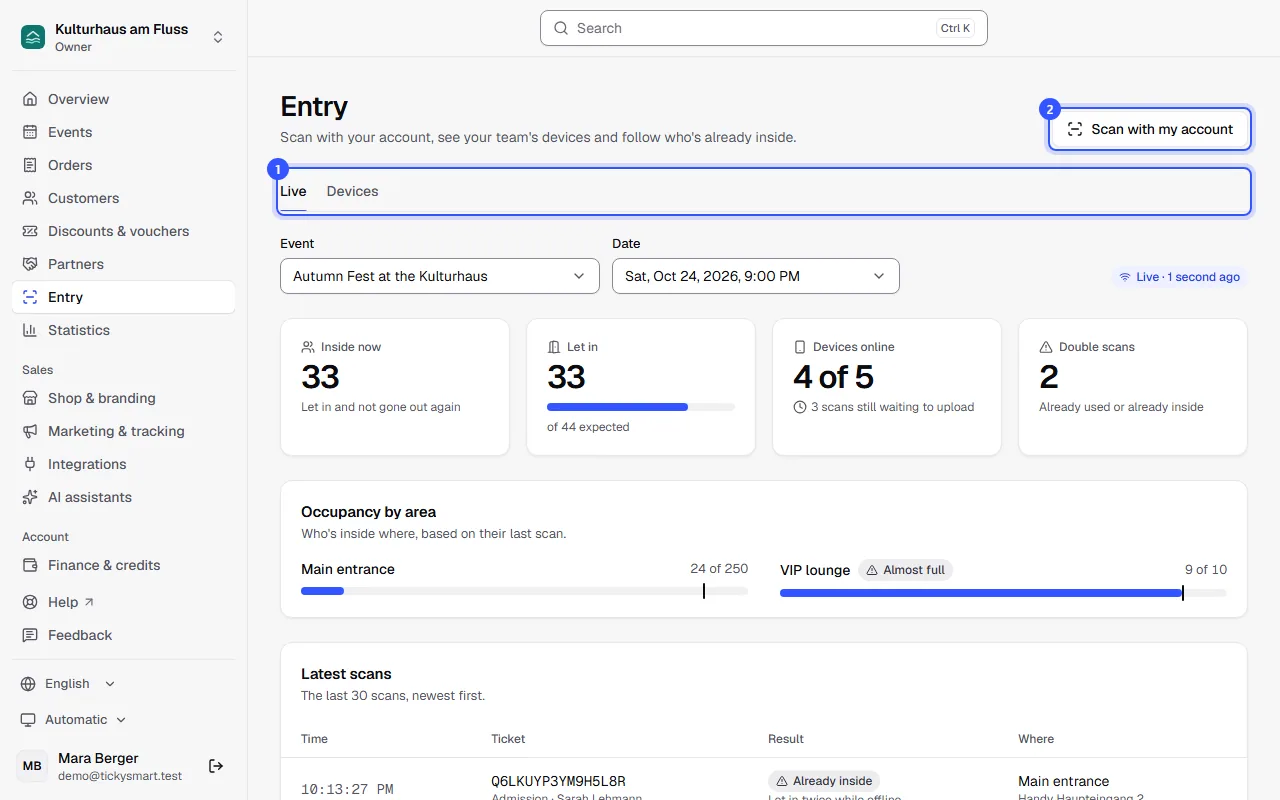
| Tab | What it's for |
|---|---|
| Live | Who's inside right now, how many are still to come, which devices are online and every single scan. See Live view. |
| Devices | All your team's phones and scanners, with their connection and any scans still waiting to upload. See Devices. |
Getting your staff to the door
Scanning only works with an account of your own. So everyone working the door is part of your team:
- Invite the person under Settings → Team and choose the Ticket checker role. They can then scan tickets and see nothing else. If they should only scan at certain events, select those right there. How inviting works is explained in Invite your team.
- The person accepts the invitation. If they don't have an account yet, they create one along the way.
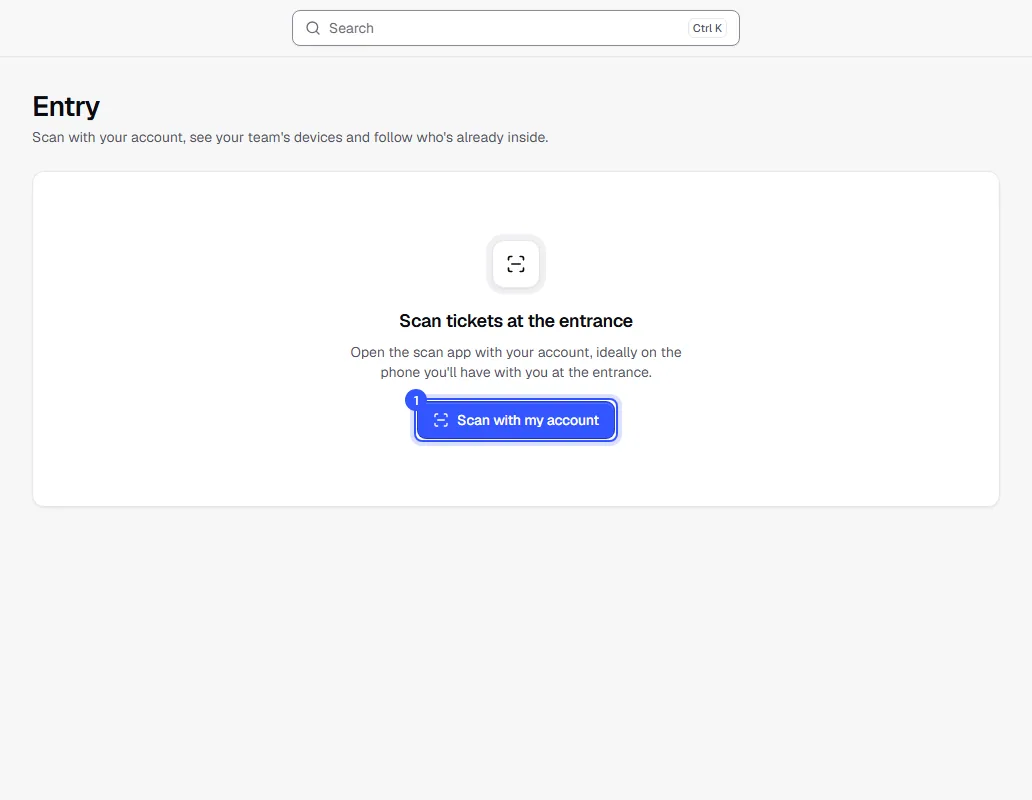
- They open Entry in the dashboard and click Scan with my account. They scan the QR code with their phone or open the link right on the device they want to scan with. The scan app starts, signed in with their account.
Owners and admins scan the same way. Each device then shows up under Devices with the name of the person it belongs to.
How the scan app works is explained in The scan app.
What you set up on the event
Some things belong to the event itself:
- Areas such as the main entrance, a VIP lounge or a bar where drink vouchers are redeemed: on the event under Entry. See Areas.
- Re-entry and age limit per ticket type: on the event under Tickets, section Entry. See Re-entry and Age check.
- Guest list for free tickets: on the event under Guest list. See Guest list.
What happens at the door
Every scan shows its result full screen in green, yellow or red, with sound and vibration. On yellow, your staff decide, for example when someone is already inside or their ID needs checking. All results are explained in Scan results.
If the connection drops at the entrance, the scan app checks tickets against the list it loaded earlier and sends the scans later: Scanning offline. Several entrances at once are no problem. The same ticket never gets through on two devices at the same time.
Who can do what
| Role | On the Entry page |
|---|---|
| Owner, Admin | Everything: live view, devices and scanning with their own account |
| Editor | Live view and devices, plus areas and the guest list on events |
| Accounting, Marketing, Read only | Live view only |
| Ticket checker | Scanning with their own account only |
More about roles in Roles and permissions.
Common questions
Which devices can I use?
Any phone or tablet with a camera and an up-to-date browser. Also scanner devices with a built-in scan button and handheld scanners that type the code like a keyboard. See The scan app.
Do my entry staff need their own account?
Yes. Invite everyone who scans at the door to your team with the Ticket checker role. With that role, they scan tickets and see nothing else. It also means the device list always shows who's scanning with which device.
Someone is only helping out for one night
Invite them with the Ticket checker role all the same, and under Events select just that event: Which events someone works on. After the event, remove them from the team under Team. Their devices are signed out right away, and their scans stay in the live view and your statistics.
I can't see Entry in the menu
Your role doesn't include any of the entry permissions, for example Customer service or Box office. An owner or admin can change your role.