Create a seat map
Draw a seat map for a venue with blocks of seats, rows, tables, standing areas, categories for different prices and levels for balconies and tiers.
With a seat map, buyers pick their own seats. You draw the plan once at the venue, for example for your main hall, and then use it for every event there. A venue can have several plans, such as fully seated, with tables or half the hall. How to sell seats with a plan is covered in Sell seats.
Create a seat map
Seat maps belong to a saved venue.
- Open Settings → Venues and click Seat maps next to the venue.
- Click Create seat map.
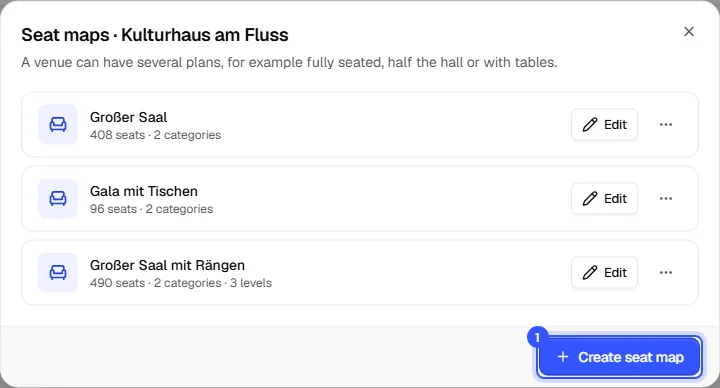
- Give the plan a name, such as "Fully seated", and choose what to start with.
- Click Create and open. The editor opens.
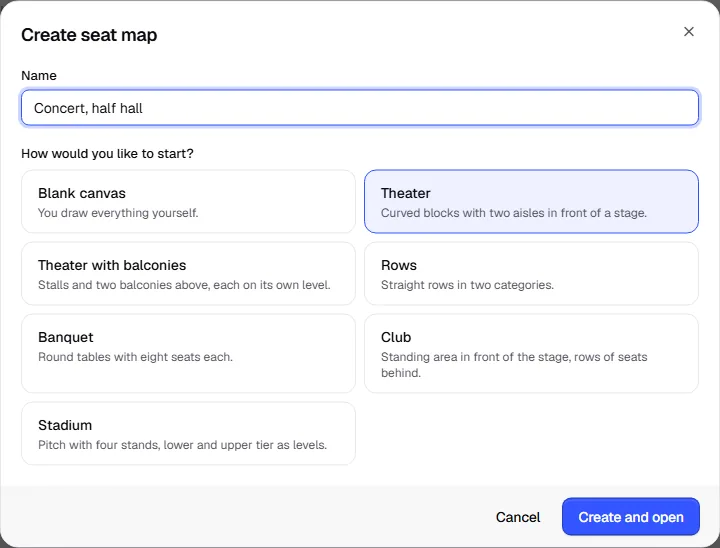
| Template | What you get |
|---|---|
| Blank canvas | You draw everything yourself. |
| Theater | Curved blocks with two aisles in front of a stage. |
| Theater with balconies | Stalls and two balconies above, each on its own level. |
| Rows | Straight rows in two categories. |
| Banquet | Round tables with eight seats each. |
| Club | Standing area in front of the stage, rows of seats behind. |
| Stadium | Pitch with four stands, lower and upper tier as levels. |
You can change every template freely afterwards. In the list, copy a plan from its menu with Copy, handy for a second layout.
The editor
The editor fills the whole screen. It saves every change on its own a moment later; the top bar shows Saved.
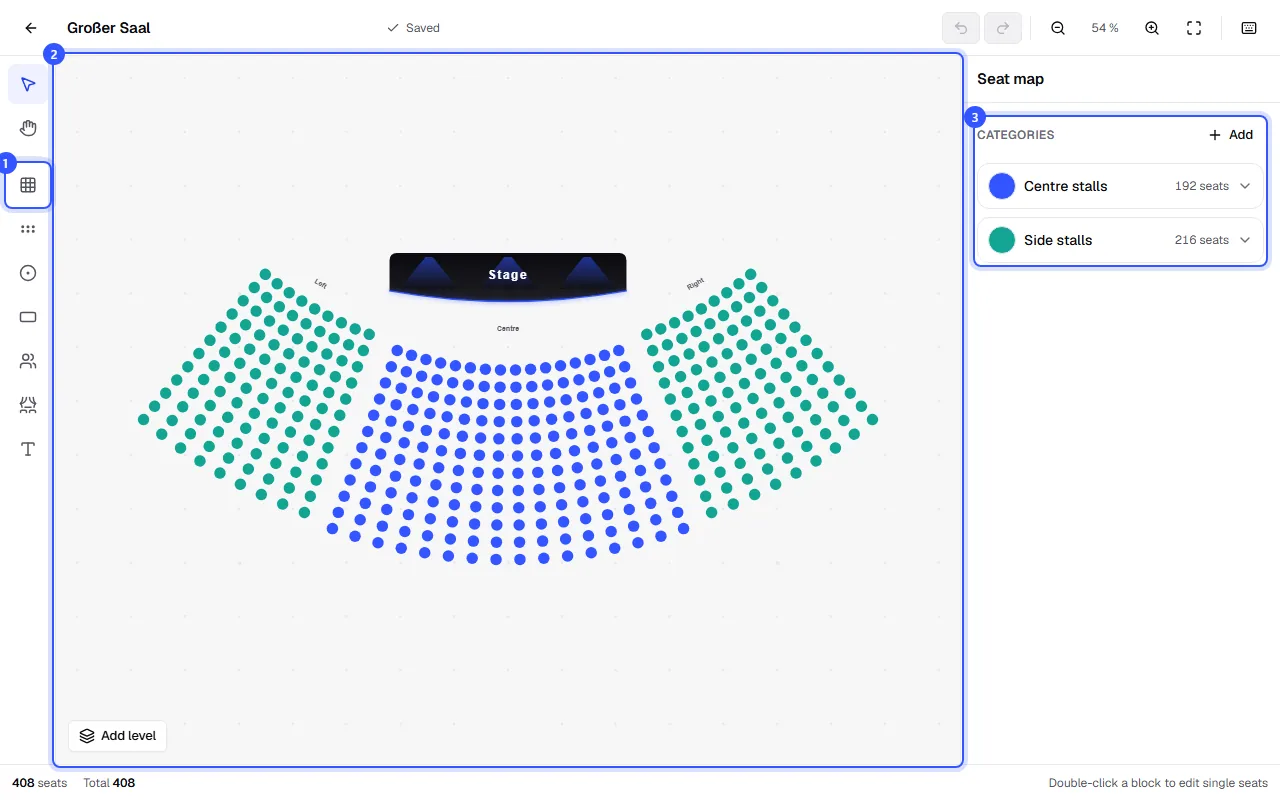
- Tools on the left: use them to draw elements onto the canvas.
- Canvas in the middle: click selects an element, dragging moves it.
- Properties on the right: with nothing selected, this shows the plan's categories. Otherwise, the settings of the selected element.
At the bottom left of the canvas you add levels, for balconies for example (see Levels for balconies and tiers).
At the bottom, the editor counts seats, standing places and the total. At the top you'll find undo, redo, zoom, Show everything and the Keyboard shortcuts.
| Tool | How it works |
|---|---|
| Block of seats | Drag a rectangle: rows × seats |
| Row of seats | Drag a line: one row along it |
| Round table, Rectangular table | Click to place a table |
| Standing area | Drag a rectangle for a standing area. Instead of seats it has a capacity. |
| Stage, Text | To help buyers find their way; not for sale |
Categories for different prices
Categories split the hall into price areas, such as "Centre stalls" and "Side stalls". Later, at the event, you link each category to one or more ticket types.
- Click an empty spot on the canvas so the plan shows on the right.
- Under Categories, click Add, enter a name and pick a colour.
- Select a block, a table or a standing area and set its Category on the right.
Seats without a category stay grey and aren't sold. A plan can have up to 40 categories.
Set up blocks, rows and seats
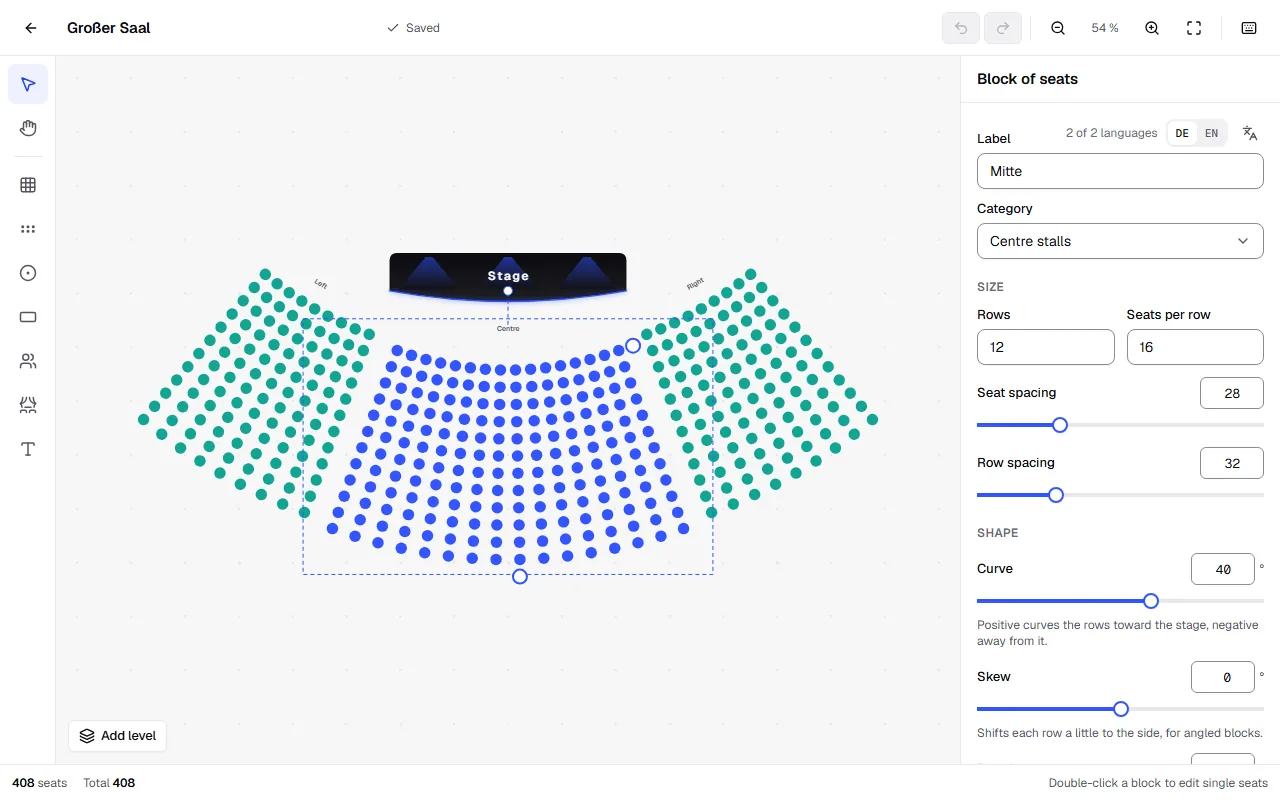
Click a block of seats. On the right you can set:
| Area | Settings |
|---|---|
| General | Label (such as "Centre", printed with the seat on the ticket), Category |
| Size | Rows, Seats per row, Seat spacing, Row spacing |
| Shape | Curve (Positive curves the rows toward the stage, negative away from it.), Skew, Rotation |
| Numbering | Rows as letters or numbers, First row, where the row label appears, Count rows from the back, First seat, Count seats from the right |
| Split | Splits the block at the chosen point, for example for an aisle. Numbers carry on. |
To edit single seats, double-click the block or use Edit single seats. Then select seats and remove them with Hide seats, for a pillar for example, or give them a category of their own. Done takes you back.
Tables have a shape, a number of seats (up to 30) and a size. Standing areas have a Capacity: that's how many tickets there are for the area. Select several elements with Shift + click to give them a category together or align them.
Levels for balconies and tiers
If your venue has several floors, such as a theatre with stalls and balconies or a stadium with a lower and upper tier, split the plan into levels. Every level is a canvas of its own. In the shop, buyers switch between levels above the plan and see how many seats are still free on each.
- Click Add level at the bottom left of the canvas. Everything you've drawn so far is then on the first level; the new one is empty.
- Give the new level a name, such as "Circle" or "Upper tier", and click Save name.
- Draw the seats of this level. A stage or a pitch on every level helps buyers find their way.
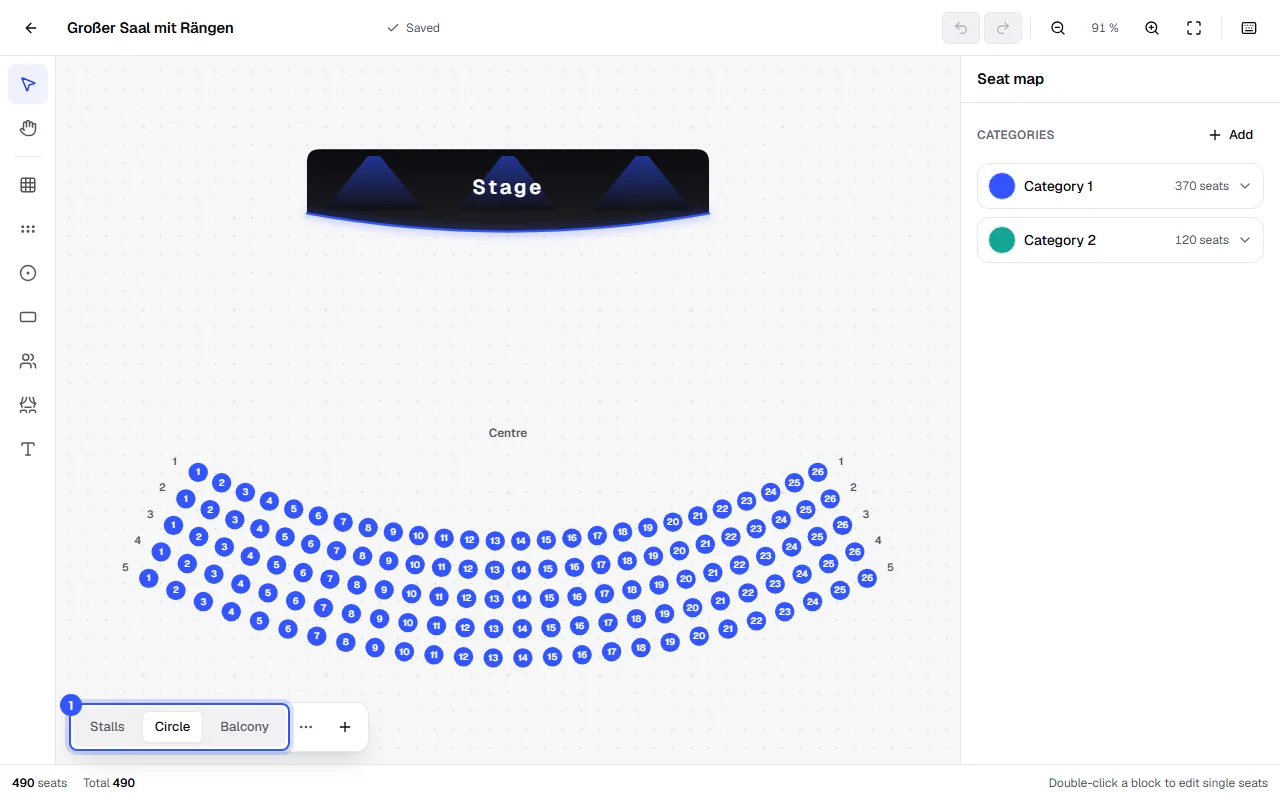
From the menu next to the levels, rename the open level, move it left or right, or delete it along with everything on it. To move a selected element to another level, use Level on the right. If only one level is left, the plan goes back to having no levels.
Categories work across levels: "Category 1" can cover the stalls and the front of the circle. The ticket shows the level before the seat, for example "Upper tier · Stand B · Row 4, Seat 12".
Common questions
Does editing a plan change seats that are already sold?
No. Every event works with its own copy of the plan. You apply changes made at the venue to an event deliberately, and sold seats stay where they are. More in Sell seats.
Who can edit seat maps?
Everyone allowed to edit events. Others can only look at plans with View.
What happens if two people work on a plan at the same time?
Whoever saves first wins. The other person sees a note and reloads the plan with Reload. Their latest changes are lost.
How big can a plan be?
Up to 25,000 seats, 500 elements and 12 levels, with a block of up to 100 rows of 200 seats each.