Connect AI assistants
Connect Claude, ChatGPT or another AI assistant to your workspace, ask about sales in the chat and have it set up events.
You can work with TickySmart right from your AI assistant. In the chat you might ask "How many tickets for the summer festival are gone?" or say "Set up a concert on 14 May at 8 pm, standing for €25 and seated for €40". The assistant only reads and changes what you allow and what your role can do.
What the assistant can do
Almost everything you do in the dashboard around events and sales:
- Events: create them, change texts, venue, category, age limit, cancellation rules, video, links and questions, translate them into all your shop’s languages, duplicate them or repeat them on more days, publish, unpublish and cancel.
- Dates: add, change, reschedule and cancel them, plus time slots for pools and museums and season tickets.
- Tickets: ticket types with price, tax rate, quota, sales period, price tiers for early birds, group and add-on tickets, multi-entry passes and hidden tickets with a code.
- Around the event: extras like parking or drink tokens, line-up, sponsors, entry areas, assigning a seat map and blocking seats, waitlist, waiting room for high demand, guest list.
- Images: cover image, artist photos, images of extras, sponsor logos and venue photos, see Upload images.
- Sales: view orders and customers, resend tickets, correct buyer details, rebook, cancel and refund, confirm bank transfers, sales figures and live entry.
- Marketing: discount codes, vouchers and partner links.
- Invoices to business customers: issue, send and cancel them.
To set things up the way you mean them, the assistant knows the articles of this help center and rules of thumb for typical events, from concerts to museums. If you say "early bird and regular ticket", it sets up the early bird as a cheaper price tier that ends on a date or after a set number of tickets, and asks about anything that's missing. After every change TickySmart checks the setup, for example for an early bird without an end, a date without capacity or a kids ticket with an age limit. The assistant goes through these notes with you.
New events always start as drafts. For anything buyers notice, that sends emails, moves money or can't be undone, it first shows you a summary and only goes ahead once you say OK, for example when publishing, cancelling an event, cancelling orders or for invoices.
The assistant can't delete anything, on purpose: you remove events, dates, ticket types, extras, guests, images and everything else yourself in the dashboard. The assistant tells you where, or suggests something that keeps your data, such as ending sales or hiding a ticket type.
Payment accounts, team, workspace settings, billing, the look of your shop and drawing seat maps also stay in the dashboard.
Connect an assistant
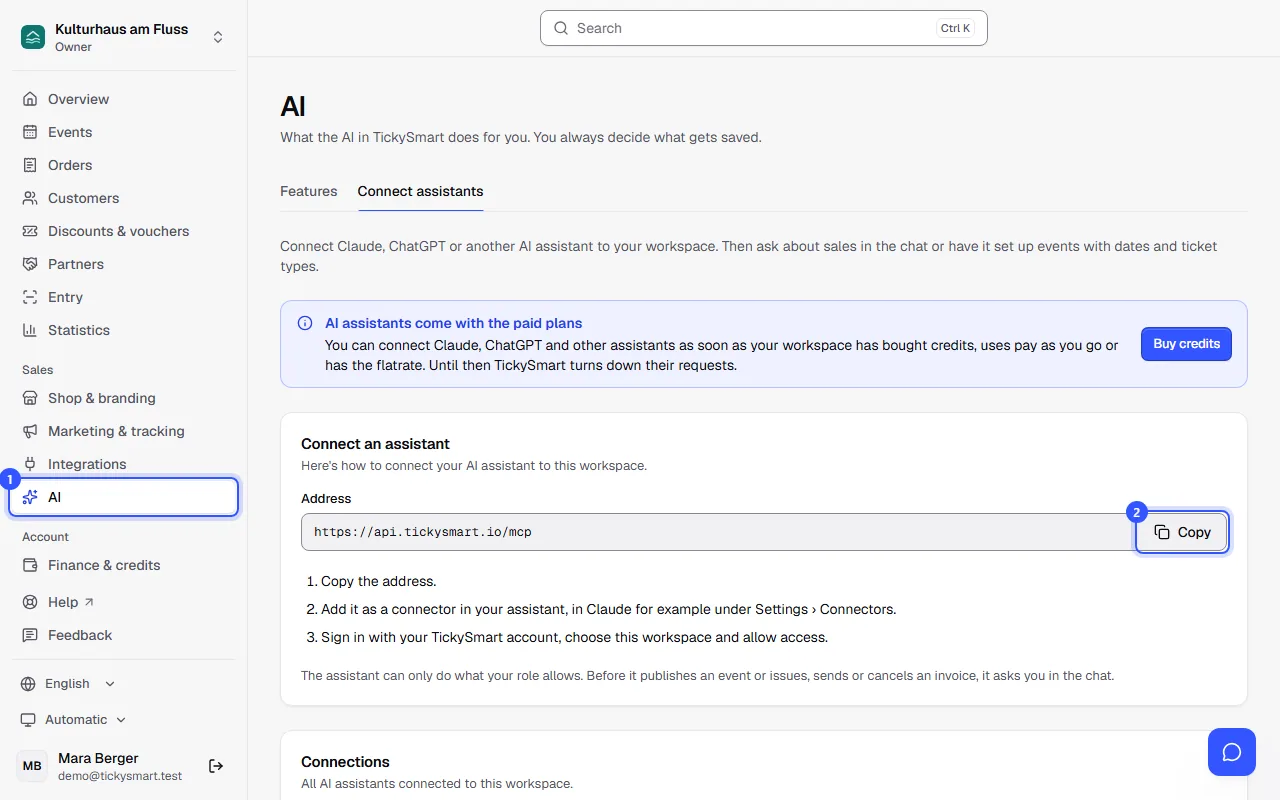
Open AI in the sidebar and then Connect assistants. Under Connect an assistant:
- Next to Address, click Copy.
- Add the address as a connector in your assistant. In Claude, go to Settings › Connectors › Add custom connector. Other assistants may call it an app or MCP server.
- Your assistant opens the TickySmart sign-in. Sign in with your account, just like in the dashboard.
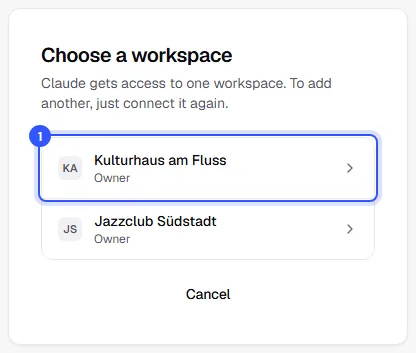
- Choose the workspace for this connection. A connection always covers exactly one workspace.
- Decide what the assistant may access and click Allow access.
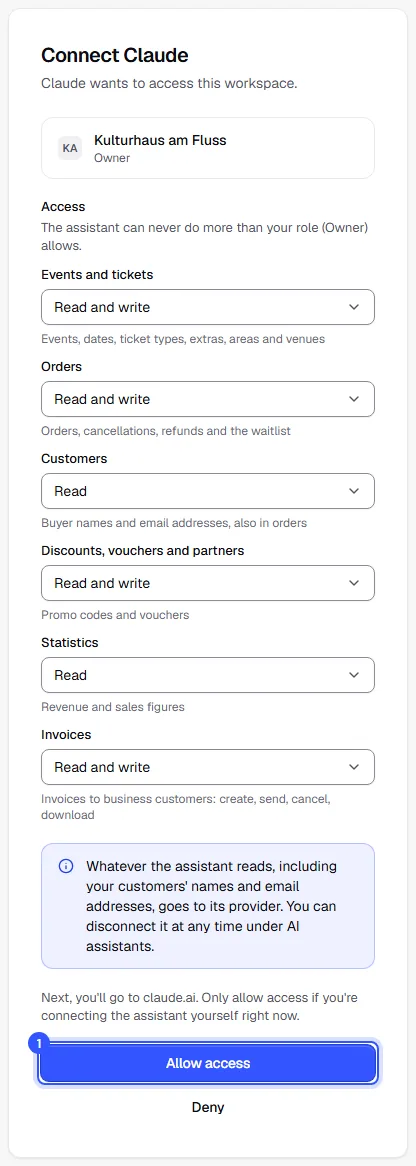
You're then back in your assistant and ready to go. Deny cancels, and the assistant gets no access.
What the assistant may do
For each area, choose No access, Read or Read and write. What the assistant asks for is preselected.
| Area | What it covers |
|---|---|
| Events and tickets | Events, dates, ticket types, extras, areas and venues |
| Orders | Orders, cancellations, refunds and the waitlist |
| Customers | Buyer names and email addresses, also in orders |
| Discounts, vouchers and partners | Promo codes and vouchers |
| Statistics | Revenue and sales figures |
| Invoices | Invoices to business customers: create, send, cancel, download |
Both always apply together: the assistant can only do what you allow here and what your role in the workspace allows. With the Accounting role it won't create events, even if you choose Read and write for events. If your account only covers certain events, the assistant only sees those too.
Only allow access if you're connecting the assistant yourself right now. Above the buttons you can see where you'll go next, for example claude.ai.
Upload images
An AI assistant can't send files itself. So there are two ways:
- Image from the web: tell the assistant which image to use, for example "Take the photo from Peter's website". It gives TickySmart the address, and TickySmart loads the image and prepares it just like an upload in the dashboard.
- Image from your device: the assistant sends you a link. It opens the Upload an image page in the dashboard, where you drag the image in. Then you carry on in the chat.
JPEG, PNG, WebP and AVIF up to 10 MB are possible.
Manage connections
Under Connections you see your connections with their access and when they were last used. Owners and admins see every connection in the workspace and can disconnect any of them.
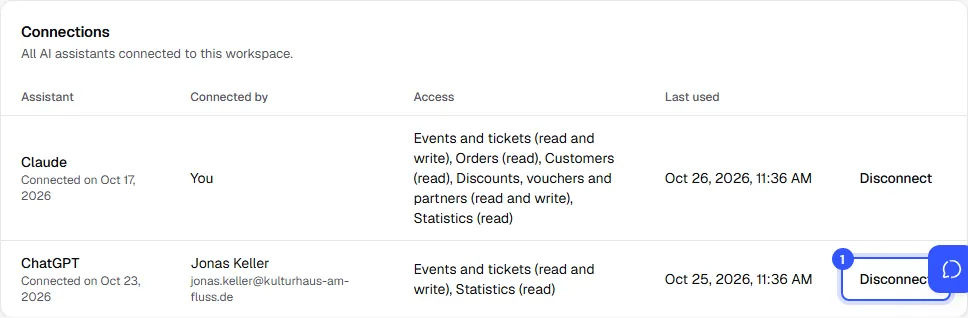
- In the connection's row, click Disconnect.
- Confirm with Disconnect.
The assistant loses access to the workspace right away. You can reconnect at any time. When someone leaves the team, their connections stop working too.
FAQ
Can I connect more than one workspace?
Yes. Connect the assistant once for each workspace. Every connection covers exactly one workspace, so nothing gets mixed up.
Why does the assistant ask before publishing?
A published event is on sale in the shop right away. That's why the assistant shows you a summary first and only publishes once you agree. Check the dates, prices and quotas in particular.
The same goes for invoices: an issued invoice can't be changed, and an email to your customer can't be taken back. Check the company, address and email address before you agree.
Whose name does the assistant act in?
Yours. It works with your account and your permissions, and its changes count as your own. That's why every team member connects their own assistant.
Does this cost extra?
No. Connecting AI assistants is always included in TickySmart. You use the assistant itself with your own account at its provider.
Do I need an API key for this?
No. The assistant signs in with your account. You only need API keys for your own programs that run without signing in.