Shop home page
Headline, introduction, social media profiles and buyer contact on your shop's home page and footer.
The home page is the first thing buyers see of your shop. At the top are your headline and a few introductory lines, below that all your upcoming events. The footer of every page shows your contact details for buyers and your social media profiles.
What the home page looks like
- Headline and introduction: You decide what goes here. Without texts of your own, it says "Events" with a short sentence that includes your name.
- Categories: If your events have different categories, such as concert and theatre, buyers can filter by them. You set it on the event under Category, see Description and images.
- Header: Your logo and name, My tickets for buyers looking for their orders, and the language switch. If you sell vouchers, Vouchers appears here too.
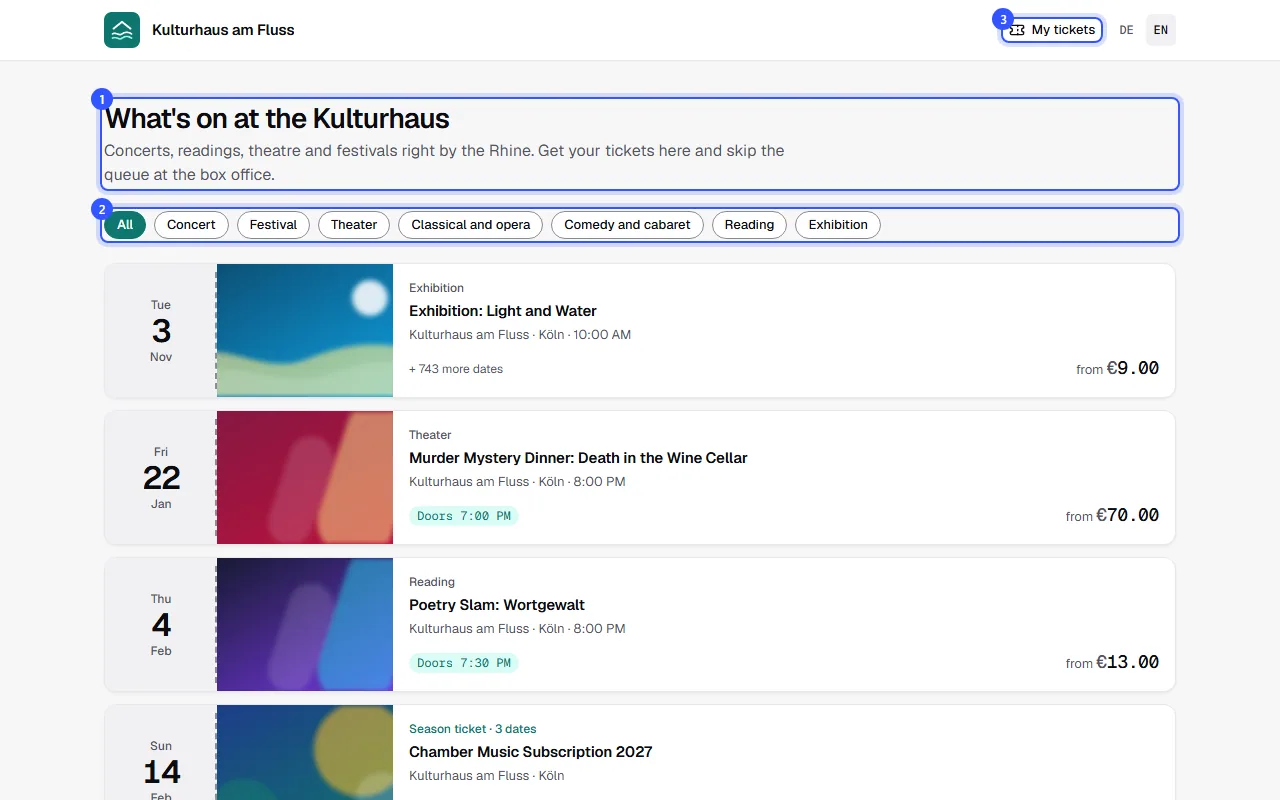
Events are sorted by their next date. Buyers never see drafts, and events with no upcoming date drop off the list by themselves. Below the events are your sponsors, if you have set any for every page.
Set up texts and contact details
Open Shop & branding and scroll to the Text and contact card. Owners and admins can make changes.
- Heading: short and inviting, for example "What's on at the Kulturhaus".
- Introduction: a sentence or two about you and your program. Bold text, lists and links work too.
- Profiles: Click Add profile, choose the network and enter your profile's address.
- Contact for buyers: The email address and phone number buyers can use with questions about their order.
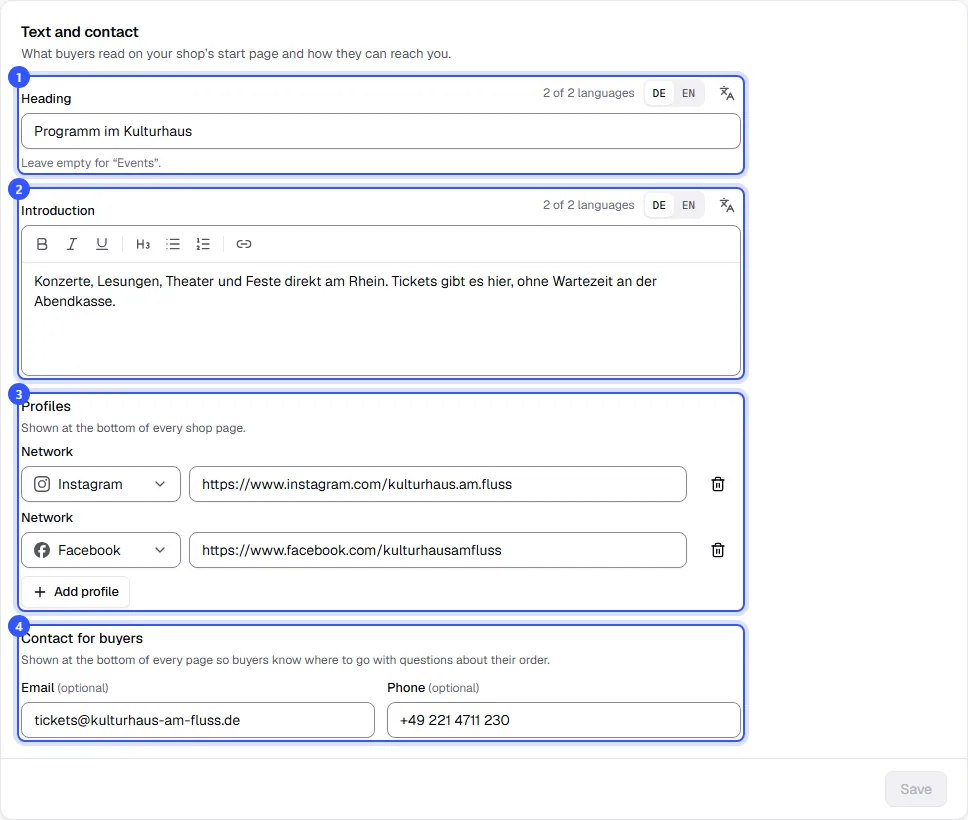
Click Save. You write the headline and introduction per language, using the language codes on the right of the field. More under Languages.
The footer of every page
At the bottom of every shop page are your buyer contact details and profiles. Below them are links to the legal notice, terms and privacy policy from your legal details. If you use tracking or partner links, cookie settings are added.

Common questions
Can I change the order of the events?
No. Events are always listed by their next date, soonest first. That way buyers quickly find what's coming up.
Which networks can I link to?
Instagram, Facebook, TikTok, YouTube, Spotify and your own website, among others. Each network can be added once; the list shows the ones still available.
Where do I set the booking fee?
Also under Shop & branding, in the Booking fee card. How it works is explained under Booking fee.
Do my events appear outside my shop?
Published events always show in your shop. Each event also has the Show event publicly switch: Soon there’ll be an event search on tickysmart.com. If this is on, your event appears there once it launches. Your own shop always shows the event.