Waitlist
Offer a waitlist for sold-out tickets, offer freed-up tickets in order and manage the entries.
When a ticket type sells out, buyers can join the waitlist in the shop. When tickets become available, for example through a cancellation, the next person gets an offer by email. We hold the tickets for them for a while; only then do they go to the next person or back on general sale. The waitlist is switched on for every event from the start.
Set up the waitlist
Open the event and go to Waitlist.
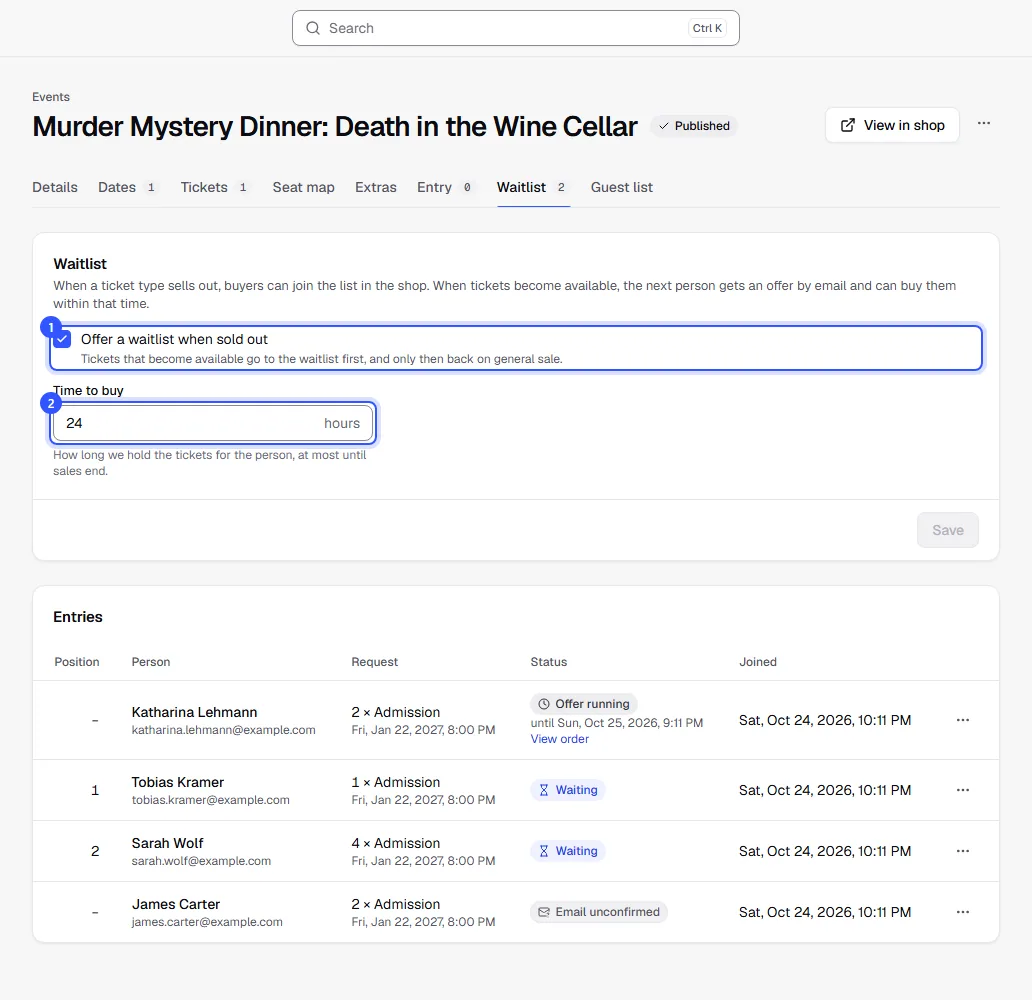
- Offer a waitlist when sold out: Tickets that become available go to the waitlist first, and only then back on general sale.
- Time to buy: how long we hold the tickets for the person, between 1 and 168 hours. The default is 24. The offer ends at the sales end at the latest.
Click Save.
Everyone who can see orders can see this section. The settings can be changed by anyone allowed to edit events.
How it works for buyers
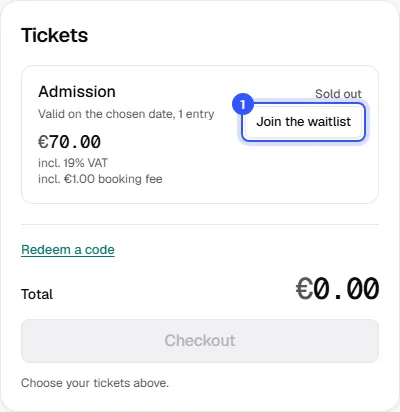
- A sold-out ticket type shows Join the waitlist in the shop.
- The buyer enters how many tickets they want, plus their name and email address. For tickets for one date, the entry applies to that date.
- They get an email and confirm their place in it. Only then are they in the queue.
- When enough tickets become available, they get an offer by email. The tickets are reserved for them, and they buy them through the link at the usual checkout.
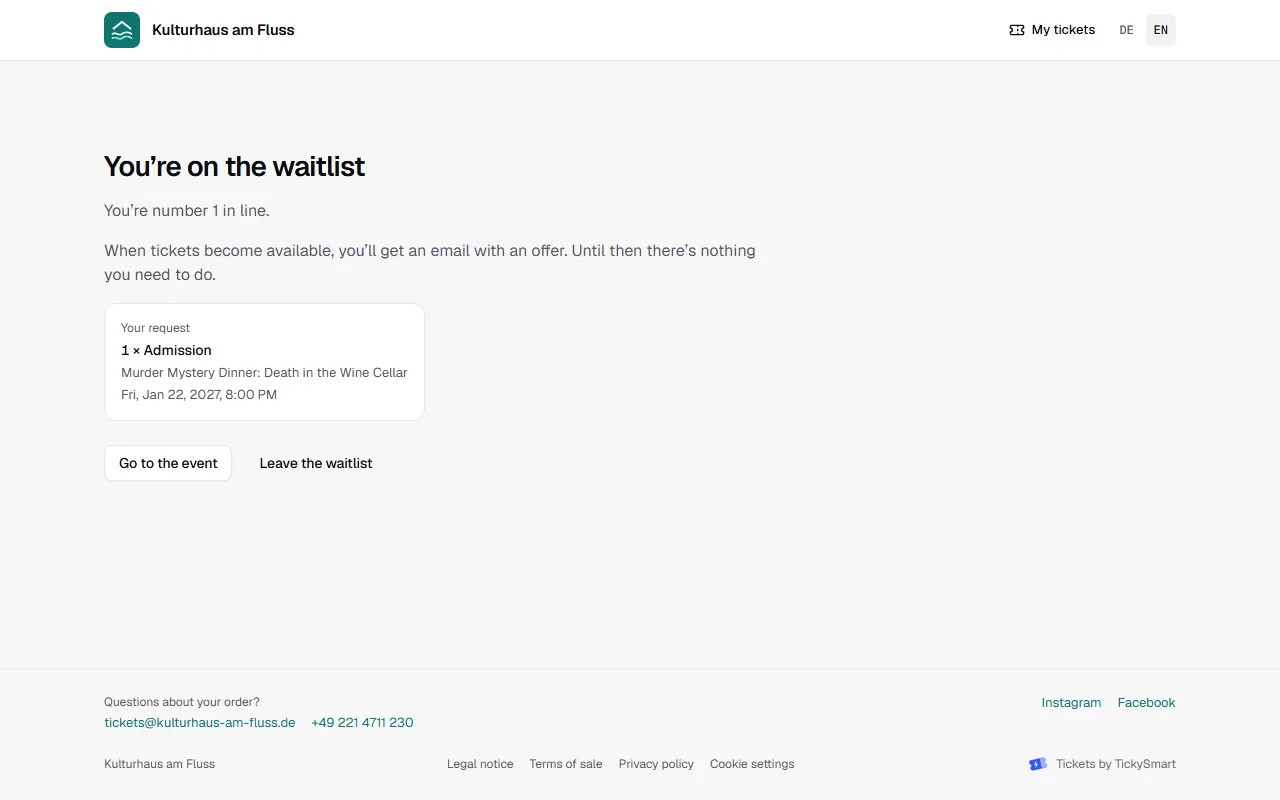
Using the link in the email, the buyer can see their place in the queue at any time and leave with Leave the waitlist. A running offer then goes straight to the next person.
The order depends on when someone confirmed their place. If the free tickets aren't enough for the first person's request, the next person with a smaller request gets an offer. The first person stays at the front. With seats from a seat map, we pick the seats for the offer automatically, next to each other where possible.
The entries
The list shows each entry with its position, person, request and status. Active entries are at the top.
| Status | Meaning |
|---|---|
| Email unconfirmed | Joined, but the email address isn't confirmed yet. Not in the queue yet. |
| Waiting | In the queue |
| Offer running | The tickets are reserved; below you see until when and a link to the order. |
| Purchased | Bought the offer |
| Offer expired | Didn't buy in time; the tickets moved on |
| Declined | Declined the offer |
| Left | Left the waitlist themselves |
| Removed | Removed by your team |
| Closed | Sales are over or the event was cancelled |
From the menu of an active entry, choose Remove. A running offer is then withdrawn and goes to the next person. You need permission to edit orders for this.
The ticket type list shows how many people are currently waiting for tickets of each type.
Common questions
Which tickets have a waitlist?
Public ticket types. Secret ticket types, add-ons and extras don't have one, and neither do season tickets.
What happens to cancelled tickets?
They go to the waitlist first. Only when nobody is waiting anymore, or an offer expires, are they back on general sale in the shop.
If I switch the waitlist off, what happens to the entries?
The button disappears from the shop and nobody new can join. People already on the list stay there and keep getting offers when tickets become available. If you don't want that, remove their entries.
Do buyers still get an offer shortly before the event?
Only if there are at least 15 minutes left until sales end. The offer ends at the sales end at the latest.