Statistics
Revenue, tickets sold, capacity and where your buyers come from, for all events or one, plus the monthly report for your accounts.
Statistics shows how your sales are going: revenue, tickets sold, orders and how full your dates are. All figures follow your workspace's time zone, and amounts are shown in your currency. Owners, admins and the Editor, Accounting, Marketing and Read only roles can see them.
Choose a period and an event
- Open Statistics. At the top, pick a Period such as Last 30 days, and under Event choose All events or a single event.
- In Over time, switch between Tickets and Revenue. Depending on the period, each bar is a day, a week or a month. A bar that's still running, like today, only has a dashed outline.
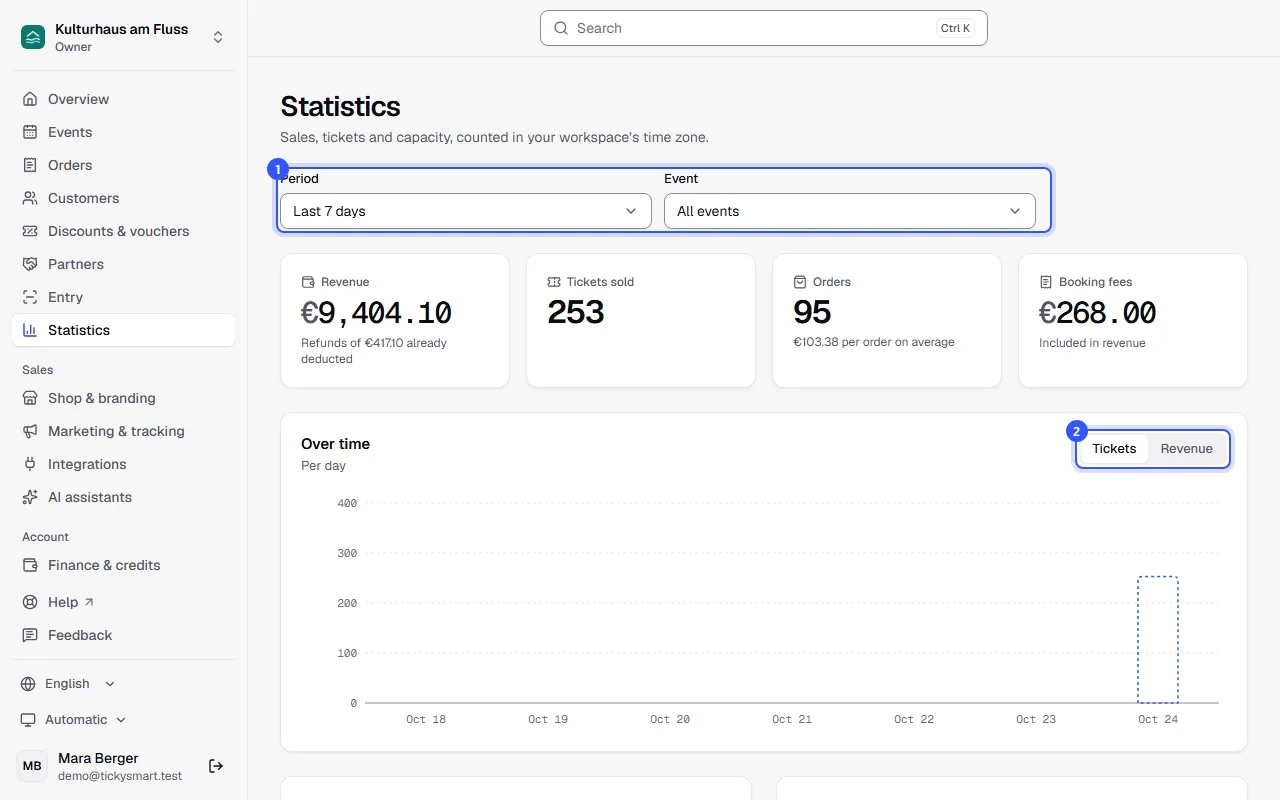
The period and event are part of the page address. Send the link to someone on your team and they'll see the same view.
The key figures
| Figure | What it shows |
|---|---|
| Revenue | What buyers paid in the period, including booking fees. Refunds from the period are already deducted, and the amount is shown below. |
| Tickets sold | Valid tickets from paid orders. Extras, the guest list and cancelled tickets don't count. |
| Orders | Paid orders in the period, with the average per order below |
| Booking fees | Booking fees your buyers paid. They're already part of the revenue. |
If you sell in several currencies, your main currency is shown large and the other amounts below it. Vouchers you sell aren't revenue yet: that counts once someone uses the voucher to buy tickets.
Further down you'll find By event and By ticket type with tickets and revenue, plus a capacity bar for events that have a capacity. Capacity per date shows how full each date is: without a selection, the dates in the chosen period; with one event selected, all of its dates.
Where your buyers come from
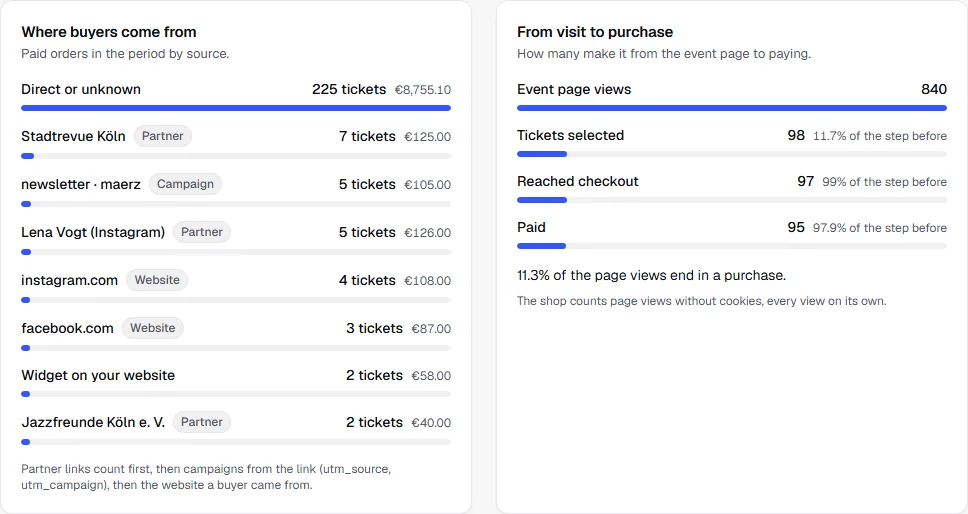
Where buyers come from assigns every paid order to exactly one source, in this order:
- A partner link, if the buyer came through one
- A campaign from the link, meaning
utm_sourceandutm_campaign, for example from your newsletter - The website the buyer came from, such as instagram.com
- Widget on your website, if they bought in the shop embedded on your website
- Otherwise Direct or unknown
From visit to purchase shows how many visitors make it from the event page to paying: page views, tickets selected, going to checkout and paid orders. Next to each step you see the share of the previous step that made it. The shop counts page views without cookies or personal data.
Forecast for an event
When you select a single event, a Forecast appears at the top: how many tickets you're likely to have sold by the start of the last date, and when it might sell out. It's based on how your previous events sold or, if there aren't any yet, on the pace of the last 14 days.

The forecast starts once 10 tickets have been sold across at least three days. There's no forecast for season tickets, time slots or multi-entry tickets without dates.
Monthly report for your accounts
At the bottom you'll find the Monthly report: tickets, Gross, Tax, Booking fees, Refunds, Net after refunds and TickySmart fee for each month. The TickySmart fee is what you paid us for the month: credits used at the price you bought them for (free credits count as 0), pay as you go and the flat rate. Only owners, admins and the Accounting role can see it.
- Choose the Year at the top right and download the report as Excel or CSV with Export.
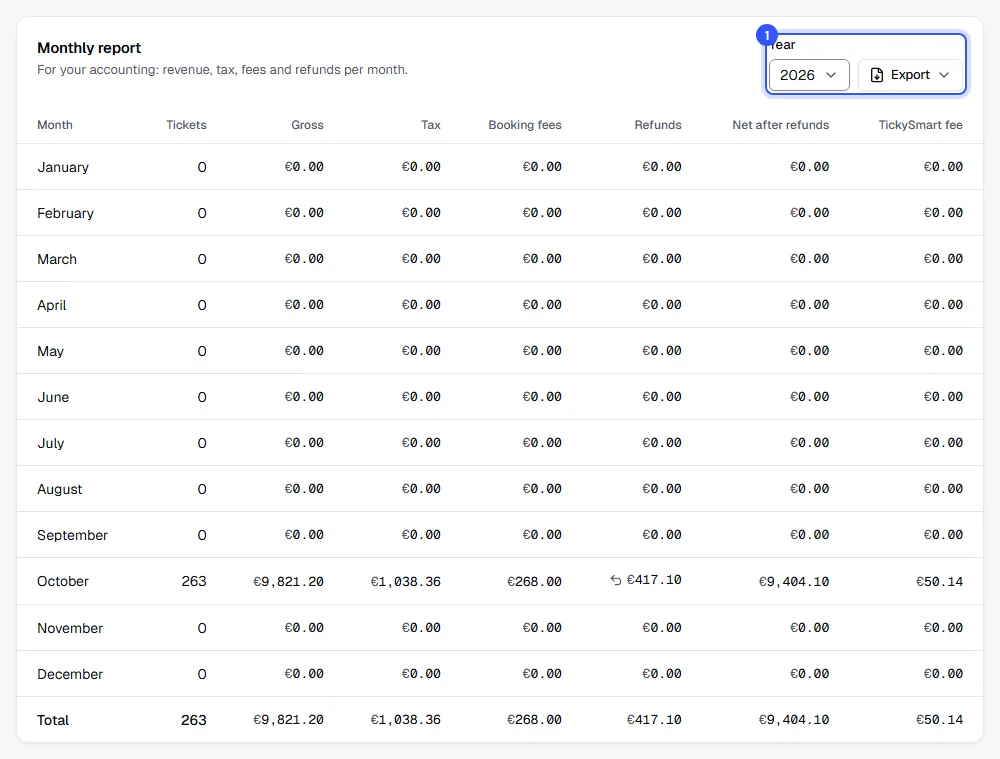
Exports explains what's in the files and how Excel opens them.
Common questions
Why is the revenue different from my payout?
Revenue shows what buyers paid, including booking fees and minus refunds. Your payment provider's fees and TickySmart's fees aren't deducted. You'll see what your payment provider pays out in their dashboard, and TickySmart's fees under Finance & credits.
Do the guest list and free tickets count?
The guest list doesn't, neither in tickets nor in revenue. Free tickets that someone orders in the shop do count as tickets sold.
Why is an event missing from the list?
Drafts aren't listed because they haven't sold anything yet. Once you publish an event, you can select it.
Can I share an event's figures with someone outside the team?
Yes, with a link that works without signing in: Share links.