Create and manage ticket types
What a ticket type is, how to add one with a price and quota, and what the sections in the dialog are for.
A ticket type is what buyers choose in your shop, such as "Standing", "Concession" or "Festival pass". Each ticket type has a price, an optional quota and its own rules: what it's valid for, when it goes on sale, whether a name is printed on it. An event can have as many ticket types as you need.
The ticket type list
Open an event and go to Tickets. The list shows every ticket type with what currently applies.
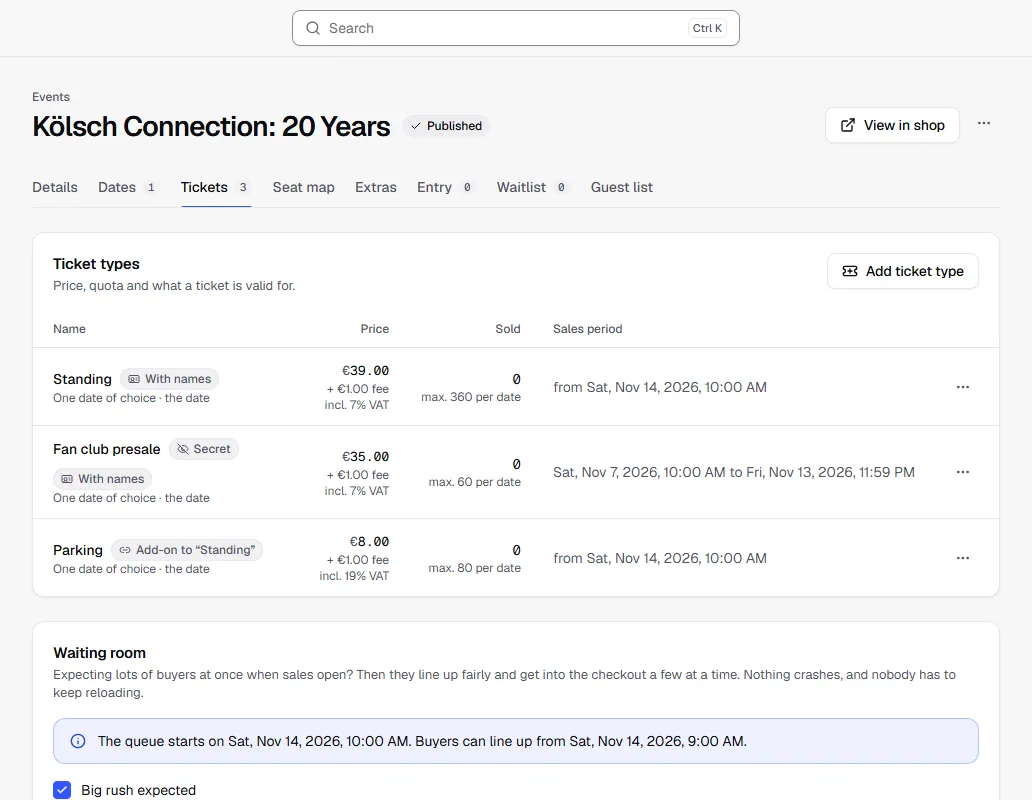
| Column | What you see |
|---|---|
| Name | The name and, below it, what the ticket is valid for, such as "One date of choice". Small labels show anything special, see below. |
| Price | The price currently charged in the shop. If a price tier is running, the regular price is shown below it. Also the booking fee and the tax rate. |
| Sold | Tickets sold, and below that the quota, tickets currently reserved and how many people are on the waitlist. |
| Sales period | When the ticket type is available in the shop. |
The labels next to the name:
| Label | Meaning |
|---|---|
| Secret | Can only be bought through a secret link: Sales period and limits |
| Add-on to "…" | Only available together with another ticket type: Add-on and group tickets |
| Number of people | Group ticket, one ticket for several people |
| Proof needed | Proof is checked at the door: Names, proof and photos |
| With names | Every ticket carries its own name |
| With photo | Multi-entry card with the buyer's photo |
| 16+, 18+ … | Age limit of the ticket type or the event |
| Name of a category | Sells seats from the seat map: Sell seats |
Add a ticket type
- Click Add ticket type and enter a name. It's required in your shop's default language; add more languages using the language codes.
- Price: in your currency. Below the field you see whether the price is gross or net and which tax rate applies.
- Quota per date: how many tickets of this type there are per date. Empty means unlimited; then only the date's capacity counts. If the ticket type is valid for several dates, like a pass, the field is called Total quota and counts all dates together. Below it you see how many credits the tickets use once they're all sold, and how many you have available if that's not enough. If you pay as you go, it shows the amount; on the flat rate, that nothing extra applies. Everyone who can see the finances sees this. More about it: How you pay the TickySmart fee.
- The less common options are grouped in sections below. Click a section to open it.
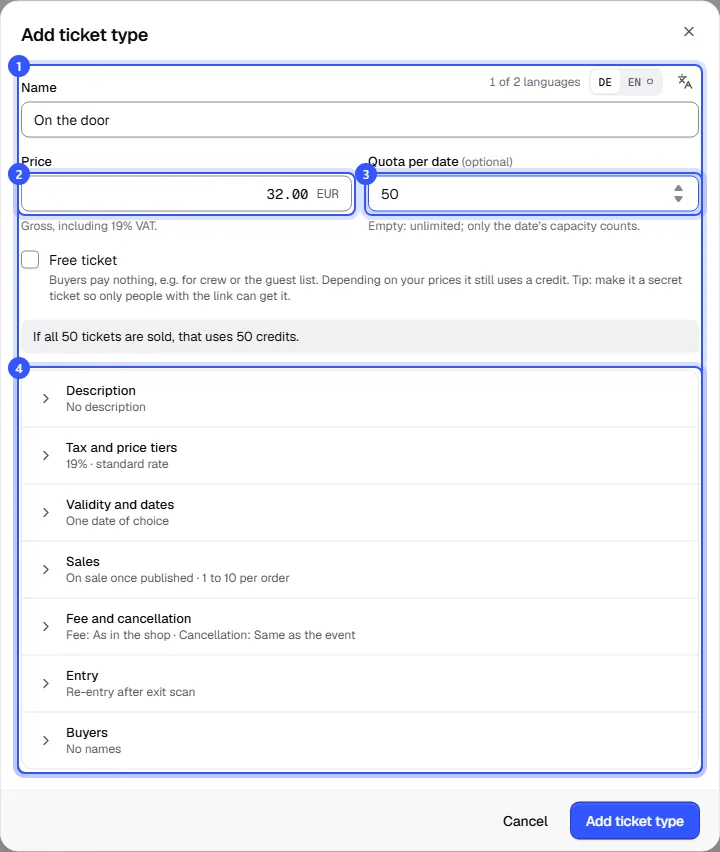
Finally, click Add ticket type. If the event is published, the ticket type is in your shop right away.
With Free ticket you give tickets away, for example to crew or the guest list. Buyers pay nothing. Depending on your prices the ticket still uses a credit; the note below the quota tells you. If the event has a seat map, you also choose under Seat on the seat map which category the ticket type sells seats from.
The sections in the dialog
When collapsed, each section sums up in one line what currently applies. If something differs from the default, a small dot appears next to the title. If something is wrong, the section stays open and shows Please check. You can't save until it's fixed.
| Section | What you set there |
|---|---|
| Description | A short text shown below the name in the shop, such as "cloakroom included". Optional, per language. |
| Tax and price tiers | Tax rate and price tiers such as early bird: Price tiers and tax |
| Validity and dates | One date, every date or a multi-entry card: What a ticket is valid for |
| Sales | Sales start and end, quantities per order, secret link: Sales period and limits |
| Fee and cancellation | Your own booking fee and cancellation rules: Sales period and limits |
| Entry | Rules for entry, see below |
| Buyers | Names, proof and photo: Names, proof and photos. Add-on and group tickets: Add-on and group tickets |
Entry
In Entry you decide how the ticket type is handled at the door:
- Re-entry on the same day: whether guests can come back in after leaving. See Re-entry.
- Age limit: an age limit of its own for this ticket type, such as a children's ticket without a limit at a 16+ event. More under Age limit.
- Waiting time after each entry: multi-entry cards only, see What a ticket is valid for.
- Also allowed into these areas: appears once the event has areas that need permission, such as a VIP area. See Areas.
Edit, duplicate, delete
Use the menu at the end of each row:
- Edit: changes apply to the shop right away. Tickets already sold keep their price.
- Duplicate: opens the dialog with all settings of the ticket type and "(copy)" in the name. Handy for a concession ticket next to the regular one.
- Delete: only possible as long as no tickets of this type have ever been sold and none are reserved. Cancelled orders count too, because they stay for your records.
Common questions
In what order do ticket types appear in the shop?
In the order you created them. A new or duplicated ticket type goes to the end.
How do I stop selling a ticket type that already has sales?
You can't delete it then. Under Sales, set Sales end to now. The ticket type disappears from sale and sold tickets stay valid.
What happens if I change the price?
The new price applies to everyone who buys from now on. People who already bought don't pay extra and don't get anything back. For planned price changes, price tiers are the better choice.
Quota or capacity, which one counts?
Both. The date's capacity applies to all ticket types together, the quota only to this ticket type. The tighter limit always wins.