The dashboard at a glance
Sidebar, search and the checklist to your first sale. How to find your way around the dashboard.
In the dashboard at app.tickysmart.io you manage everything for your organization. After signing in, you land on the overview of the workspace you last worked in.
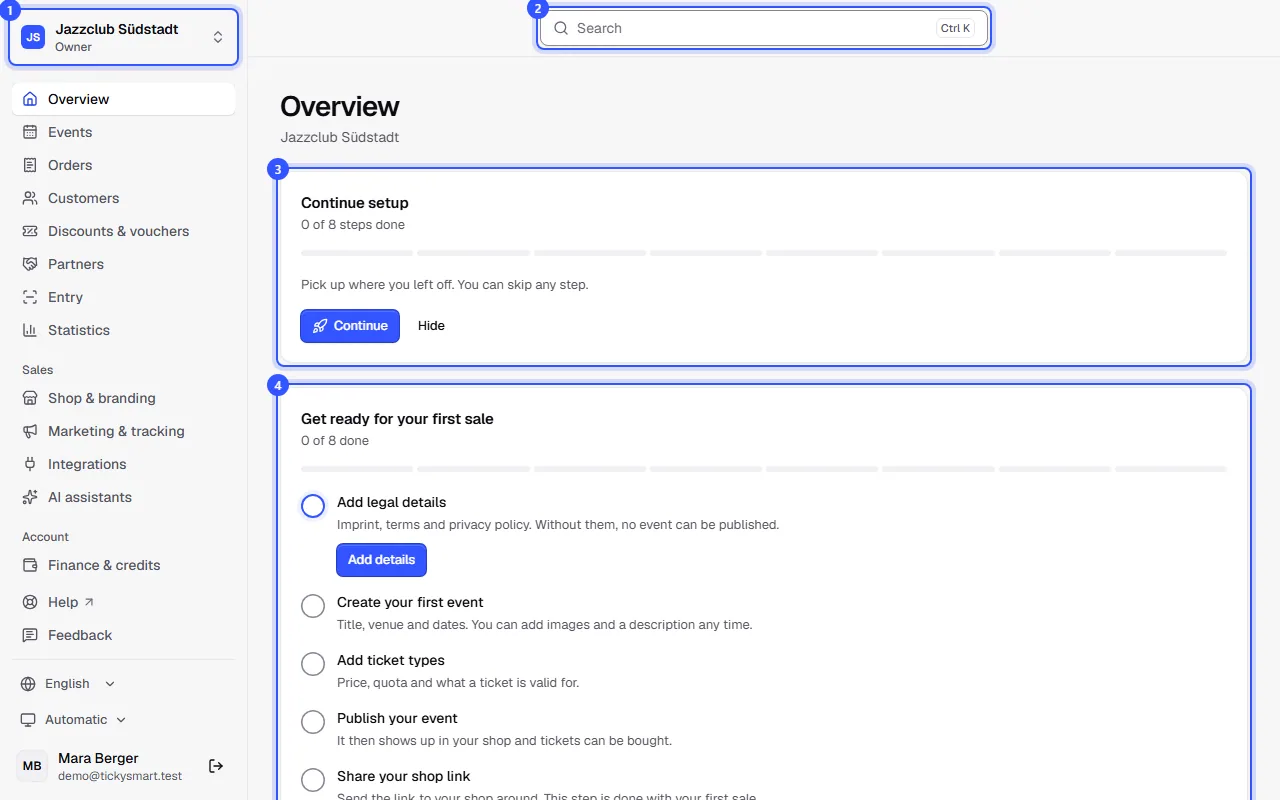
- At the top left you see which workspace you're in and your role there. Click it to switch workspaces.
- Search finds pages, events, orders, customers, partners and discount codes. Open it from anywhere with Ctrl K, or ⌘ K on a Mac.
- If you haven't finished setup after creating the workspace, carry on here with Continue: Setting up after you start.
- The checklist takes you step by step to your first sale.
The checklist
Each item ticks itself off once you've done it. The button next to it takes you to the right place.
| Step | Learn more |
|---|---|
| Add legal details | Legal details |
| Create your first event | Create your first event |
| Add ticket types | Add a ticket type |
| Publish your event | Publish an event |
| Share your shop link | Share your shop |
| Credits and payment method | How you pay TickySmart fees, under Finance & credits |
| Invite your team | Invite your team |
| Get the entrance ready | Sign in your first device with your account: Entry at a glance |
Once every item is done, the checklist disappears. Everyone who can edit events sees it.
The sidebar
| Section | What you do there |
|---|---|
| Overview | Checklist, later revenue, tickets sold and upcoming dates |
| Events | Events with dates, ticket types, seat map and entry |
| Orders | View, change and refund orders, resend tickets |
| Customers | Everyone who has bought from you |
| Discounts & vouchers | Discount codes and vouchers |
| Partners | Links of their own for partners, with the sales made through them |
| Entry | Scan with your account, your team's devices and who's already in |
| Statistics | Sales and visitors over time |
| Shop & branding | How your shop looks and how to embed it on your website |
| Marketing & tracking | Tracking and your visitors' consent |
| Integrations | Connections to other software |
| Finance & credits | Credits, billing model, prices and invoices |
| Settings | Organizer, legal, payments, venues and team |
Which sections you see depends on your role. Someone who only checks tickets at the entrance, for example, sees much less.
At the bottom, Help opens this help center and Feedback lets you write to us. Below that you set the language and appearance (light, dark or automatic). Click your name to open your account.
Once sales are running
As soon as you sell, the overview shows revenue, tickets sold and orders for the last few days, each compared with the period before. Below that are your upcoming dates with the seats sold.