Description and images
Set an event's cover image, title, description and address, in several languages if you like.
In an event's Details section you shape what buyers see on the event page in your shop: cover image, title and description. You can change all of it after publishing too.
Cover image
The cover image appears large at the top of the event page and small in your shop's event overview.
- Under Cover image, click Upload image and pick an image. It's saved straight away. Change image replaces it, Remove removes it.
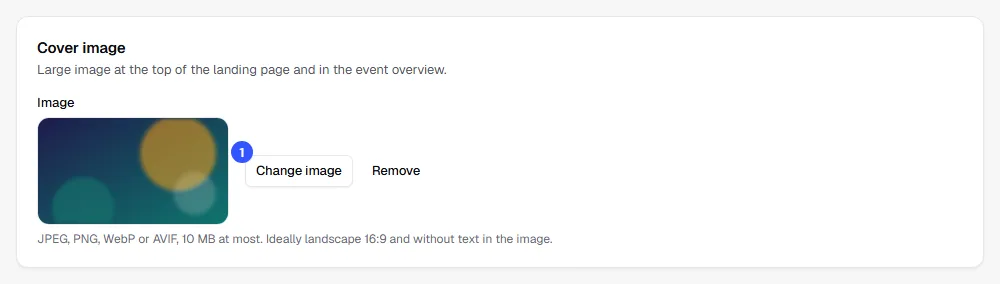
JPEG, PNG, WebP and AVIF up to 10 MB are allowed. A landscape image in 16:9 works best. Keep text out of the image: the shop already shows the title, date and venue, and on a phone any text in the picture would be too small to read. We scale down very large images automatically.
Title, description and address
In the General section:
- Title: Required in your shop's default language, up to 160 characters.
- Description: Shown on the event page. Use the toolbar for bold, italics, subheadings, lists and links.
- Short name for the address: The last part of your event's address in the shop. It can be 3 to 48 characters long, using lowercase letters, digits and hyphens, and each short name can only be used once per workspace.
- Show event publicly: Soon there’ll be an event search on tickysmart.com. If this is on, your event appears there once it launches. Your own shop always shows the event.
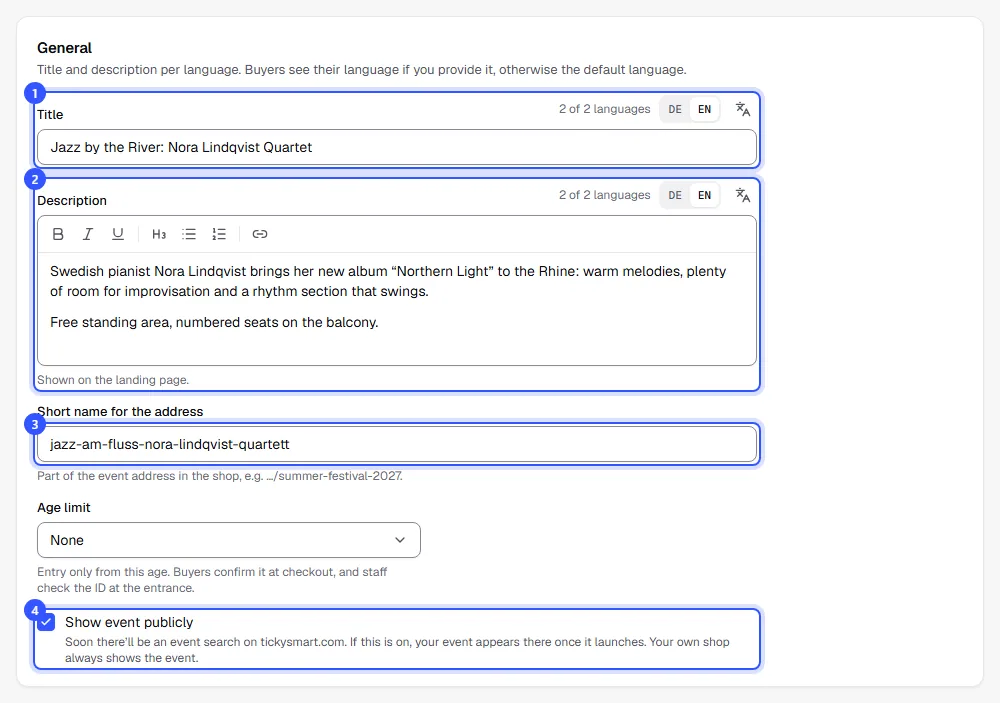
The age limit in this section is covered in Age limit.
To save, use Save changes at the very bottom of the Prices section. This button saves General, Venue and time and Prices together and stays greyed out until you change something.
Texts in several languages
Next to each text field you see language codes such as DE and EN. Click a code to show the field in that language. Languages without text have a grey ring, and the number next to them tells you how many languages are filled in. The button on the far right (All languages) shows all languages below each other.
Buyers see the text in their language if there is one, otherwise in your shop's default language. Which languages appear here is set for the whole shop: Languages.
What else is on this page
| Section | What it's for | More |
|---|---|---|
| Venue and time | Where the event takes place and the time zone of its dates | Venues |
| Prices | Gross or net prices, the booking fee and buyers' cancellation rules | Taxes, Booking fee, What buyers can do |
| Line-up | Who's performing, with picture and time | Line-up |
| More about the event | Category, video, links and frequently asked questions | Category, video and FAQ |
Common questions
What happens to old links if I change the short name?
They stop working, because the event's address changes. So it's best to change the short name before you send out links or print posters.
I can't change anything, the fields are grey
Either the event is cancelled, in which case it can't be edited anymore, or your role can only view events. Owner, Admin and Editor can make changes.
Do I have to translate every text?
No. Only the title in the default language is required. Where a translation is missing, buyers see the text in the default language.
How do I see the page the way buyers do?
For a published event, use View in shop at the top. Drafts don't appear in the shop yet.