Names, proof and photos
Ask for a name per ticket, require proof for concession tickets and protect multi-entry cards from being passed on with a photo.
By default, every ticket carries the buyer's name. If you want to know who's actually coming, ask for a name per ticket. For concession tickets you state which proof is checked at the door, and multi-entry cards can carry a photo. You set all of this in the Buyers section of a ticket type.
Names on tickets
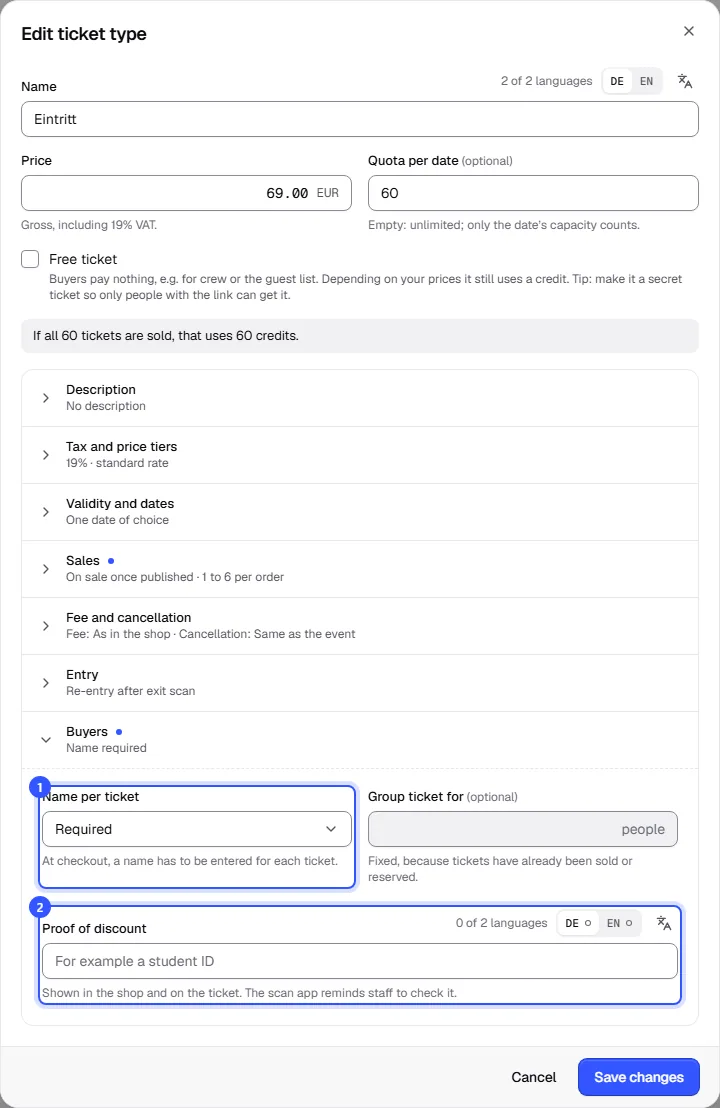
- Open the ticket type and expand Buyers.
- Under Name per ticket, choose whether buyers enter a name for each ticket.
| Name per ticket | What happens |
|---|---|
| Don’t ask | The buyer’s name is printed on the ticket. |
| Optional | At checkout, each ticket can get its own name. If a field is left empty, the buyer's name goes on the ticket. |
| Required | At checkout, a name has to be entered for each ticket. The order can't go through without all names. |
The name is printed on the ticket and the scan app shows it at the entrance. In the ticket type list, these ticket types carry the With names label.
Changing names
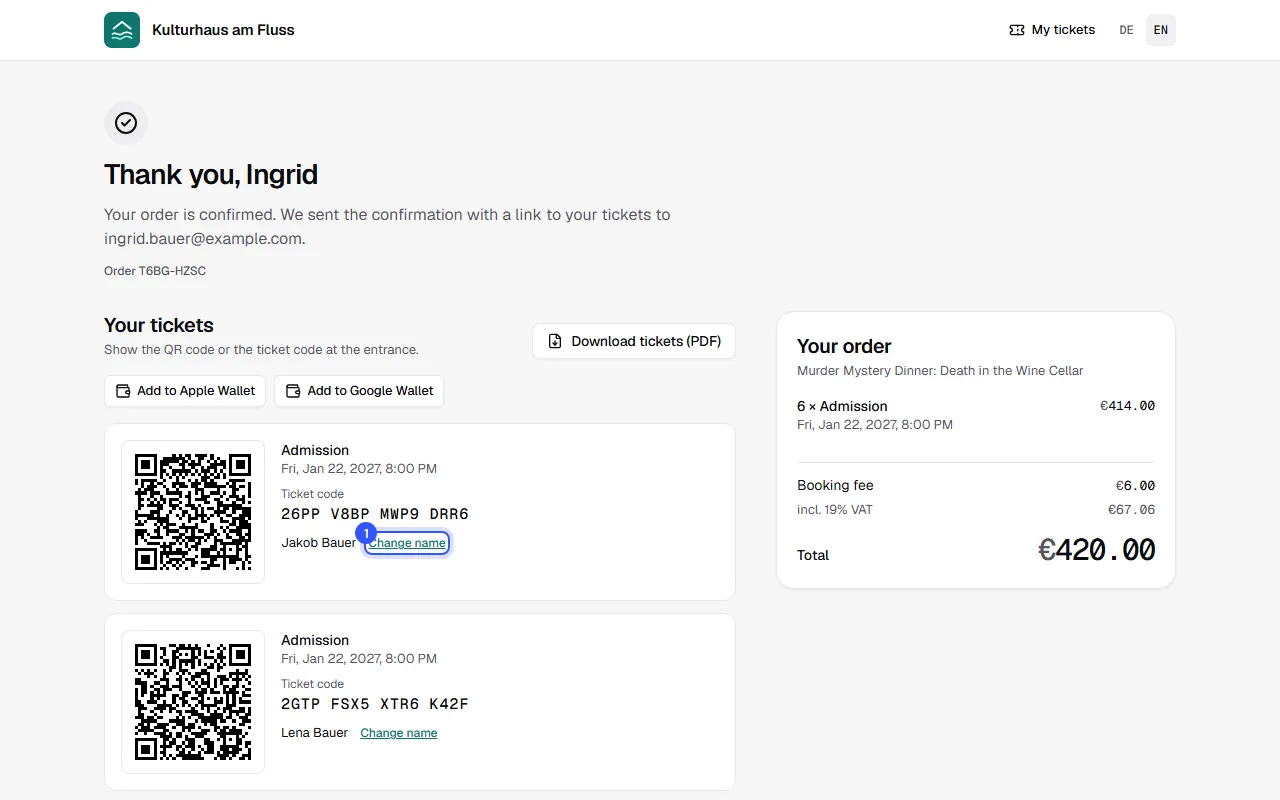
Buyers see the names on their order page under Names on the tickets. There they can change a name with Change name, for example if someone else is coming instead. That works until the date starts and only as long as nobody has been let in with the ticket.
Proof of discount
Under Proof of discount, enter what has to be shown at the door, for example "Pupil or student ID". The text is per language.
- In the shop it appears with the ticket type as the proof needed at the entrance.
- It's printed on the ticket.
- The scan app reminds your staff to check the proof when scanning.
In the ticket type list, the Proof needed label shows that proof is needed.
Photo on the card
Multi-entry cards such as an annual pass have a Photo on the card checkbox. What a multi-entry card is valid for is explained in What a ticket is valid for.
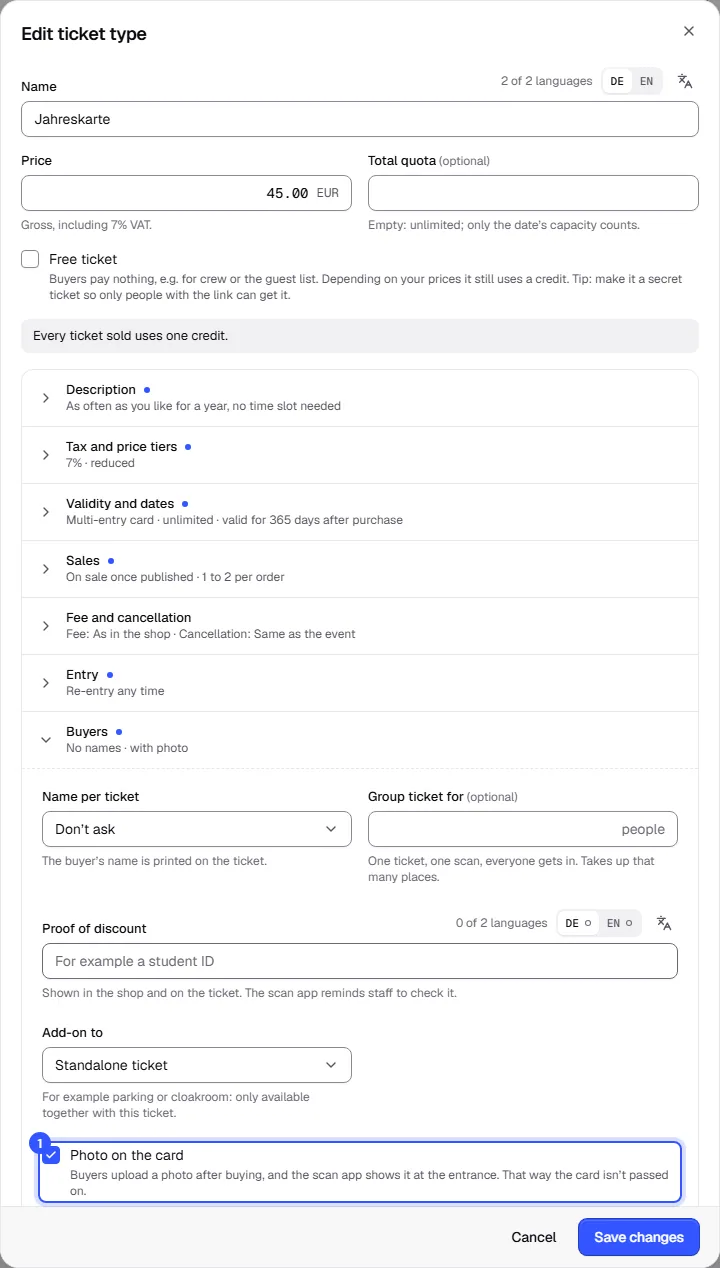
How it works:
- After buying, the buyer sees a note on their order page that the card needs a photo, and uploads one with Upload photo.
- At the entrance the scan app shows the photo. Your staff compare it with the person.
With Replace photo the buyer can swap the photo later. Tickets for one date and passes don't have a photo.
Common questions
Can I change names myself?
The names are shown in the order details in the dashboard. The buyer changes them on their order page. More on orders in Order details.
Does the scan app check ID automatically?
No. It shows the name, the proof needed or the photo. Your staff at the entrance decide whether it all matches.
With required names, what happens when someone buys for a group?
At checkout, the buyer enters a name for each ticket. For a group ticket that's one name for the whole ticket, see Add-on and group tickets.