Order details
What an order page shows, from tickets with code and check-in to buyer, payment and source, and what a chargeback means.
An order page shows everything at a glance: what was bought, the individual tickets, refunds, the buyer, the payment and where the sale came from. From here you cancel, resend tickets or rebook. Open it by clicking the order number under Orders.
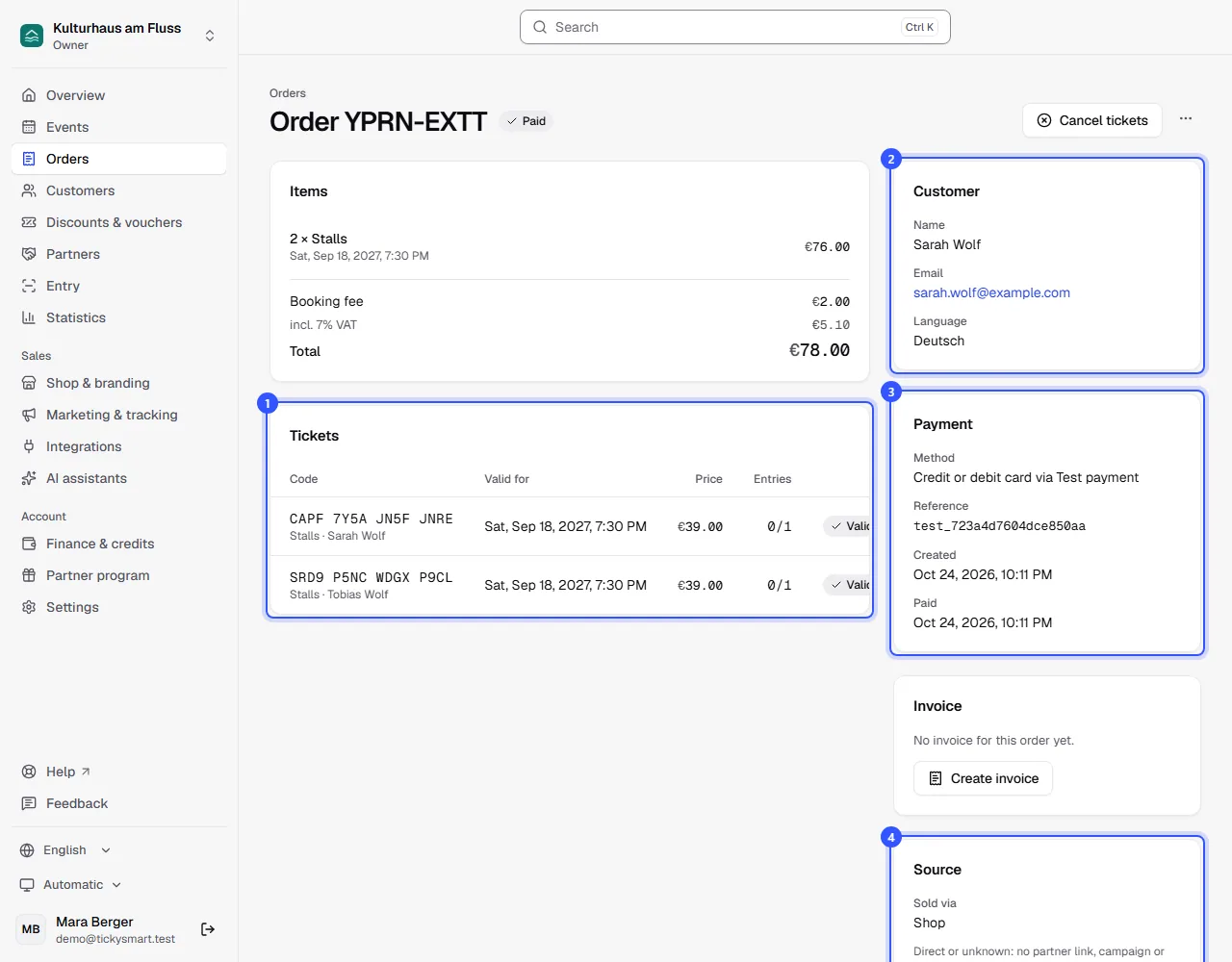
Lines
At the top you see what was bought: quantity, ticket type, date and the price tier, if any. Below are the booking fee, tax and the total. If a discount code or voucher was used, it's listed here with the amount saved. After a refund, Refunded shows how much went back.
The parts of the page
- Tickets: every ticket with its code, the date it's valid for, its price and entries. 0/1 means not checked in yet, 1/1 means already inside. Below the code you see the ticket type and name, and where relevant the seat, group size or a missing photo.
- Customer: the buyer's name and email address, and the Language their emails are sent in.
- Payment: the Method, such as card via Stripe, and the Reference. Click it to open the payment directly in Stripe, Mollie or PayPal. You also see when the order was placed and paid, and for events with an age limit, when the buyer confirmed the age.
- Source: Sold via shows whether the purchase happened in the shop or through the widget on your website. If the buyer came through a partner link, a campaign with UTM tags or another website, it's listed below.
Between payment and source you find the Invoice card. There you issue an invoice for the order to a company, see Invoices for business customers. At the bottom, Event takes you to the order's event.
Ticket status
| Status | Meaning |
|---|---|
| Valid | Valid for entry. |
| Cancelled | Cancelled, no longer valid. If a cancellation fee was kept, it's shown below the price. |
| Blocked | Blocked because of a chargeback, see below. |
Other notes below a ticket: Up for resale means the buyer is offering it for resale. Rescheduled and Date cancelled point to changes to a date.
What you can do with an order
| Action | Where | More |
|---|---|---|
| Cancel tickets, with or without a refund | Cancel tickets | Cancel and refund |
| Download tickets (PDF) | More actions | Resend tickets |
| Resend confirmation | More actions | Resend tickets |
| Edit buyer | More actions | Change an order |
| Rebook to another date | More actions | Change an order |
The buttons you see depend on your role. Owner, Admin and Customer service can change and refund. The Editor role can resend tickets. All other roles with access to orders can only look.
When a buyer charges back a payment
If a buyer has their bank reverse the payment (a chargeback), we block the order's tickets right away. They're no longer valid for entry, and the order page no longer shows the QR code. You get an email, and a note appears at the top of the order.
You dispute the chargeback in your Stripe or Mollie account, or a PayPal dispute in PayPal's Resolution Center. If you win, the tickets become valid again automatically. If you lose, they stay blocked. While the chargeback is open, the tickets can't be resent.
Common questions
The buyer has no name or email
If it says Not entered yet, the buyer is still in the checkout and hasn't submitted their details. If they don't complete the order, the reservation expires after 10 minutes.
Where do I see whether someone has checked in?
In the Entries column. 1/1 means the ticket was scanned at the entrance. For multi-entry tickets, the number counts every entry.
Can I see the tickets the way the buyer gets them?
Yes. Under More actions, Download tickets (PDF) downloads the same PDF the buyer gets. That way you can also print tickets for someone who didn't get the email.