Setting up after you start
After you create a workspace, TickySmart guides you through eight short steps for your company, legal texts, logo, venues, payments, fees and team. You can skip any step.
Right after you create a workspace, setup begins. In eight short steps it asks for what your shop needs to sell. It takes about five minutes. You can skip any step and come back to it later.
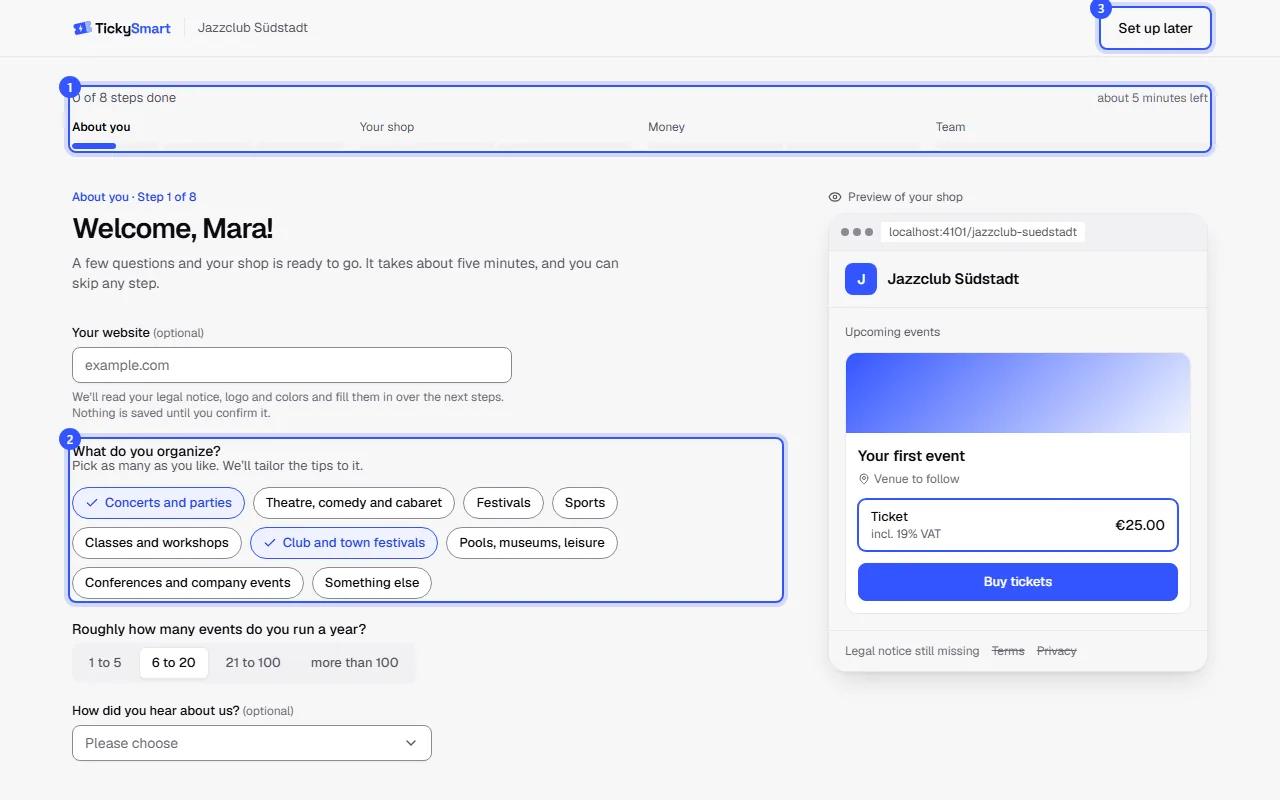
- At the top you see how far you've got. The four sections are About you, Your shop, Money and Team. Click a section to jump there.
- You answer each question on the left and save with Continue. Skip moves on without entering anything.
- Set up later takes you to the dashboard at any time. Whatever you've entered stays saved.
On the right, a preview shows how your shop looks right now: logo, color, your first venue, a sample price with fee and the legal notice at the bottom. It changes while you fill in the fields.
The steps
| Step | What you enter | Change it later under |
|---|---|---|
| What you organize | Your website, if you have one. Plus the kind of events and how many you run a year. The tips in the next steps are based on it. | – |
| Who sells the tickets? | Company or club, address, email for buyers, and optionally representative, register and VAT number | Legal details |
| Terms and privacy | A link to your terms and privacy policy, or the text itself | Legal details |
| How your shop looks | Logo, favicon, color, light or dark, font, profiles, more languages in the shop | Shop design |
| Where do your events take place? | Your venues with their address | Venues |
| How does the money get to you? | Connect Stripe, Mollie or PayPal | Connect a payment account |
| Fees and tax | Booking fee, selling without VAT or your usual tax rate | Taxes, Booking fee |
| Do you work in a team? | Invite people and set up two-factor sign-in | Invite your team, Two-factor sign-in |
You can't publish an event without your company, address, email for buyers, terms and privacy policy. If you skip these steps, the dashboard reminds you.
If you already sell somewhere else, enter your current ticket shop under Your current ticket shop in the first step. After the venues, the step “Your events” then lets you choose which events we import as drafts. More: Switching from another platform.
Taking details from your website
If you already have a website, enter it in the first step under Your website, for example example-theatre.com. While you carry on, TickySmart reads a few public pages: the home page, legal notice, privacy policy, terms and contact page. This usually takes less than a minute.
In the next steps you'll then find:
- Who sells the tickets?: company or club, address, email and phone, representative, register entry, VAT number and tax number from your legal notice
- Terms and privacy: the links to your terms and privacy policy
- How your shop looks: logo, favicon, color, font and your profiles such as Instagram. A small sparkle on an image shows it comes from your website. Don’t use leaves it out, and you can edit the profile addresses right there.
- Where do your events take place?: venues listed on your website. Add creates one of them.
- Fees and tax: if your website says you don't charge VAT, for example as a small business, Sell without VAT is already switched on.
We only fill in empty fields and save nothing until you click Continue. Take a quick look and change anything that's off. If we couldn't read your website, the second step tells you. Then just fill in the details yourself.
Logo and color
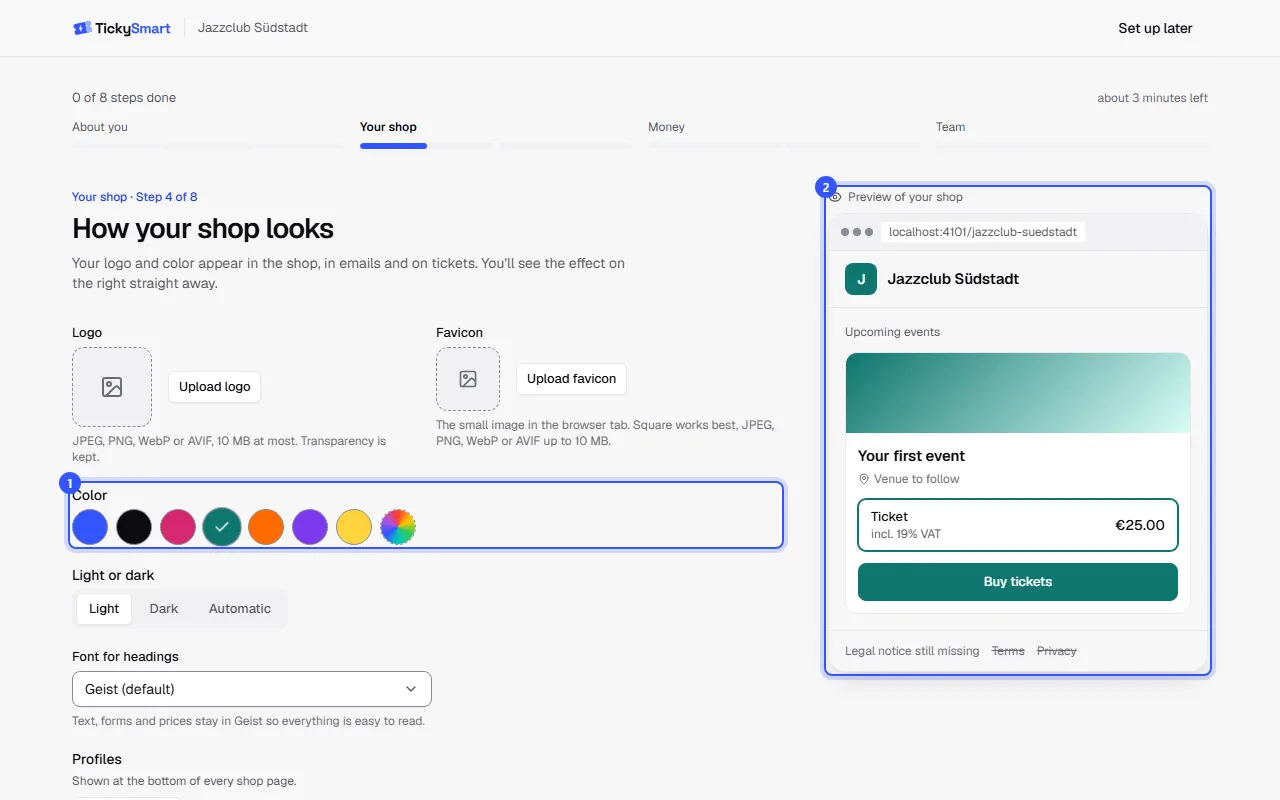
When you upload a logo, we suggest its color. If you haven't picked one of your own yet, we apply it right away. We adjust the color so that texts and buttons in the shop stay easy to read.
Connecting a payment account
For Stripe or Mollie, you briefly leave TickySmart and sign up there. Afterwards you come back to setup automatically. PayPal is connected right in the window with two keys from your PayPal account: Get paid with PayPal. If the provider is still reviewing your account, that shows next to it. You can carry on anyway.
Your usual tax rate
In the Fees and tax step, you choose the rate new ticket types start with, for example the reduced rate for concerts and theatre. Each ticket type can still have its own rate. If you don't charge VAT, for example as a small business, turn on Sell without VAT here: Selling without VAT.
Done
At the end, you see what's done and what's still missing. Do it now jumps to an open step. Create your first event creates your first event right away, with your venue already selected: Create your first event.
Continuing later
If you left setup with Set up later, the overview shows the Continue setup card with your progress at the top. Continue takes you back to where you stopped. Hide hides the card. You'll then find everything in the settings.
Common questions
Who sees setup?
Owners and admins of the workspace. People you invite go straight to the dashboard.
Do I have to do everything at once?
No. Each step saves right away, so you can stop at any time and carry on later.
I skipped a step. Where do I catch up?
Via the Continue setup card on the overview, or directly in the settings. The table above shows where to find what.
What does TickySmart read from my website?
Only a few public pages that any visitor can see. We don't read pages behind a login. We delete the suggestions and the images we found after a week. Whatever you took over stays in your workspace, of course.
Is there setup for workspaces I've had for a while?
No, it only appears after you create a new workspace. Everything it asks for is also in the settings.