Create and manage API keys
Create an API key, choose its access per area, and replace or revoke it without anything breaking.
An API key is how your software signs in to the public API. Each key has its own name and its own access, for example read-only access to events for the calendar on your website. Owners and admins can create and manage keys.
Create an API key
Open Integrations and, under API keys, click Create API key. In the dialog:
- Name: What the key is for, such as "Lobby screen" or "CRM". Only your team sees the name.
- Access: For each area, choose No access, Read or Read and write. At least one area needs access.
- Click Create API key.
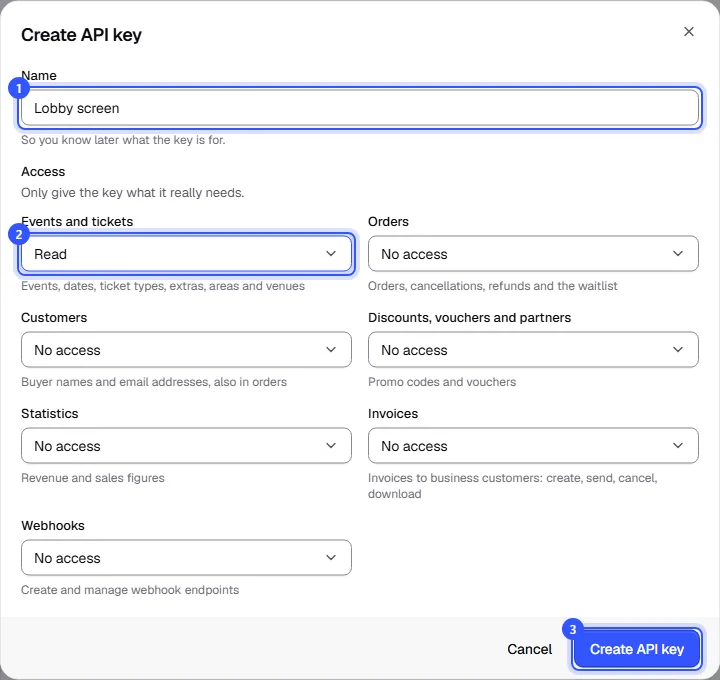
You then see the key exactly once:
- Click Copy and store the key somewhere safe, such as your server's configuration. Below it is an example of how your software sends it.
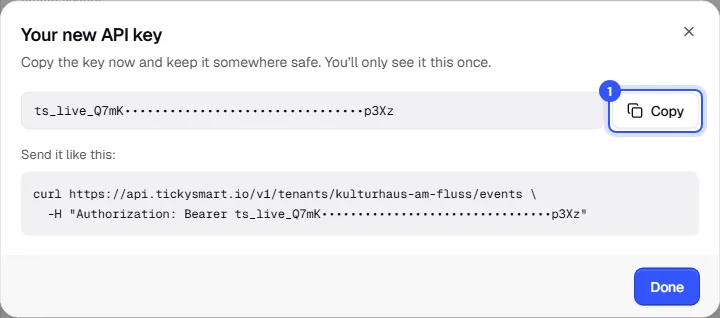
We don't store the key in plain text, so we can't show it to you again later. If it gets lost, create a new one.
Which access for what
Only give each key what it really needs. Read and write includes read access.
| Area | Levels | What's included |
|---|---|---|
| Events and tickets | Read, Read and write | Events, dates, ticket types, extras, areas and venues. Write access includes publishing. |
| Orders | Read, Read and write | Orders, cancellations, refunds and the waitlist. Write access includes cancelling, refunding and resending tickets. |
| Customers | Read, Read and write | Buyer names and email addresses, also in orders. Without this area, names and email addresses in orders are shortened, like "J. D." and "j…@example.com". |
| Discounts, vouchers and partners | Read and write | Promo codes and vouchers, plus partner links |
| Statistics | Read | Revenue and sales figures |
| Invoices | Read, Read and write | Invoices to business customers: create, send, cancel, download. Issuing costs the same as in the dashboard. |
| Webhooks | Read and write | Create and manage webhook endpoints, including their signing secrets |
The API reference shows the access each endpoint needs. You can never give a key more access than you have yourself.
Your keys at a glance
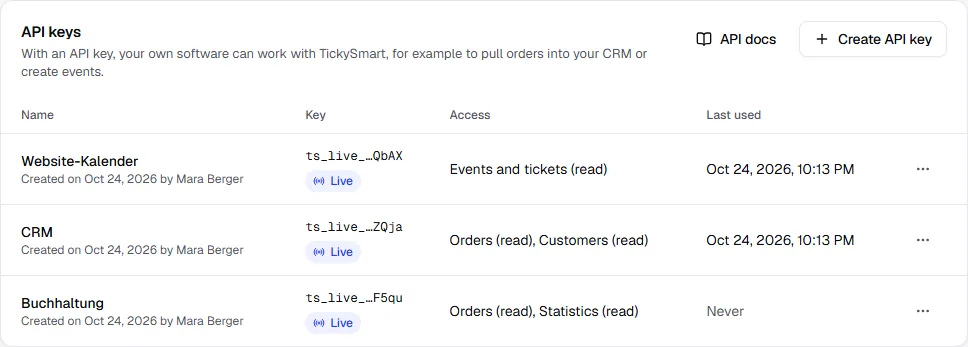
| Column | What it shows |
|---|---|
| Name | The name, and when and by whom the key was created |
| Key | The last four characters so you can recognise it, and whether it's a live or test key |
| Access | The areas and their level |
| Last used | When the key last sent a request. Never means it hasn't been used yet. |
A workspace can have up to 20 keys. It's best to use one key per piece of software. That way you can see what each one does, and you can block one without affecting the others.
Edit, replace or revoke a key
In the key's row, click the More actions menu:
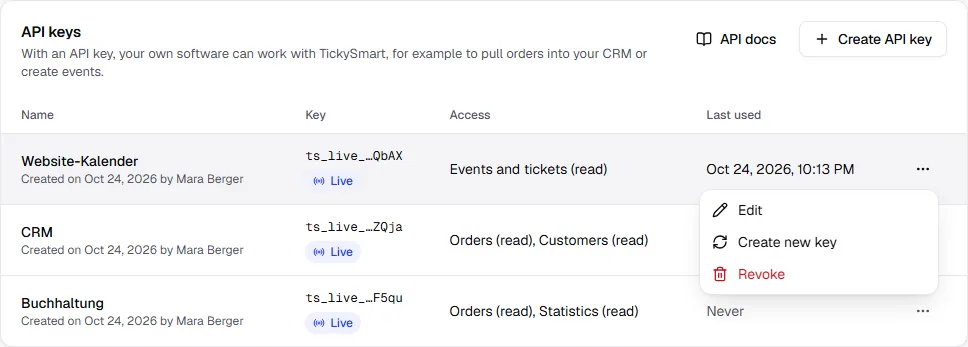
- Edit: Change the name and access. This applies right away; the key itself stays the same.
- Create new key: The key gets a new secret with the same access, for example if someone saw the old one who shouldn't have.
- Revoke: The key stops working immediately. Software that uses it gets the error
INVALID_API_KEY.
When you create a new key, you choose:
- Old key keeps working: Not at all, stop it now, 1 hour, 24 hours or 7 days. During that time both the old and the new secret work, so you can switch your software over calmly.
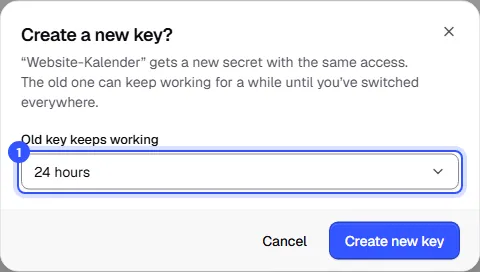
Click Create new key. Again, you see the new secret only once. Until the old one expires, the list shows how long it still works.
Common questions
I've lost my key
Use Create new key to get a new secret. The name and access stay the same; only the secret in your software changes.
The key was made public by accident
Create a new key right away and choose Not at all, stop it now. The old secret is then blocked immediately. If you don't need the key anymore, revoke it.
What happens if the person who created the key leaves the team?
Nothing. Keys belong to the workspace, not to the person, and keep working. The list only shows who created the key for your information.
Why can't I see the Integrations page?
Only owners and admins manage API keys and webhooks. Ask one of them in your team.
Does a key also work in my second workspace?
No. A key only works for the workspace you created it in. Create a separate key in each workspace.