Security
Protect your workspace with personal accounts, two-factor sign-in and the right roles, and see what TickySmart does in the background.
Your workspace holds your revenue, your buyers' data and access to your shop. The most important safeguards are in your own hands. This page shows what TickySmart offers, with a short checklist.
Check who protects their account
- Open Settings → Team. The Two-factor column shows who has turned on two-factor sign-in.
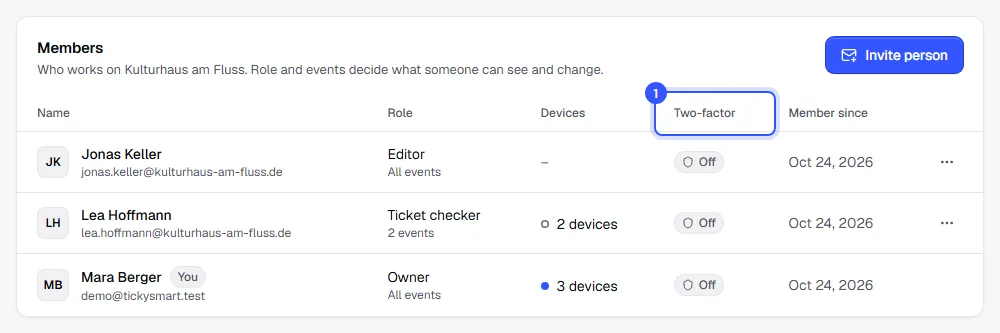
If someone shows Off, ask them to set it up in their account: Two-factor sign-in. Everyone can only turn it on for themselves. Owners and admins can see the team list.
Checklist
- Personal accounts instead of shared passwords. Invite everyone who works with you to the team. Each person signs in with their own account.
- Two-factor sign-in for everyone with broad access, especially owners and admins.
- Only the permissions people need. Give everyone the smallest role that lets them do their job: Roles and permissions.
- Remove people as soon as they leave. Under Team, in the menu next to the person: Remove from team. Their access ends immediately.
- Withdraw old invitations you no longer need: Withdraw invitation.
- Tidy up share links. Give links to your statistics an expiry date and delete them when you no longer need them: Share links.
- Block devices at the entrance if a phone gets lost or the event is over: Devices.
- Use API keys sparingly, with only the permissions the connected program needs: API keys.
What TickySmart does for you
| Safeguard | What it does |
|---|---|
| Confirmed email address | You can only sign in once your address is confirmed. An invitation can only be accepted with exactly the address it was sent to. |
| Passwords with at least 10 characters | After a password change, all other devices are signed out. |
| Two-factor sign-in | A code from an authenticator app at every sign-in, which you can skip for 30 days on your own devices |
| Shortened buyer details | Roles without access to customer data only see shortened names and addresses, such as "A. S." |
| Protection against accidental deletion | Only owners can delete the workspace, by typing its short name and with a 24-hour grace period. All owners get an email about it. |
| Log in the background | Important changes are recorded with person and time (audit log), for example to events, orders, settings and the team. |
Common questions
Can I require two-factor sign-in for my team?
Not at the moment. Check the Two-factor column now and then and talk to anyone showing Off.
Can I see who changed what?
Changes are recorded in the audit log, but there's no view for it in the dashboard yet. If you remove someone from the team, their entries stay.
I think someone knows my password
Change it in your account under Password. All other devices are signed out afterwards. Then set up two-factor sign-in. If it concerns someone on your team, ask them to change their password right away. If in doubt, remove them from the team for now; their access ends immediately.
Someone lost the phone with their authenticator app
They can get back into their account with one of their backup codes. There they turn two-factor sign-in off and set it up again with the new phone: Two-factor sign-in.