Resend tickets
Send the confirmation with the tickets again, download the tickets as a PDF or let buyers look them up themselves.
If a buyer can't find their tickets, send them the confirmation again. It contains the link to their order and the tickets as a PDF. The tickets stay the same, with the same codes.
Resend the confirmation
- Open the order and choose Resend confirmation under More actions.
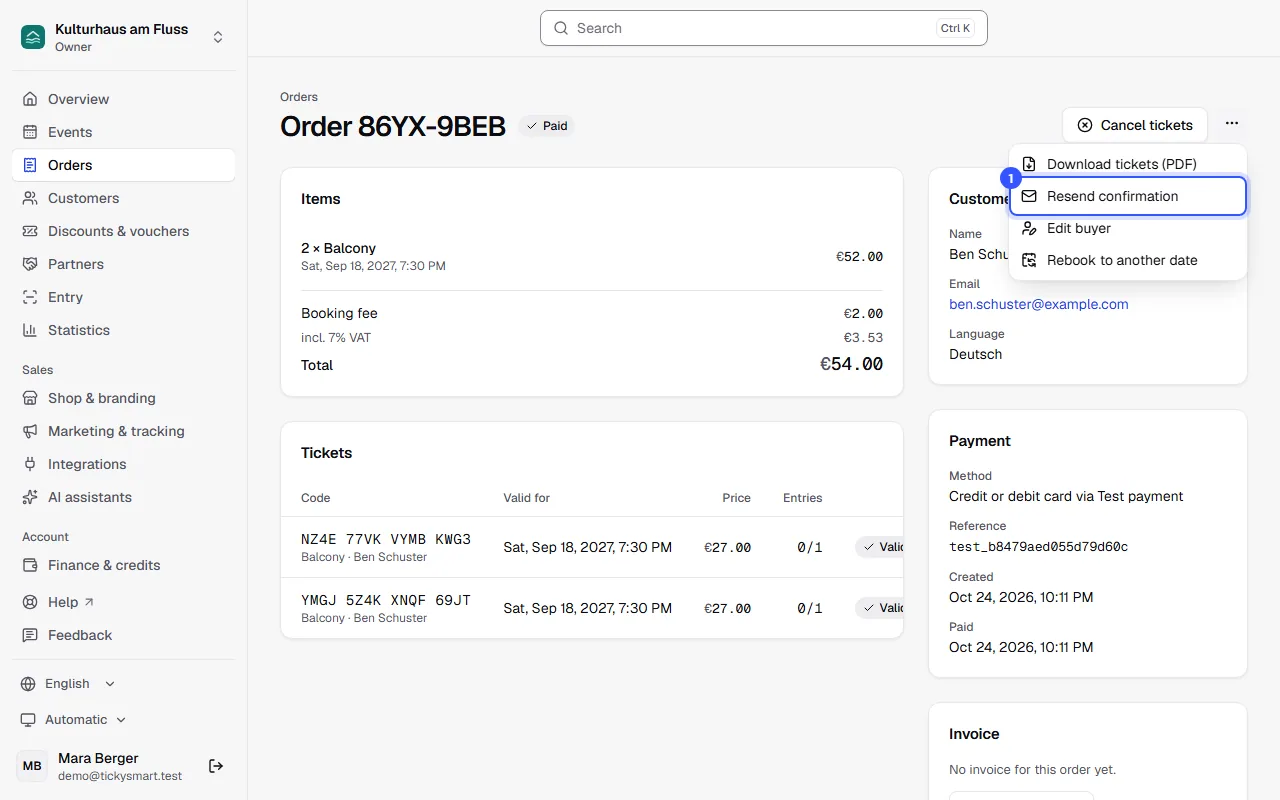
The email goes out right away to the address on the order, in the buyer's language. All tickets that are currently valid are attached. Cancelled tickets are left out.
If the buyer made a typo in their address, correct it under Edit buyer and tick Send the confirmation with the tickets to this address: Change an order.
Tickets as a PDF
Download tickets (PDF) in the same menu downloads all valid tickets of the order in one PDF. You can print it or forward it yourself, for example to another address, without changing the order.
Buyers look it up themselves
At the top of your shop there's My tickets. Buyers enter their email address there and get a link that's valid for 30 minutes. With it they see all their orders in your shop, no password needed: What buyers can do.
Common questions
The buyer didn't get any email
Ask them to check their spam folder. Check the email address on the order and resend the confirmation. If nothing arrives after that, download the PDF and send it to them yourself.
Are the old tickets still valid?
Yes. Resending sends the same tickets again; the ticket codes don't change. The buyer can use either the old or the new email.
I can't resend the confirmation
Only paid orders have tickets. With bank transfer, they're created once you confirm the payment. If the buyer charged back the payment, the tickets are blocked and can't be sent. And your role needs the permission: Owner, Admin, Editor and Customer service.