Several workspaces
Work for several organizers, switch between workspaces and create another one.
With one account you can work for as many organizers as you like. Each organizer is a workspace of its own, with its own shop, team, payment accounts and billing. Your role always applies only in that workspace: you might be the owner in one and only check tickets at the entrance in another.
Switch between workspaces
Click the workspace name at the top left of the sidebar. A list opens with every workspace you're a member of, each with your role. If you have many, use Search workspaces.
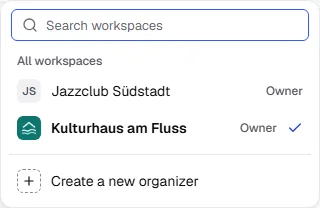
The next time you open the dashboard, you land in the workspace you last worked in.
Create another workspace
In the workspace switcher, choose Create a new organizer. You become the owner of the new workspace. How the form works is explained in Create a workspace.
Get invited to a workspace
If someone invites you to their team, you receive an email with a link. Open it and sign in with your account. The invitation has to go to the address you sign in with. The workspace then shows up in your list.
Common questions
How many workspaces can I have?
As many as you need. Each workspace is billed separately.
Can I move events from one workspace to another?
No. Events, orders and customers always belong to exactly one workspace.