Publish an event
What might be missing before publishing, how to put an event in your shop and what you can still change afterwards.
As long as an event is a draft, only you and your team can see it. Once you publish it, it appears in your shop and buyers can get tickets.
What's still missing
Open the event. If anything is missing, it's listed at the top of the page.
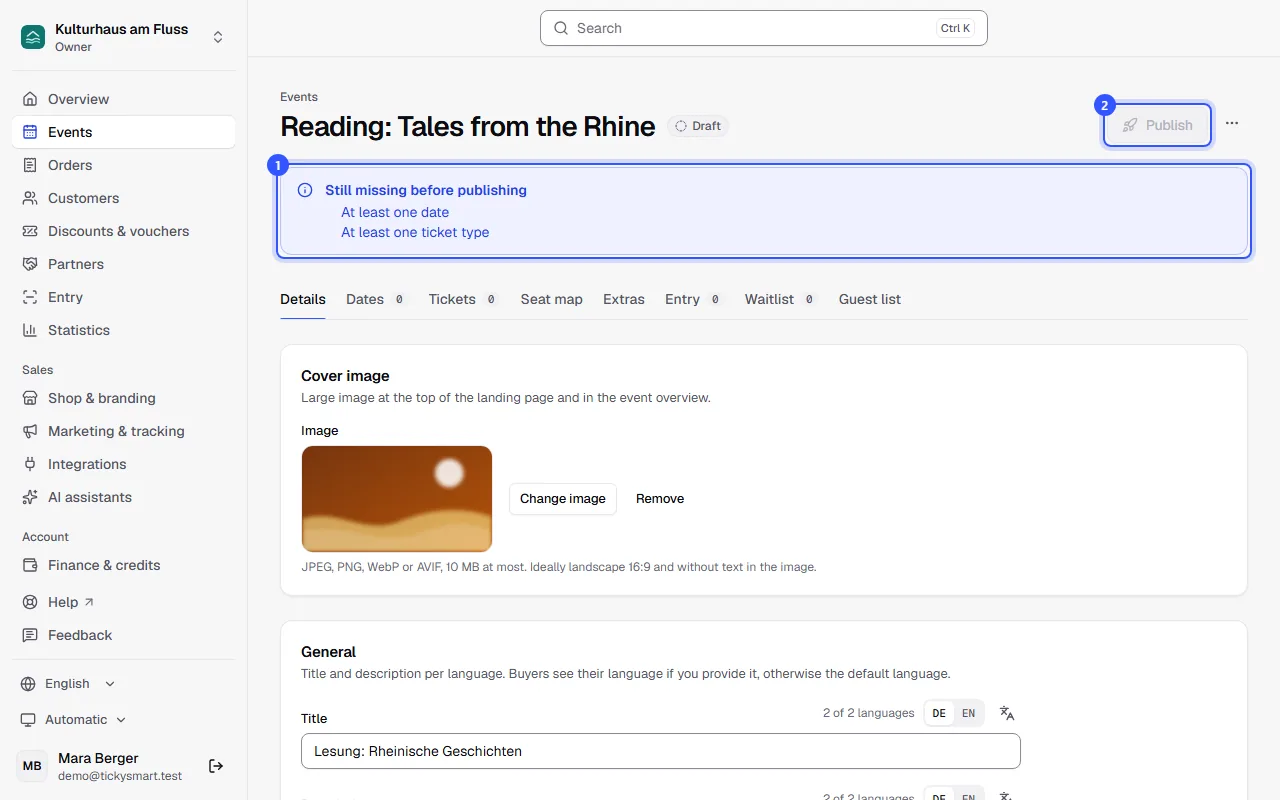
- The list shows what's still missing. Click an item to go to the right place.
- Publish stays greyed out until everything is there.
These items can be missing:
- Title in the shop’s default language
- Venue
- At least one date
- At least one ticket type
- Complete your legal details (imprint, terms, privacy, contact)
Publish
Click Publish. The event is now Published. View in shop shows it the way your buyers see it.
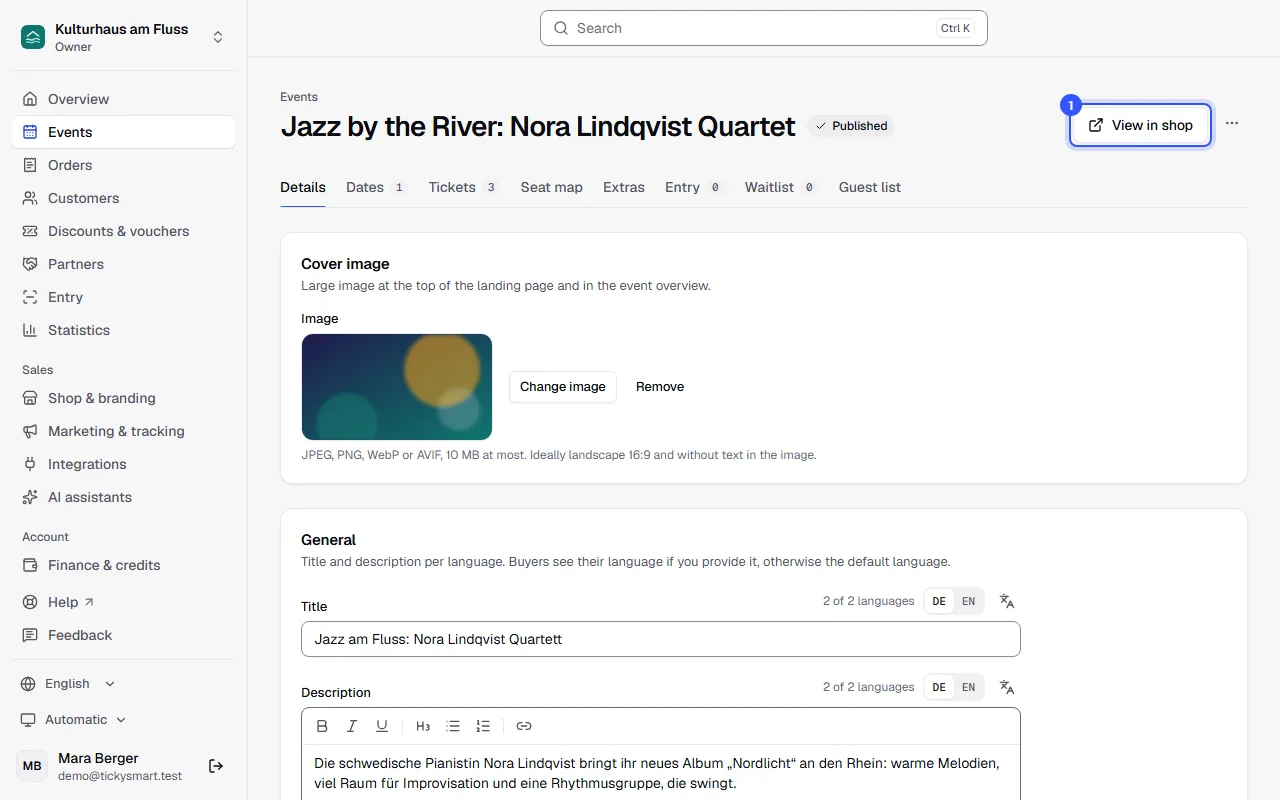
After publishing
- You can keep editing the event, for example the description, images or new ticket types.
- If tickets have already been sold for a date, change its start with Reschedule. Tickets stay valid, and if you like, we let buyers know by email.
- Back to draft only works as long as nothing has been sold or reserved. After that, you can only cancel an event.
Common questions
Can I publish now and start sales later?
Yes. In each ticket type, the Sales section sets when it goes on sale. Until then buyers can already see the event but can't buy yet.
Why isn't my event in the shop?
Check that it's Published and that its date is in the future. The shop no longer lists events whose dates are all over.