The scan app
Open the scan app with your account, choose the event and area, and check tickets with the camera or a handheld scanner.
Your staff use the scan app to check tickets at the door. It runs in the browser on any phone, tablet or scanner device. You don't need an app from the App Store or Google Play.
Sign in with your account
You always open the scan app with your own account. That works with the Owner, Admin or Ticket checker role.
- In the dashboard, open Entry and click Scan with my account.
- Scan the QR code with your phone's camera. Or use Open on this device to open the scan app right on the device you're using.
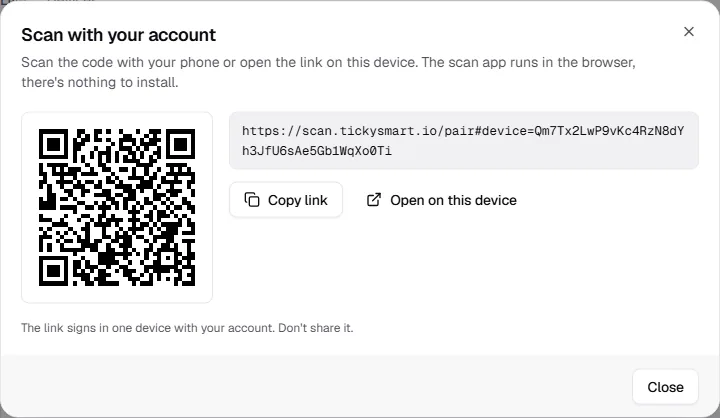
The device is signed in and shows today's event straight away. There's no name to enter, the device is named after you. You can rename it later under Devices.
If someone opens the scan app without this link, it shows Sign in this device. They can then tap Scan QR code and scan the QR code from the dashboard right in the app.
Scan tickets
On the first scan, the browser asks whether the app may use the camera. Tap Allow camera and allow access. Then hold the ticket's QR code inside the blue frame.
- The event and area are shown at the top, with the mode (Secured or Check only) and whether the device is Online below. If scans are waiting to upload, you'll see how many here.
- In and Out set the direction. At the exit, scan with Out so guests can come back in later: Re-entry.
- If someone can't find their ticket, use Search: Find tickets.
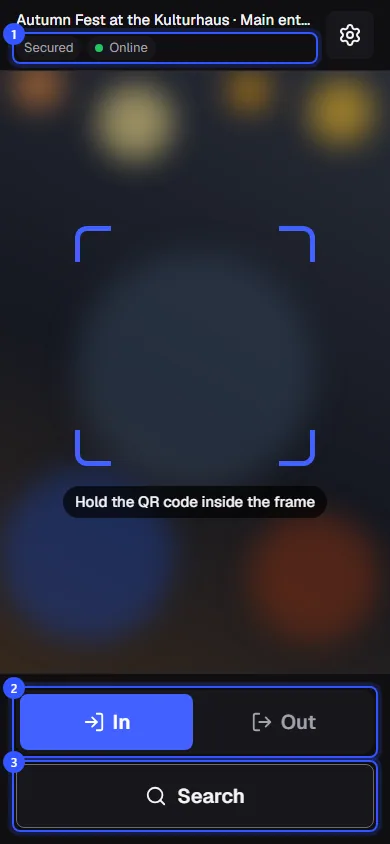
The result fills the whole screen, with sound and vibration. Green moves on by itself after one and a half seconds, otherwise tap Keep scanning. What the colours mean is explained in Scan results. While the app is open, the screen stays on if the browser supports it.
Settings
The cog at the top right opens the device settings.
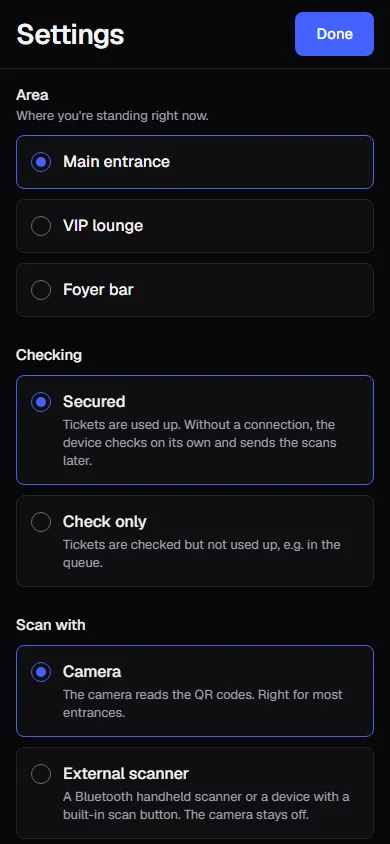
| Setting | What it means |
|---|---|
| Event | Only appears when there are several events today. The app picks the one that's running by itself. |
| Area | Where you're standing right now. You set up areas on the event: Areas. |
| Secured | Tickets are used up. Without a connection, the device checks on its own and sends the scans later. |
| Check only | Tickets are checked but not used up, e.g. in the queue. |
| Camera | The camera reads the QR codes. Right for most entrances. |
| External scanner | A Bluetooth handheld scanner or a device with a built-in scan button. The camera stays off. |
| Sound when scanning | A short sound for every result, in addition to vibration. |
| This device | The device name and how many tickets it has saved for scanning offline. This is also where you sign the device out. |
Done closes the settings. They stay saved on the device.
Handheld scanners and scanner devices
Instead of the camera, you can use a scanner device with a built-in scan button or a connected handheld scanner. Choose External scanner in the settings. The camera then stays off and the app waits for the next code.
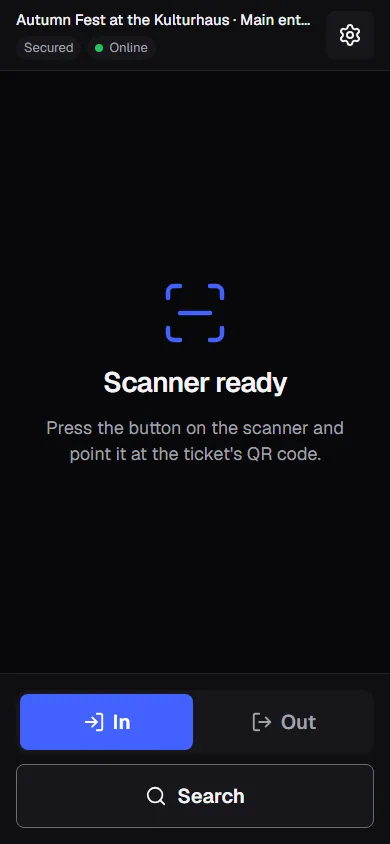
The scanner has to type the code like a keyboard, ideally with Enter at the end. Most devices are set up that way out of the box.
Sign out a device
Open the settings, tap Sign out under This device and confirm. To keep scanning, open Scan with my account in the dashboard again. Scans that haven't been sent yet are lost when you sign out.
If someone signs out the device in the dashboard, the app shows Device signed out. The same happens when the person is no longer on the team or their role can't scan anymore. Scans still waiting to upload stay on the device and arrive once it's signed in again. See Devices.
Common questions
The app says "No events today"
The scan app only shows published events with a date today, plus events without dates, for example for annual passes. If your account only covers certain events, only those are available: Which events someone works on. Check that the event is published and has a date today, then tap Reload.
The camera doesn't start
Usually the browser has blocked access. Allow the camera in the browser settings and reload the page. In the meantime, you can let guests in using search.
How do I switch the area when I move to another entrance?
In the settings under Area. All of the event's areas are available there.
What is "Check only" for?
For example for a check in the queue: staff see whether a ticket is valid, but it isn't used up. At the actual entrance, switch back to Secured. Only there can guests be let in anyway on yellow.