Languages
Set your shop's default language, write your texts in more languages and understand which language buyers see.
Your shop speaks your buyers' language. We translate buttons, checkout and emails; your own texts, such as event titles, descriptions and ticket names, you write yourself in the languages you want to offer. Where a translation is missing, buyers see the text in your default language.
Default language and content languages
Open Settings → General. Owners and admins can make changes.
- Default shop language: You need to write your texts in this language at least. Buyers see it when their browser is set to a language we don't offer.
- Languages for your texts: Tick the languages you also want to write your texts in. The default language is always included.
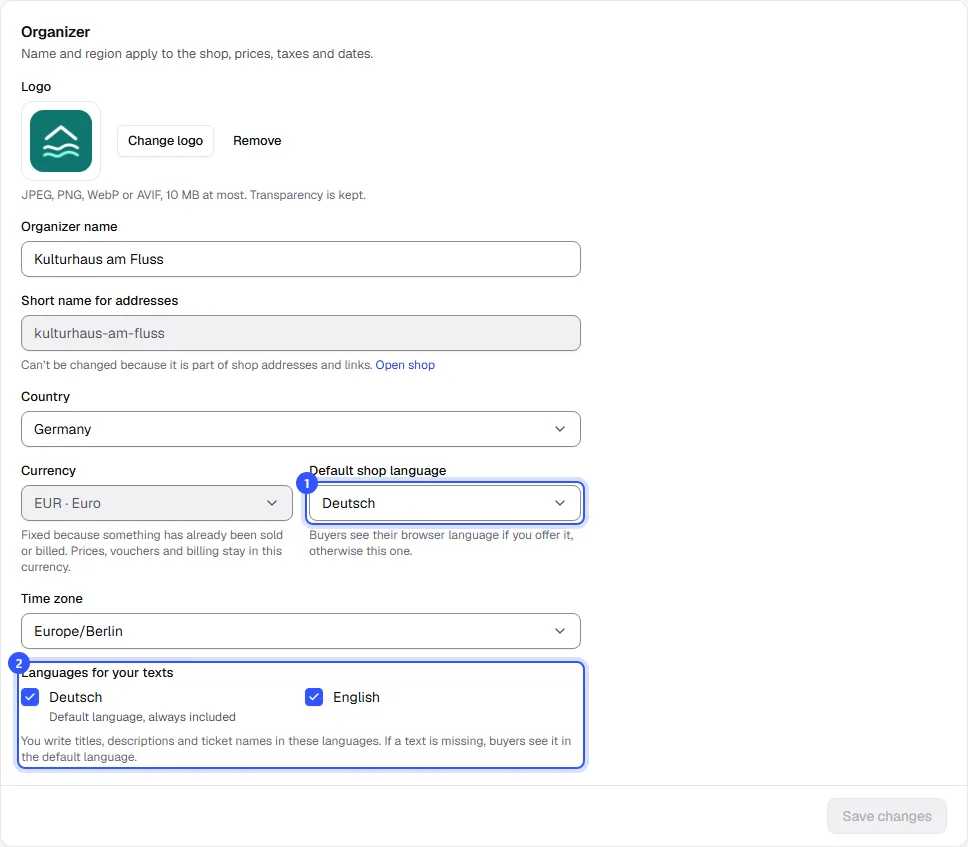
Click Save changes. From now on, every text field in the dashboard shows exactly these languages.
Translate your texts
Every field for your own texts has your language codes in its top right corner, for example the event title, the description, ticket names or your shop's headline.
- Click a code and write the text in that language. Next to the codes you see how many languages are filled in. Codes without text have a grey ring. The All languages button next to them shows all languages one below the other, handy for comparing.

Only the default language is required. You can fill in the rest bit by bit.
Which language buyers see
The shop picks the language for each buyer:
- If the buyer chose a language at the top of the shop, that one applies. The shop remembers the choice.
- Otherwise the shop uses the language of the buyer's browser, if we offer it.
- Otherwise your default language applies.

Buyers get their emails and tickets in the language they ordered in. In the widget on your website you can also set a fixed language: Embed on your website.
Common questions
Which languages are available?
All languages TickySmart currently offers are listed under Languages for your texts. Buttons, checkout and emails are available in exactly these languages.
What do buyers see if I haven't translated a text?
The text in your default language. Buttons and messages still appear in the buyer's language.
Are my texts translated automatically?
No. You write your texts yourself so they sound the way you want.
I removed a language. Are the texts gone?
No. Fields that already contain text in that language keep showing it so nothing gets lost. Your dashboard language is separate; you set it in your account.