Dates
Add, change and delete an event's dates, with doors, end time and capacity.
An event can have one date or many, for example a festival over two days or a play with several performances. All dates share the event page, the ticket types and the line-up. In the shop, buyers then pick their date.
The list of dates
Open the event and the Dates section.
- Add date adds another date. The dialog suggests the day after the last date, with the same times.
- The menu next to a date lets you edit it, add the same date one week later, reschedule, cancel or delete it.
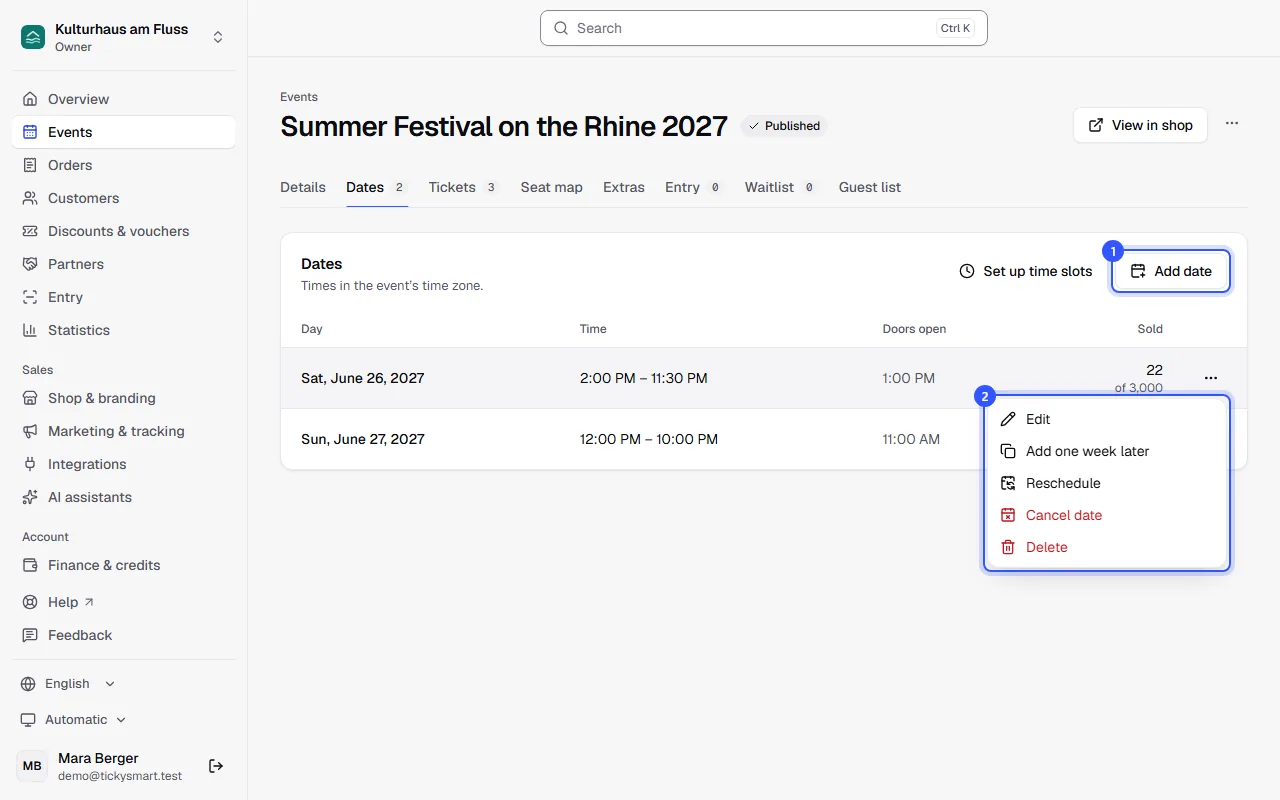
| Column | Meaning |
|---|---|
| Day | The date, marked Rescheduled or Cancelled if it changed |
| Time | Start and end. If the date ends the next day, that's shown below. |
| Doors open | When doors open |
| Sold | Tickets sold and the capacity. Reserved tickets, for example from orders not yet completed, are shown separately. |
All times are in the event's time zone, i.e. local time. If you work from another time zone, the event's time zone is shown above the list. Where to change it is explained under Venues.
Add or edit a date
In the dialog, enter:
| Field | Note |
|---|---|
| Start | Date and time, required |
| Doors open | Optional, no later than the start. Buyers see it in the shop. |
| End | Optional. If the time is earlier than the start, say 03:00 for a party starting at 22:00, the next day is used automatically. |
| Capacity | Maximum number of guests on this date across all ticket types. Empty: only the quotas count. |
- Once tickets for a date have been sold or reserved, the Start is locked. Change it with Reschedule instead, so buyers are told: Reschedule or cancel a date.
- You can change the Capacity at any time, even after sales have started.
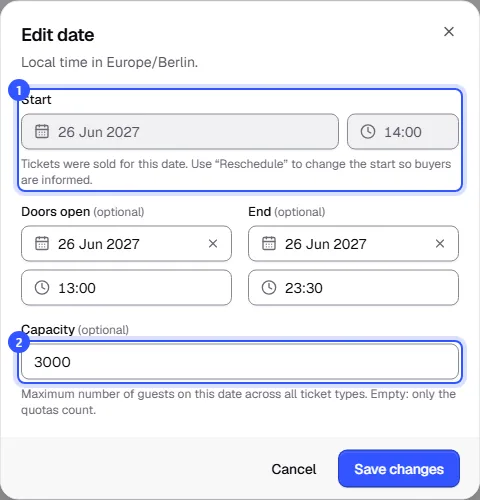
Click Save changes or Add date.
Delete a date
Choose Delete in the menu. This only works as long as no ticket for the date has ever been sold, including ones cancelled later, and none are reserved. If tickets have been sold, cancel the date instead: Reschedule or cancel a date.
If a ticket type is valid only for this date, it will need another date afterwards.
Dates and ticket types
Every ticket type is available for every date to begin with, and its quota counts per date. You can limit a ticket type to certain dates or sell it as a pass for all dates: Ticket validity. For regular opening hours with many short entry times, such as a museum, use Set up time slots instead of single dates: Time slots.
Common questions
One event with several dates, or several events?
An event with several dates has one shared page in the shop. Buyers pick their date there, and you can offer a pass for all dates. If the dates need their own pages, texts or line-up, repeat the event instead: Duplicate or repeat an event.
Why doesn't the shop show a date anymore?
The shop no longer shows past dates; they stay in your dashboard. Cancelled dates are shown in the shop with a note that they're cancelled.
What's the difference between capacity and quota?
Capacity applies to the whole date, for example 420 seats in the hall. A quota applies to one ticket type, for example 300 standing tickets. The tighter limit always wins.
Who can change dates?
Owner, Admin and Editor can add, edit and delete dates. The same roles can also reschedule and cancel them.