Invite your team
Invite colleagues, choose their role and events, and manage your team.
Work together without sharing passwords. Everyone signs in with their own account. Their role decides what they can see and change, and if you like, they only work on certain events. Owners and admins can invite people.
Invite someone
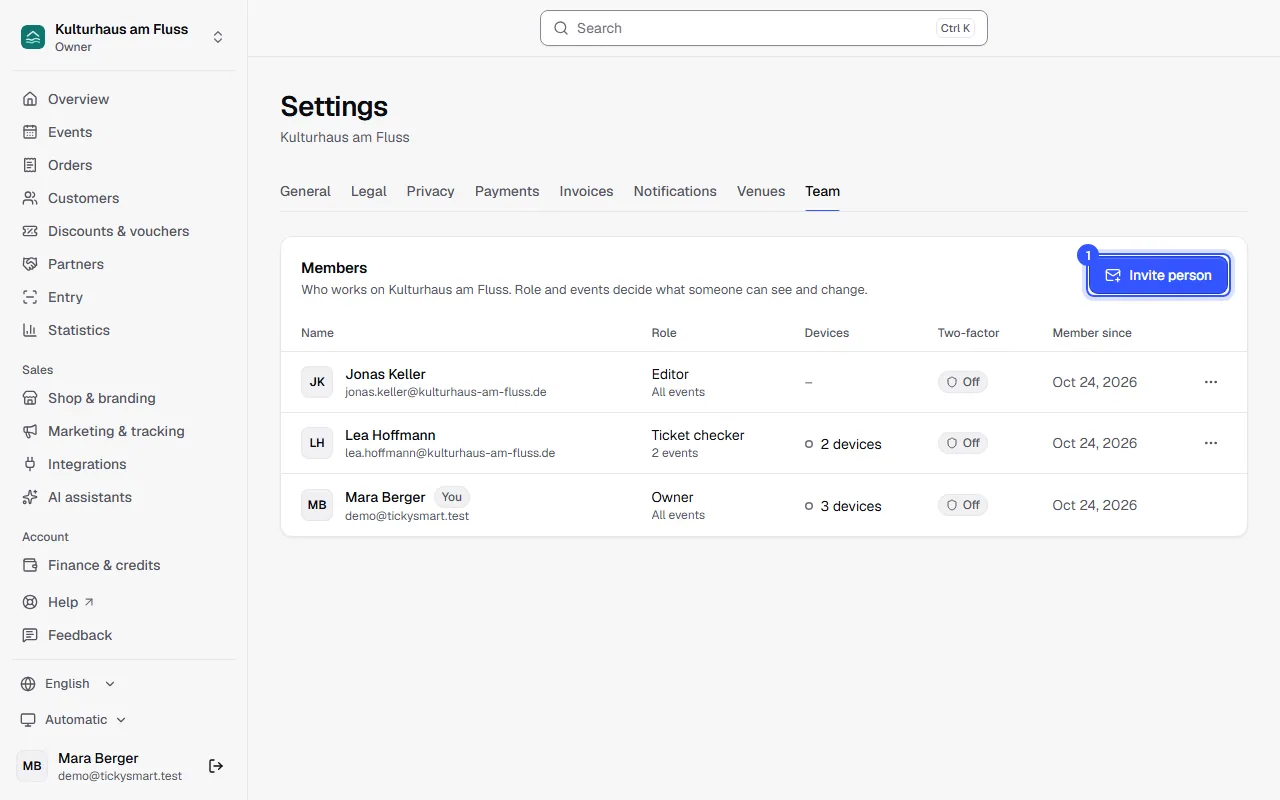
- Open Settings → Team and click Invite person.
- Enter the email address and choose a role. Below the selection you see what the role can do.
- Under Events, decide which events the person works on. If you leave the switch on, that's all events, including future ones. More on this below in Which events someone works on.
- Click Send invitation.
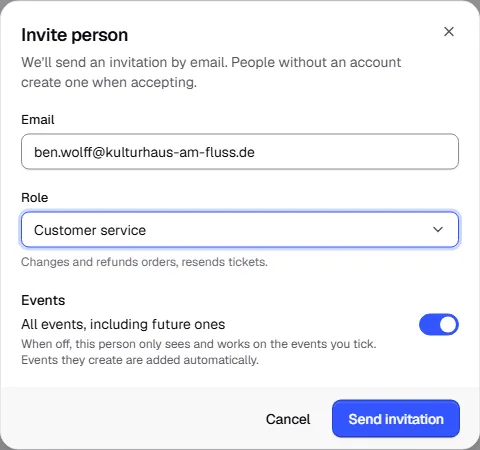
The person receives an email with a link. If they don't have an account yet, they create one when accepting, using exactly the address the invitation was sent to. From then on, the role and events from the invitation apply to them.
The roles
| Role | What it can do |
|---|---|
| Owner | Everything, including payout accounts, the flat rate contract and other owners. |
| Admin | Everything except payout accounts and the flat rate contract, including team and settings. |
| Editor | Events, ticket types and entry devices. Sees orders and customers. |
| Accounting | Finance, taxes and exports. Sees orders and customers. |
| Customer service | Changes and refunds orders, resends tickets. |
| Marketing | Discounts, vouchers and tracking. Sees statistics. |
| Box office | Sells tickets at the box office. |
| Ticket checker | Validates tickets at the entrance, nothing else. |
| Read only | Sees events, orders, customers and statistics but changes nothing. |
Which events someone works on
Normally, everyone works on all events, including the ones you create later. But you can limit someone to particular events, for example:
- An editor looks after her own concert series and shouldn't change anything on the other events.
- A helper at the door only works at the summer festival and should only be able to scan there.
Here's how, when inviting someone or later when editing them:
- Under Events, turn off All events, including future ones.
- Tick the events the person should work on. Search events helps you find them faster. Below the list you see how many events you've selected.
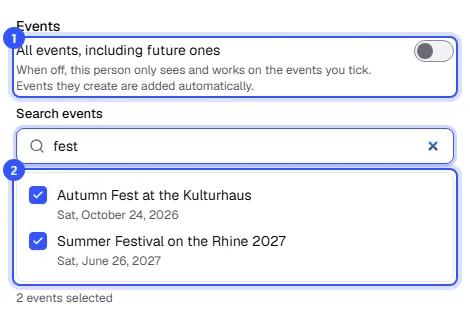
The person then only sees and works on these events, including their dates, ticket types, orders, tickets, guest list, entry and statistics. They only see customers who ordered for these events. Vouchers bought without an event are hidden from them. If they create an event themselves, it's added automatically. In the scan app, only their events are available.
In the team list, below the role, you see whether someone covers All events or only some, for example 2 events. Open invitations show this the same way.
Manage invitations
Open invitations are listed below the team. They're valid for 7 days. Resend invitation sends one again, Withdraw invitation makes its link stop working.
Edit or remove someone
In the team list, click the menu next to the person:
- Edit: change their role and events and see their devices. How that works is explained in Roles and permissions.
- Remove from team: the person loses access immediately, including on devices they're scanning with. Orders and audit log entries are kept.
Your own role and events are always changed by someone else. Only an owner can edit or remove another owner.
The Devices column shows how many devices someone has signed in for scanning. A dot next to it means one is connected right now. The Two-factor column shows who protects their account with two-factor sign-in.
Common questions
Can someone work in several workspaces?
Yes, with the same account and their own role and events in each workspace: Several workspaces.
The invitation has expired
Send it again with Resend invitation. The new link is valid for another 7 days.
Saving says an event no longer exists
Someone deleted one of the selected events while you had the dialog open. Reload the page, select the events again and save.