Invoices for business customers
Companies, associations and authorities get an invoice for their order, with the e-invoice built in. How to turn invoices on, how buyers request them at checkout, and how to export them all for your accounting.
When a company buys tickets, it usually needs an invoice. You issue it right from the order. It goes out as a PDF by email, with the e-invoice built in: ZUGFeRD (EN 16931), or XRechnung for German authorities. Your customer's accounting can read it in without typing anything.
Turn on invoices
Open Settings → Invoices. Owners, admins and accounting can do this.
- Switch on Turn on invoices. This works once your company name, address, email address and VAT ID or tax number are in place. Below it you see what an invoice costs: 2 credits, or the matching amount if you pay as you go. Credit notes are free, and the flat rate includes invoices. If you don't have 2 credits available, you can still issue the invoice: your credits go below zero and your next purchase makes up for it.
- Under Number prefix you decide how your numbers look, for example
INV-2026-. With Next number you continue where your previous numbering left off. The counter can't go back to a number that already exists. - If you don't have a VAT ID, enter your Tax number. One of the two has to be on every invoice.
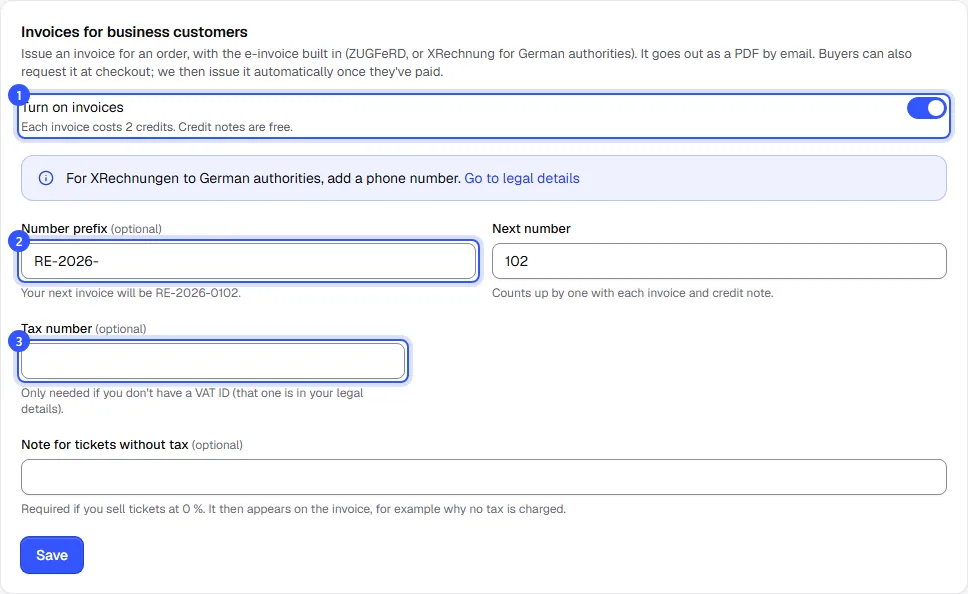
Company name, address and VAT ID come from your legal details. If anything is missing there, the page tells you. For XRechnungen to German authorities, your phone number and postal code are needed there too.
Buyers request the invoice at checkout
With invoices turned on, your shop's checkout shows the box I need an invoice for my company. The buyer then enters the company and its address and, if they like, a VAT ID and their own reference. Free orders don't show the box.
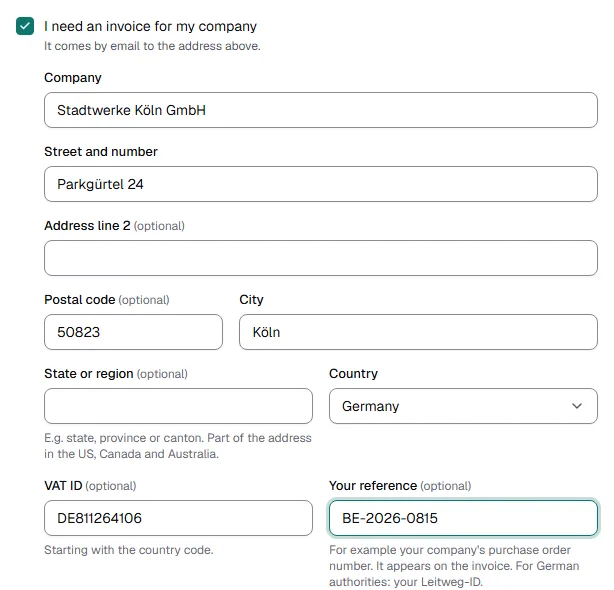
Once the order is paid, we issue the invoice automatically and send it to the order's email address. It costs the same as any other invoice. With bank transfer it comes right after the order, with your bank details and the payment deadline. You only pay for it once the money has arrived. If the deadline passes, we cancel it with a free credit note.
If it can't be done automatically, for example because the note for tickets without tax is missing, you get an email with the reason, and the request stays on the order. You then issue the invoice yourself, with the buyer's details already filled in. The email goes to the same addresses as your notifications.
Issue an invoice yourself
You can create an invoice once the order is paid or awaiting a bank transfer. Open the order under Orders and click Create invoice in the Invoice card.
- Enter the Company and its address, plus the customer's VAT ID if you have it.
- The customer's purchase order number goes under Customer reference. For German authorities, that's the Leitweg-ID. If we recognize a valid one (with matching check digits), the invoice goes out as an XRechnung automatically. That needs the authority's postal code.
- Click Issue invoice. With Send by email right away ticked, the customer gets it right away.
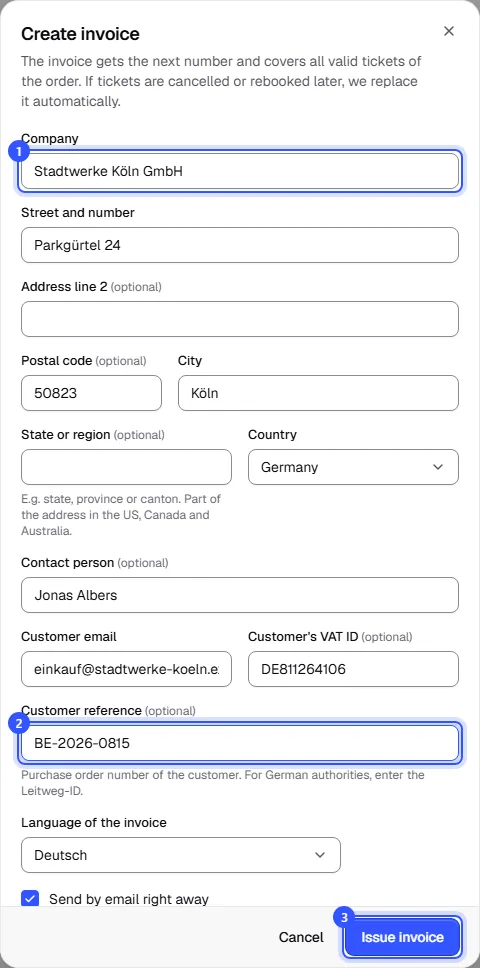
The invoice gets the next number and covers all valid tickets of the order. The booking fee is a separate line with the ticket's tax rate. We calculate amounts and tax exactly like the order. The event date is the date of service. If the order still waits for a bank transfer, your bank details and the payment deadline are on the invoice.
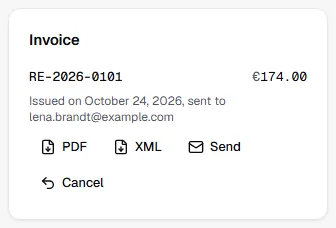
On the order you download the invoice as PDF or XML. With Send you send it again, also to a different address. When the customer replies to the email, the reply goes to the email address from your legal details.
Cancel an invoice
An issued invoice can't be changed. If something is wrong, click Cancel. We then issue a credit note for the full amount, with the next number and a reference to the invoice. After that you can create a new one with Create new invoice. The details of the old one are already filled in.
The invoice follows the order
When the order changes, we adjust the invoice on our own:
- If you cancel tickets or rebook them to another date, we cancel the invoice and issue a new one with the valid tickets. The new one costs the same as any invoice.
- If the whole order is cancelled or a bank transfer expires, we cancel the invoice.
If the invoice went out by email, the customer gets the credit note and the new invoice at the same address.
All invoices and export
Under Orders → Invoices you find all invoices and credit notes, newest first. Search by number, company or order, and pick the period by invoice date.
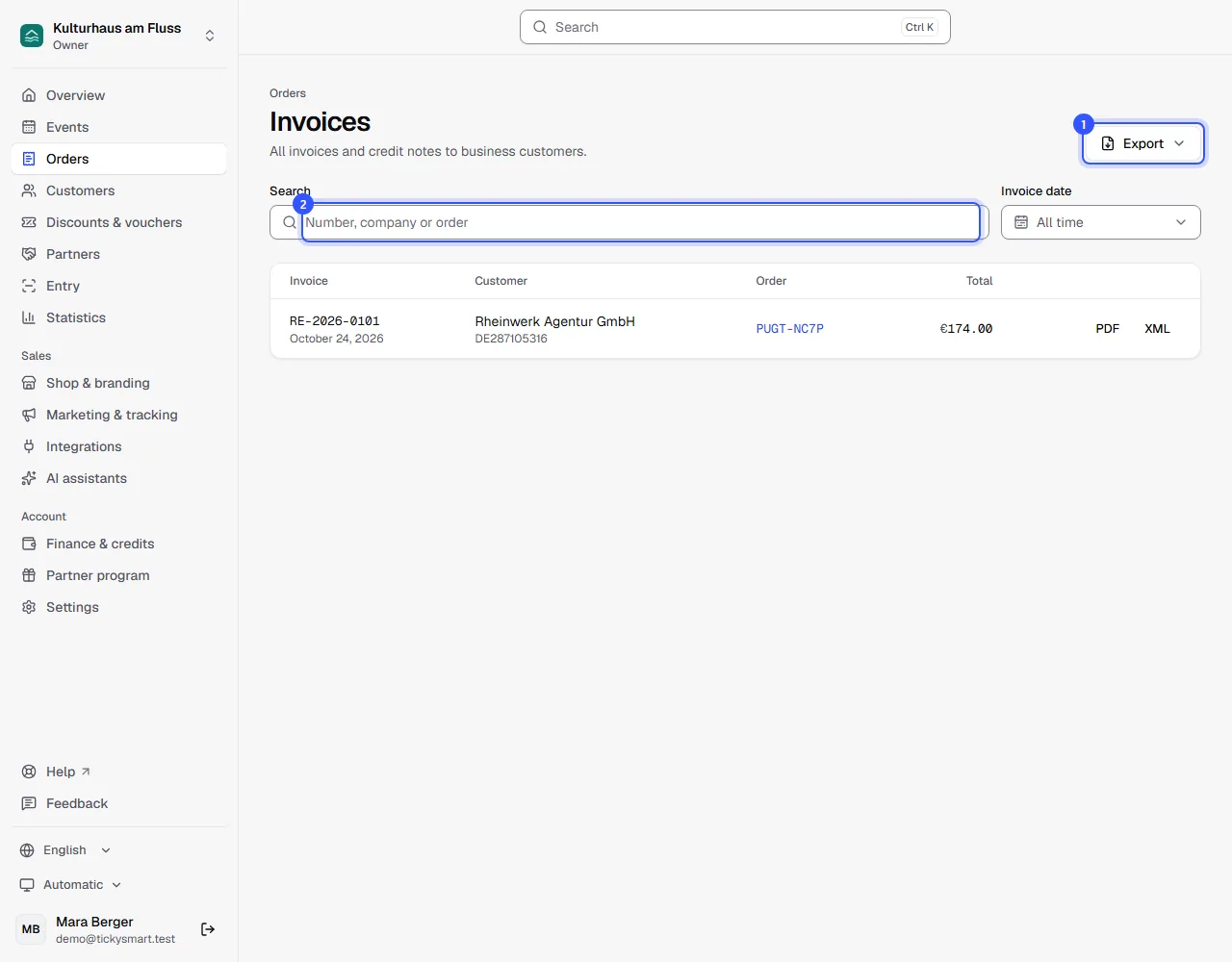
With Export you download the filtered list as Excel or CSV, with net, tax and total per invoice, plus net and tax for each tax rate in their own columns. That way your accounting takes the amounts over without converting anything. Credit notes appear with a minus, so a column's sum is your revenue. PDFs and XML as ZIP gives you all PDFs and XML files of the period in one file, for example for your tax advisor.
Common questions
Which countries does this work in?
In Germany, Austria, Switzerland, the Netherlands and most other countries, an invoice by email is enough. In Italy, Poland, Belgium, Portugal and a few more countries, invoices have to go through a government platform, a special network or approved software. There the switch stays off for now, and the settings tell you why. In Spain and Slovakia, email is enough until the end of 2026, in Latvia and Slovenia until the end of 2027, and in France until 1 September 2027.
I don't sell in my country's currency. What goes on the invoice?
In the EU, the VAT then also has to appear in your national currency, for example in koruna if you sell in euros in the Czech Republic. We take care of that: we convert with the European Central Bank's reference rate from the day of payment. The rate and its date are on the invoice too, including the e-invoice.
Do I have to send e-invoices from 2027?
In Germany, invoices to businesses have to be e-invoices from 2027 if your revenue last year was above €800,000, and from 2028 for everyone. Invoices from TickySmart already meet this. Invoices to private persons and small amounts up to €250 are exempt.
Can an AI assistant issue invoices?
Yes. If you've connected an assistant and allowed it Invoices, it lists invoices and issues, sends or cancels them. Before it issues, sends or cancels anything, it shows you a summary and waits for you to agree.
Can invoices go to my accounting automatically?
Yes. With the Public API you fetch invoices, PDFs and XML files, and a webhook tells you about every new invoice.