Scan links for helpers
Helpers and anyone who doesn't want the app scan with their own link in the browser, no account needed. How to create scan links, hand them out and disconnect them again.
Not everyone helping at the door needs an account on your team. With a scan link, a person scans tickets right in their phone's browser, with no account and no app. That suits helpers, volunteers and anyone who's only there for one night. Each person gets their own link. You see who's scanning right now and can disconnect access at any time. Owners, admins and editors manage scan links.
Create a scan link
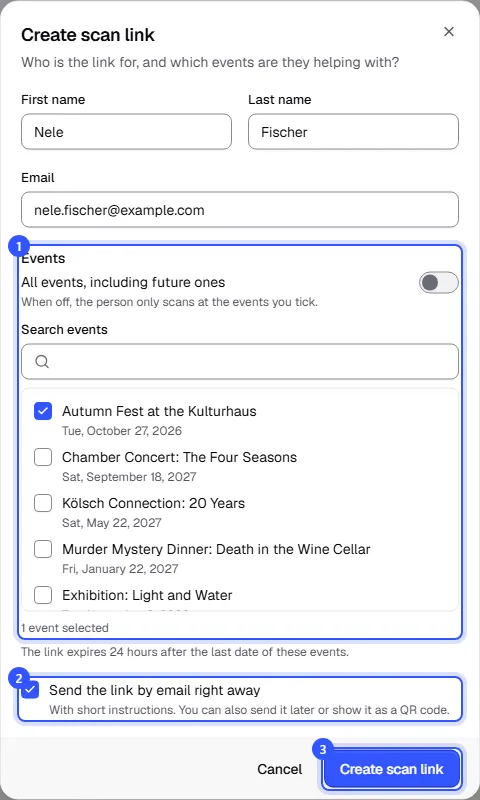
Open Entry → Scan links and click Create scan link. Enter the person's First name and Email. The Last name is optional. Then:
- Events: tick the events the person is helping with. If you turn on All events, including future ones, the link works for every event, including ones you create later.
- Send the link by email right away: the link goes to the email address with short instructions. Untick it if you'd rather hand it over yourself.
- Click Create scan link.
The dashboard then shows you the link with its QR code, see Hand out the link.
Hand out the link
You can bring up the link with its QR code at any time, with Show link in the menu in the list.
- The person scans the QR code with their phone's camera, for example right there at the venue. Copy link copies the link, say for a message.
- Send to finn.becker@example.com sends the link to the person by email, also a second time.
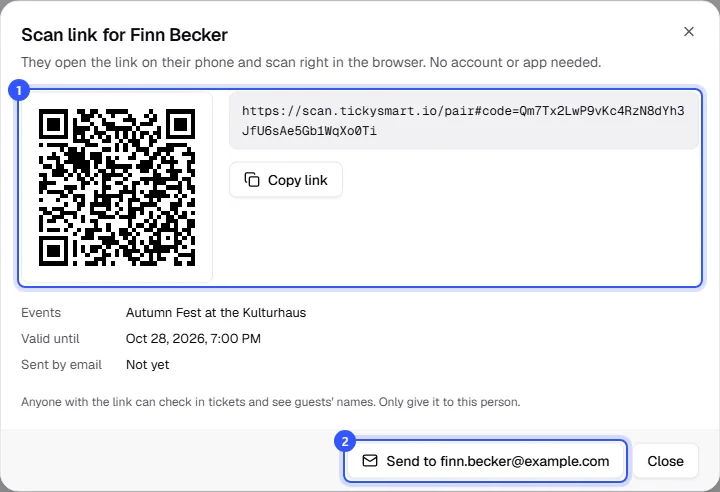
Below, you see which events the link covers, how long it's valid and when it was last sent by email. You can also send it straight from the list with Send by email in the menu.
The email comes in your shop's main language, with the subject “Kulturhaus am Fluss: your link for scanning tickets at the entrance”, but with your workspace's name. It lists the events, how long the link is valid and has an Open scanner button. The person opens it on the phone they'll scan with and allows access to the camera. The scan app starts straight away with today's event. How scanning works from there is explained in The scan app.
The list
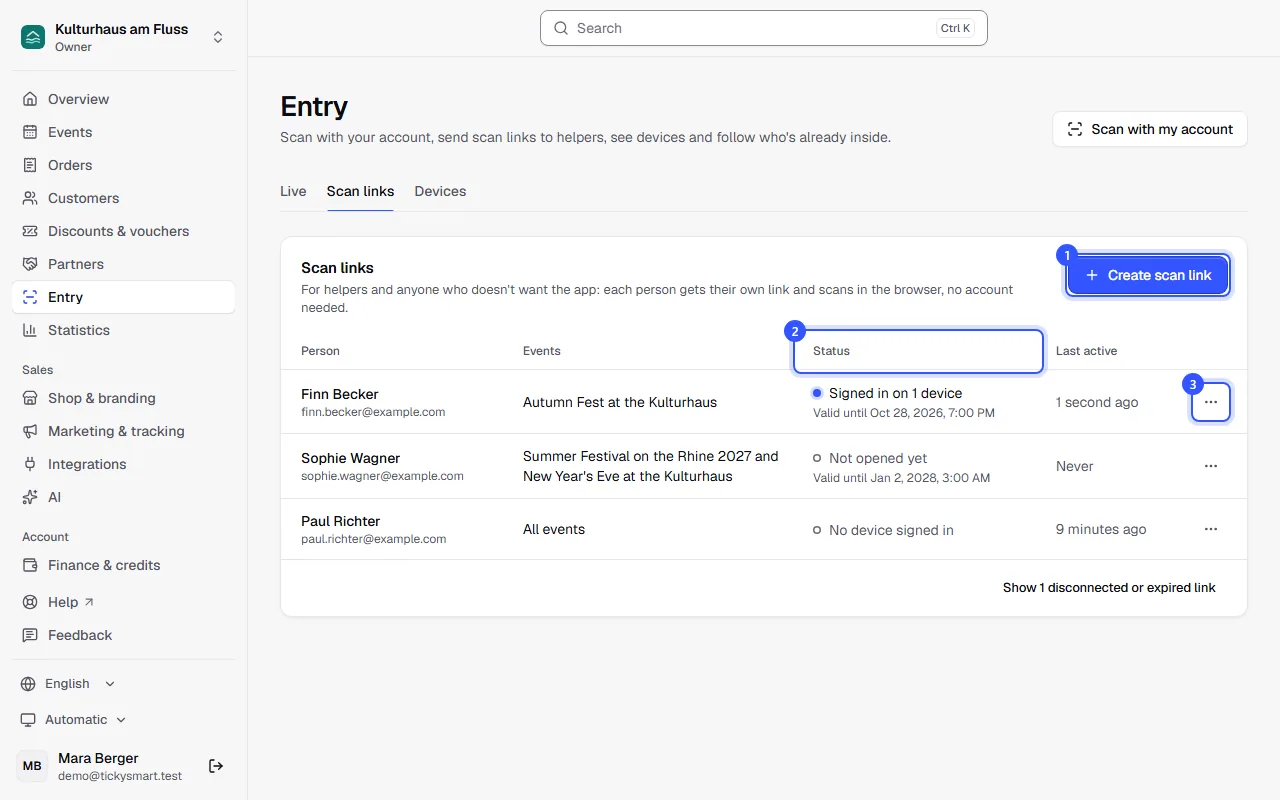
Under Scan links, you see all scan links with the person, events and status. The newest are at the top, and the list updates by itself.
- Create scan link adds a new link.
- Status: whether the person has opened the link yet and on how many devices they're scanning. Below that, how long the link is valid. Last active shows when one of their devices last scanned or checked in.
- Use the menu at the end of the row to show the link, send it by email, change it or disconnect it.
| Status | What it means |
|---|---|
| Not opened yet | The person hasn't opened the link on any device yet. |
| Signed in on 1 device | The link is open on this many devices, and they can scan right now. |
| No device signed in | The person has opened the link before, but their devices are signed out. If they open it again, they're back to scanning. |
| Expired | All dates of the events ended more than 24 hours ago. See How long a link is valid. |
| Disconnected | You disconnected the link. It no longer works. |
Disconnected and expired links are hidden from the list. The button below the list brings them back.
Edit a link
Choose Edit in the menu. You can change the name, email address and events. The link itself stays the same, so the person doesn't need to open anything again. If you remove an event, they can't scan there anymore.
How long a link is valid
- With selected events, the link expires 24 hours after the last date of those events. Cancelled dates don't count. After that, the person's devices can't scan anymore either.
- With All events, including future ones, the link works until you disconnect it. The same goes when one of the events has no dates at all, for example for annual passes.
If the person helps out again later, you don't need a new link. Add an upcoming event under Edit and the expired link works again. This also happens by itself when one of their events gets a new date.
Scan on several devices
A link can run on several devices at once, for example on a phone and a tablet. Each time it's opened, a separate device is signed in. All devices show up under Devices with the person's name and Finn Becker's scan link below it. You can rename them there or sign out single ones: Devices at the door.
Disconnect a link
Choose Disconnect in the menu and confirm with Disconnect link. The link stops working and all of the person's devices are signed out right away. This can't be undone. If the person should scan again, create a new scan link for them.
Disconnecting and signing out are two different things:
| What | Where | What happens |
|---|---|---|
| Disconnect | Scan links | The link is blocked for good and all of the person's devices are signed out. |
| Sign out | Devices | Only that one device is signed out. The person can open their link again and keep scanning. |
Either way, their scans stay in the live view and your statistics.
Common questions
Scan link or an account of their own?
For helpers who only lend a hand now and then, a scan link is the easiest: no invitation, no password, and it expires by itself after the event. People who work the door regularly are better off with their own account and the Ticket checker role: Entry at a glance. Scanning works the same either way.
The person didn't get an email
Check that the email address is right and ask the person to look in their spam folder. Send by email sends the link again. At the venue, the QR code under Show link is the quickest way.
The scan app says "No events today"
The scan app only shows events with a date today, and with a scan link only the link's events. Check under Edit that today's event is ticked.
A phone with the link has been lost
Disconnect the link and create a new one for the person. That also signs out the lost phone right away.
How do I scan myself?
As a team member, you scan with your own account via Scan with my account. You don't need a scan link for that. See The scan app.